60.3 Service Mode and Headless Mode
60.3.1 Overview 
For productive setups there are two operating modes without UI: the service mode (Windows service, managed by the Service Control Manager) and the headless mode (console process without UI dependency). Both modes use the same program AEPProcessor.exe - the difference lies in the command-line parameters.
The UI (AutomaticEmailProcessor.exe) is only started in parallel for configuration and monitoring - it communicates with the running processor via IPC files, not via direct function calls.
60.3.2 Modes compared 
| Aspect |
Application mode |
Service mode |
Headless mode |
| Program |
AutomaticEmailProcessor.exe |
AEPProcessor.exe --service |
AEPProcessor.exe --headless |
| Visibility |
UI window |
Background service, no UI |
Console process, no UI |
| Management |
Manual or autostart |
Service Control Manager (sc.exe) |
NSSM, Task Scheduler, scripts |
| Login required? |
Yes |
No |
Depends on the caller |
| Recommended for |
Configuration, testing |
Server, continuous operation |
Scheduled tasks, containers |
In most production setups, the service mode is the right choice. Headless mode is suitable when the processor is to be started by an external process manager (NSSM, Windows Task Scheduler).
60.3.3 Command-line parameters 
AEPProcessor.exe supports the following parameters:
| Parameter |
Short form |
Description |
--service |
-s |
Windows service mode (Service Control Manager) |
--headless |
-h |
Console mode, autonomous processing without UI |
--run_once |
-r |
Single-run processing, then exit |
--quit |
-q |
Signal all running instances to terminate |
--profile <Name> |
-p <Name> |
Restrict to one profile; can be used multiple times for several profiles |
--profiles [A,B,C] |
-ps [A,B,C] |
Specify multiple profiles in a bracketed list |
--errorreport [target] |
-e [target] |
Generate the error report and exit (as of 4.7.0). Target: file or folder (for a folder, the file name includes the computer name); without a target: desktop. Also runs in parallel with the service |
--send [recipients] |
|
Only with --errorreport: send the report by email; without recipients, the recipients from the options apply (Error Report via Email, Chapter 40.26) |
--onlynew |
|
Only with --send: only send if new error log entries have been added since the last command-line dispatch |
--inboxcounts |
|
Only with --errorreport: additionally query the inbox counts per account |
--help |
/? |
Print short help |
Examples:
AEPProcessor.exe --service
AEPProcessor.exe --headless
AEPProcessor.exe --headless --run_once
AEPProcessor.exe --headless --run_once --profile "Incoming Invoices"
AEPProcessor.exe --headless --run_once --profile "Incoming Invoices" --profile "Orders"
AEPProcessor.exe --headless --run_once --profiles [Incoming Invoices,Orders,Archive]
AEPProcessor.exe --quit
AEPProcessor.exe --errorreport "\\Server\Share\AEP-Reports"
AEPProcessor.exe --errorreport --send --onlynew
Profile names with comma: Within the bracketed list, individual names can be put in quotes if they contain a comma themselves - both double and single quotes are supported:
AEPProcessor.exe -h -r --profiles ["Invoices, Incoming",Orders,"Archive, Old"]
Note: Profile names are not case-sensitive. Inactive or non-existent profiles are skipped. Without a profile specification, all active profiles are processed.
60.3.4 Exit codes 
The processor terminates with the following exit codes - useful for scripts and the Task Scheduler:
| Code |
Meaning |
| 0 |
Successfully terminated |
| 1 |
Unhandled exception |
| 2 |
License expired or invalid |
| 3 |
Configuration error (e.g. AppData directory not reachable) |
| 4 |
Another instance is already running |
| 5 |
Error report could not be created (as of 4.7.0) |
| 6 |
Error report could not be sent (as of 4.7.0) |
60.3.5 Install service 
Directly from the program (as of 4.5.0, recommended)
The easiest way: enable the option “Use external processor” (section 60.3.6). If no service is set up yet, the program offers the setup directly - a small dialog asks for the service name (suggestion “AEP4Service”), the service account (prefilled with the signed-in user) and its password. After an administrator confirmation, the program creates the service, sets automatic start (as of version 4.6.4 as “Automatic (Delayed Start)”, see section 60.3.9) and recovery, grants the account the “Log on as a service” right and starts the service. The password is only passed to the Windows service management and is not stored by the program.
If the program detects an incorrectly configured service - the program path points to the wrong executable (typical symptom: the service start hangs or fails with error 1053) - the correction is also offered directly; the service account and password remain unchanged. A missing --service parameter, on the other hand, is not an error: the processor detects the service start itself; the parameter only makes the service clearly recognizable in the service management console. If AutomaticEmailProcessor.exe (the main window) is accidentally registered as a service, as of 4.5.0 it exits immediately in a service session with a diagnostics entry instead of continuing to run invisibly.
With sc.exe (standard method)
sc.exe create "AEP4Service" binPath= "\"C:\Program Files\Automatic Email Processor 4\AEPProcessor.exe\" --service"
sc.exe config "AEP4Service" obj= ".\ServiceUser" password= "***"
sc.exe config "AEP4Service" start= delayed-auto
sc.exe failure "AEP4Service" reset= 86400 actions= restart/60000/restart/60000/restart/60000
sc.exe start "AEP4Service"
start= delayed-auto sets the startup type “Automatic (Delayed Start)”: Windows starts the service only shortly after booting, once the network and logon services are available - this avoids logon failures of the service account during early system startup (see section 60.3.9 for details). The failure line configures the Windows recovery options (three automatic restart attempts one minute apart, failure counter reset after 24 hours). This lets the service recover on its own if it crashes after starting; it does not, however, catch a failed logon attempt of the service account - that is what the delayed start is for. Note the space after each equals sign (binPath= "..."); also, paths containing spaces must be wrapped in escaped quotation marks as in the example - otherwise the service start will later report “The system cannot find the file specified”.
With NSSM (Non-Sucking Service Manager)
NSSM manages the process externally and therefore requires headless mode:
nssm install AEP4Service "C:\Program Files\Automatic Email Processor 4\AEPProcessor.exe" --headless
nssm set AEP4Service ObjectName ".\ServiceUser" "***"
nssm start AEP4Service
Service account
Important: The service must run under a Windows user account - typically a dedicated user or domain account. The account “Local System” is unsuitable because:
- Microsoft 365 OAuth tokens are bound to a Windows user - Local System has no meaningful token cache
- Passwords in the Windows Credential Manager mode are bound to the Windows user - Local System cannot read them
- Printer permissions are set per user - Local System often has no access to network printers
- The heartbeat and IPC data between UI and service are stored in the user registry (
HKEY_CURRENT_USER) - if the service runs under a different account, the UI reports “External processor not active” even though the service is working correctly
Recommendation: Set up a service-account user, log in once with this account, start the UI there and configure accounts/license, then reconfigure the service to use this account.
60.3.6 UI option “External processor” 
So that the UI does not get in the service’s way, enable the checkbox “Use external processor (e.g. Windows service)” in Program Options -> Windows Service under Operating mode (up to version 4.4.0 the option was located on the “Processing” page).
The “Windows Service” page additionally shows the state of the service at all times: set up yes/no, running/stopped, startup type, service account, and program path, plus an easy-to-understand overall assessment (e.g. “The service is running and processing” or “The service is set up incorrectly”). All management actions are bundled there: set up, start, stop, correct, and remove the service - each action with exactly one administrator confirmation. When removing the service, the program offers to disable the “External processor” option as well, so that processing runs in the program window again. If the service runs under a different user account than the program window, a note on the page explains why no sign of life is visible (IPC data applies per user account, see the “Service account” section).
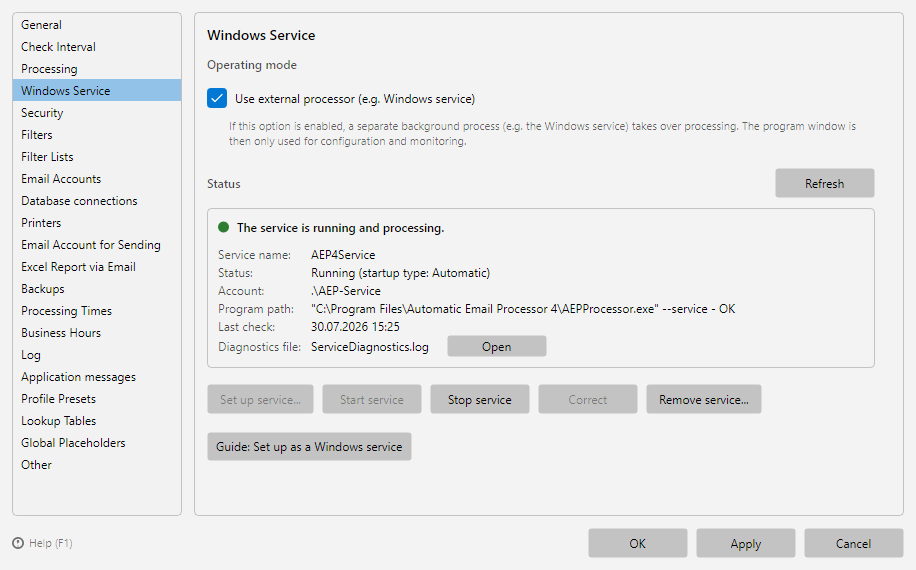 Program options, Windows Service page: “Use external processor” operating mode option, status area with service name, account and program path, and actions to set up, start, stop and remove the service
Effect: The UI does not start, monitor or terminate the processor itself - it assumes that the service is running independently, and communicates only via the IPC files. Without this option, the UI would try to start its own processor process at every launch and kill it again on exit.
Good to know: The checkbox itself does not process anything - it only switches off the UI’s own processing and leaves the work to the service. To avoid a gap here, as of version 4.0.31 the program checks - when you enable the option (after you confirm) - whether a matching Windows service is set up and running:
- If a service exists but is stopped or not set to automatic start, the program offers to start it directly and set it to startup type “Automatic (Delayed Start)” (this requires administrator confirmation; up to version 4.6.3 it set “Automatic”). If the startup type is already “Automatic”, as of version 4.6.4 the program leaves it unchanged - a deliberate choice is preserved. As of version 4.2.1, this also configures the Windows recovery options (automatic restart on crashes, see section 60.3.9).
- If no service is set up, as of version 4.5.0 the program offers the setup directly (see section 60.3.5); if you prefer to set it up manually, you still get a note with a link to the guide - the checkbox alone does not take over processing.
- If a service exists but is configured incorrectly (wrong executable, typically AutomaticEmailProcessor.exe instead of AEPProcessor.exe), as of version 4.5.0 the program names the problem specifically and offers the correction directly.
In addition, as of version 4.2.1 the program also checks at program startup (after a short grace period) whether a processor is actually working while the option is enabled. If the configured service is not running, the start is offered directly or a warning is shown - a stopped service is noticed immediately instead of only when processing results fail to appear. For the startup type “Automatic (Delayed Start)”, as of version 4.6.4 the program takes into account that the service is not yet running by design shortly after Windows starts: during the first minutes after booting, no warning appears - instead the status bar indicates that the service will be started shortly.
If you prefer to manage the service yourself, it should actually be running (status “Running” in services.msc) and set to startup type “Automatic (Delayed Start)” or “Automatic” - otherwise processing will no longer start after a Windows restart. sc.exe create on its own only creates the service as “Manual”; you can change the startup type with sc.exe config "AEP4Service" start= delayed-auto.
60.3.7 Scheduled task 
For regular one-off processing runs without continuous operation, you can set up a scheduled task. The task calls AEPProcessor.exe with --headless --run_once, processes once and exits.
schtasks /create /sc daily /tn "AEP4 Night Run" ^
         /tr "\"C:\Program Files\Automatic Email Processor 4\AEPProcessor.exe\" -h -r" ^
         /st 02:00

schtasks /create /sc hourly /tn "AEP4 Invoices" ^
         /tr "\"C:\Program Files\Automatic Email Processor 4\AEPProcessor.exe\" -h -r -p \"Incoming Invoices\"" ^
         /mo 1
With different tasks for different profiles, flexible processing times can be set up - e.g. invoices hourly during the day, archiving once a night.
60.3.8 Diagnostics 
For problems with the service, the file ServiceDiagnostics.log helps. It is created in the AppData folder of the user the service runs as - that is, %AppData%\Automatic Email Processor 4\ServiceDiagnostics.log of that account (not next to AEPProcessor.exe, because under Program Files there is no write access). It contains startup messages, the detected operating mode (IsWindowsService=True in service mode) and errors from the initialization phase - often the only trace when the service exits immediately on startup. As of version 4.2.1, startup additionally logs a line Profil-Umgebung: ... with the user, profile path, session number and - if detectable - FSLogix/UPD profile containers (see section 60.3.10).
The configuration of the service itself (registered program path, startup type, logon account, dependencies) can be shown with a one-liner in an administrator command prompt:
sc.exe qc "AEP4Service"
The regular processing and error logs are stored, as in application mode, in the log database in the AppData folder.
60.3.9 Service startup after a server reboot 
If the server restarts (e.g. at night), the service must come back up on its own. If nothing was processed in the morning, check the Windows event viewer (Windows Logs -> System) for entries around the reboot time with the source “Service Control Manager” or the service name. Typical causes and remedies:
- Startup type “Manual”: The service never returns after a reboot. Set the startup type to “Automatic (Delayed Start)” (see section 60.3.6 - the program offers this itself when the external processor is enabled).
- Logon failure of the service account (event 7000/7038, error 1069): The logon of the service account can fail during early system startup - typically with a domain account, because the network and domain controller are not yet reachable. Important: the Windows recovery options (“Restart the service”) do not help here, because on a logon failure Windows never starts the service process in the first place - there is nothing to restart. The effective remedy is the startup type “Automatic (Delayed Start)”: Windows then starts the service only shortly after booting, once the logon services are available. As of version 4.6.4 the program uses this startup type itself when setting up the service; during a program update, the installer converts existing services with startup type “Automatic” to it once (a different choice made manually afterwards is preserved across future updates). In addition, you can enable the group policy “Always wait for the network at computer startup and logon” and, if needed, give the service dependencies:
sc.exe config "AEP4Service" depend= Netlogon/LanmanWorkstation. If, on the other hand, the program reports a logon failure when you start the service manually, the cause is usually the password or the logon right of the service account - as of version 4.6.4 the error message names this case specifically, and as of version 4.6.5 it directly offers to re-enter the password of the service account. In doing so, the program also grants the “Log on as a service” right again and starts the service - the detour via the Windows services console is no longer necessary. Good to know: If this right is managed centrally via a group policy, the policy can repeatedly remove the local assignment - the service start then fails recurringly after updates or restarts (event 7041: “the user has not been granted the requested logon type”). In that case, add the service account to the “Log on as a service” list of the central group policy.
- “The system cannot find the file specified” (event 7000): The program path stored in the service registration is not (or no longer) correct - typical after a reinstallation into a different folder, or when the quotation marks around a path with spaces were missing when the service was created. Check with
sc.exe qc (see section 60.3.8) and correct the path via sc.exe config "AEP4Service" binPath= "...".
60.3.10 Terminal servers, FSLogix and user profile containers 
On terminal servers, user profiles are often provided as containers (FSLogix Profile Container or User Profile Disks/UPD of the Remote Desktop Services). This does not readily coexist with a service running under a user account:
- A Windows service running under a user account keeps that profile permanently loaded. The profile container therefore remains locked while the service is running.
- If someone then logs in interactively with the same account, the container cannot be mounted - Windows creates a temporary profile (User Profile Service events 1511/1515). Personal settings and, for example, the Outlook profile including its data file then appear to be “gone”.
Recommendations for such environments:
- Use a dedicated service account for the service and exclude this account from profile management in the FSLogix/UPD configuration (classic local profile). FSLogix provides the “FSLogix Profile Exclude List” group for this.
- Do not work interactively with the service account (no Outlook, no permanent RDP session) - log in only briefly for setup.
- Whether the service runs in a container environment is shown by the
Profil-Umgebung line in ServiceDiagnostics.log (see section 60.3.8).
60.3.11 Use case 
Production setup on server hardware
Service account: company\AEP-Service. Execution mode: service. Autostart at system boot. The UI is occasionally started on a workstation to check logs - the service runs undisturbed.
60.3.12 Tips 
- Do not use “Local System” for the service - token caches, Credential Manager passwords and the UI heartbeat are all bound to a Windows user
- In service mode, the UI display of application notifications (see Chapter 40.21) has no effect - use email notifications instead for critical messages