8.14 Notifications
8.14.1 Overview 
In the Notifications area, you specify when and to whom the profile sends an email about the processing status - for example on success, error or missing attachments. Additionally, an audible signal can be played.
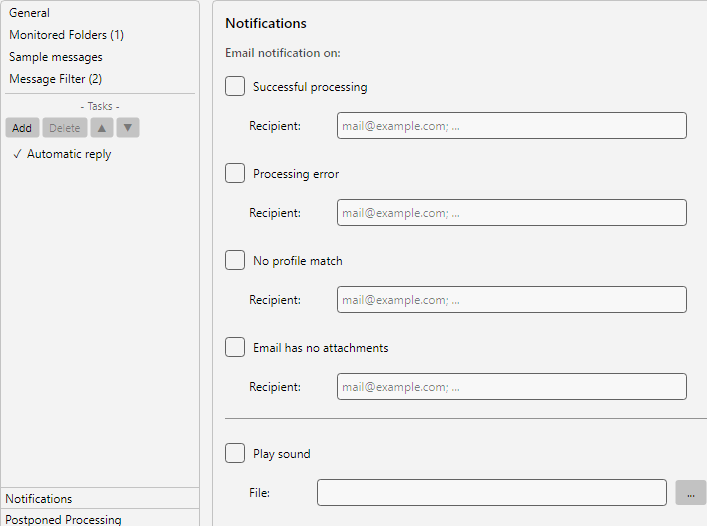 Profile settings, Notifications area: email and UI notification switches for success, error and missing attachments
8.14.2 Prerequisite: Default Sending Account 
For notification emails to be sent, a default sending account must be configured under Program Options -> Notifications (see Chapter 40.15). As long as this is not the case and at least one notification is enabled on this profile page, a warning appears at the top in orange text.
8.14.3 Notification Events 
Four events can be enabled individually. Each has its own recipient field.
Successful Processing
A notification is sent as soon as an email has been successfully processed by all tasks of the profile.
Use case: For particularly important profiles (e.g. “Archive incoming invoices”), you want to receive a daily confirmation that the archive is up to date.
Error During Processing
A notification is sent as soon as a task returns an error (e.g. printer offline, target folder not writable, database not reachable).
Tip: Enable this notification for all productive profiles - it is usually the most reliable way to detect processing problems early.
Email Has No Attachments
A notification is sent when an email matching the profile contains no attachment - typically relevant for profiles that exclusively perform attachment-related tasks (save attachments, print attachments, import into database).
Note: The notification for emails that could not be assigned to any profile is no longer a profile setting as of version 4.10.0. It is sent once per email and is configured under Program Options -> Processing in the section Malfunction notification / Other notifications (see section 40.8.4). Existing settings from the profiles are transferred there at the first start after the update.
No Processing Within the Period
A notification is sent when the profile has had no match for longer than its period (caught-up emails count with their received date) - typically when the subject or attachment name of monthly invoices has changed and the filter criteria no longer apply. The period itself is set on the General page (see section 8.7.10); the checkbox label states the applicable period, for example “No processing within the period (45 days)”. If No warning is set there, the checkbox is locked.
To the right of the checkbox you see According to options or Individual. With According to options, the checkbox is locked and mirrors the switch Send message by email from Program Options -> Processing (see section 40.8.4). Clicking the label opens a small menu; with Individual, the checkbox applies to this profile only, even if it differs from the program options - for example to exclude a single profile while sending is enabled, without losing the highlighting, or to report only important profiles while sending is disabled.
The Recipient field may stay empty; the recipients from the program options then apply. Recipients entered here replace them.
The email states the last match and the number of emails that have since arrived in the monitored folders without a match. After a profile is enabled, it is sent after 15 minutes at the earliest; this leaves time to catch up, and if an email received within the period matches, it is not sent. After being sent, it is sent again only when another period has passed or the profile has matched again in the meantime.
8.14.4 Entering Recipients 
Per event, you enter one or more email addresses in the associated Recipient field. Multiple addresses are separated by semicolons, for example:
accounting@firm.com; archiving@firm.com
Tip: Use a sensible address for each event. Error notifications usually go to IT, success notifications to the relevant department.
8.14.5 Custom Notification Text 
By default, the program uses a fixed subject and text for notification emails (profile name, status, and the subject, sender and date of the processed email). Instead, a custom text can be stored for each notification type:
- Below the recipient field, enable the Use custom notification text check box.
- Click Text… to open the editor.
- Enter the subject and message text. Via Insert placeholder, you insert placeholders at the cursor position that are replaced with the data of the processed email when sending.
| Element |
Description |
| Subject |
Subject line of the notification. If the field is left empty, the default subject is used. |
| Message text |
Content of the notification. If the field is left empty, the default text is used. |
| Apply to all notification types |
Also applies the subject and text to the other notification types of this profile. |
In addition to the general placeholders (see Chapter 70.1), the editor offers the additional Notification group:
| Placeholder |
Value |
<Status> |
Status message of the notification type (e.g. “Successful Processing”) |
<ProfileName> |
Name of the profile |
<StoragePath> |
Folders in which the tasks “Save attachments”, “Save email” or “Download” have stored files |
<StorageFile> |
Full paths of the saved files |
<StoragePathLink> |
Like <StoragePath>; if the message text contains HTML, the folder is inserted as a clickable link |
<ErrorTask> |
Error notifications only: task that caused the error |
<ErrorMessage> |
Error notifications only: error message |
Note: If the message text contains HTML markup (e.g. <b>bold</b>), the notification is automatically sent as an HTML email, otherwise as a plain text email.
Note on folder links: Network paths (\\server\share\...) can be clicked directly in Outlook (classic). Many other email programs (including the new Outlook and most webmail services) display paths as text only for security reasons - the recipient can then copy the path and paste it into Windows Explorer. For clickable links, prefer network paths as the storage target; local paths (e.g. C:\...) are always blocked by Outlook.
Use case: For every archived incoming invoice, the relevant department receives a notification with the storage folder as a link - one click leads directly to the filed document.
8.14.6 Play Sound 
Enable the Play Sound check box if the program should additionally play a WAV file for at least one of the events enabled above. Via the … button, you select the file from the file system.
| Field |
Description |
| Play Sound |
Enables sound playback |
| File |
Path to the WAV file |
Use case: For manually monitored processing operations (e.g. testing a new profile), an audible signal is helpful without having to constantly look at the main window.
Note: The sound is only played when the program is actually running (either as a foreground application or in the system tray). When processing in service mode without a graphical login, no sound is produced.
8.14.7 Global Notification Settings 
The notifications configured here are profile-specific. There are additional global notifications under Program Options -> Notifications (see Chapter 40.15) that take effect independently of the triggering profile - for example for general program errors, license notices or the status of the processing engine.
| Level |
When useful |
| Profile-specific (here) |
Success, error or missing-attachment notices for a specific profile |
| Global |
Program-wide notices, such as connection drops, license problems or missing accounts, as well as the notification for emails without a profile match (Program Options -> Processing) |
8.14.8 Tip 
Only enable the events whose occurrence is really relevant for you. Too many notifications lead to the truly important ones being overlooked.