40.8 Processing
40.8.1 Overview 
In the Processing area you set the behavior of the processing engine: pauses between emails, the date used, automatic shortening of paths that are too long, malfunction detection, the notification for emails without a profile match as well as properties of the generated HTML and PDF files. Since version 4.5.0, the “Use external processor” option is located on the dedicated Windows Service page (see section 40.8.9).
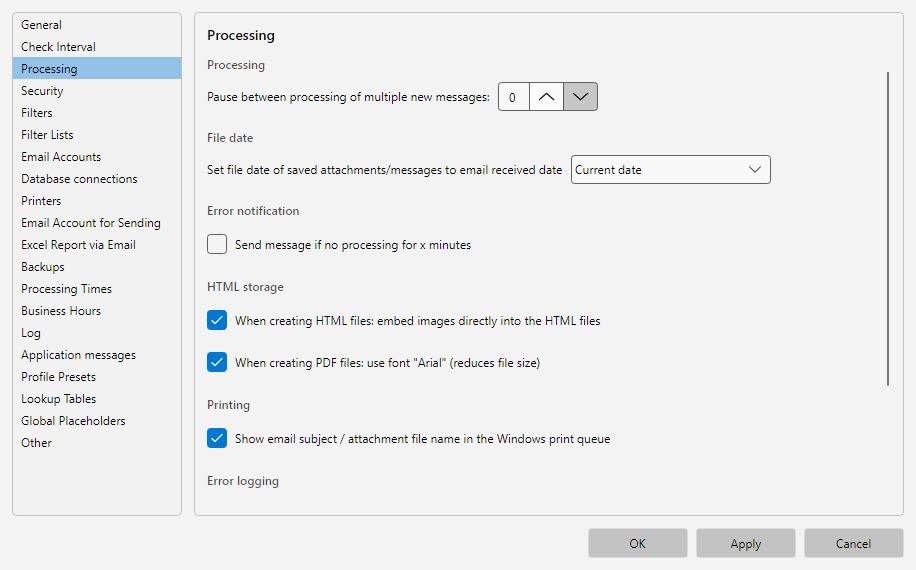 Program options, Processing area: pause between emails, file date, shortening of overlong paths and malfunction notification
40.8.2 Pause Between Emails 
| Field |
Description |
| Pause (seconds) |
Waiting time between processing two emails, 0-3600 |
Use case: With slow receiving systems (email send server with rate limit, printer with slow spool), a short pause prevents overload. The default is usually 0 (no pause).
40.8.3 File Date 
| Choice |
Description |
| Current date |
Saved files receive the time of processing as creation/modification date |
| Email date |
Saved files receive the receipt date of the email as the file date |
Use case: When archiving incoming invoices, Email date makes sense, because sorting in the archive folder then follows the chronological order of receipt.
40.8.4 Malfunction Notification / Other Notifications 
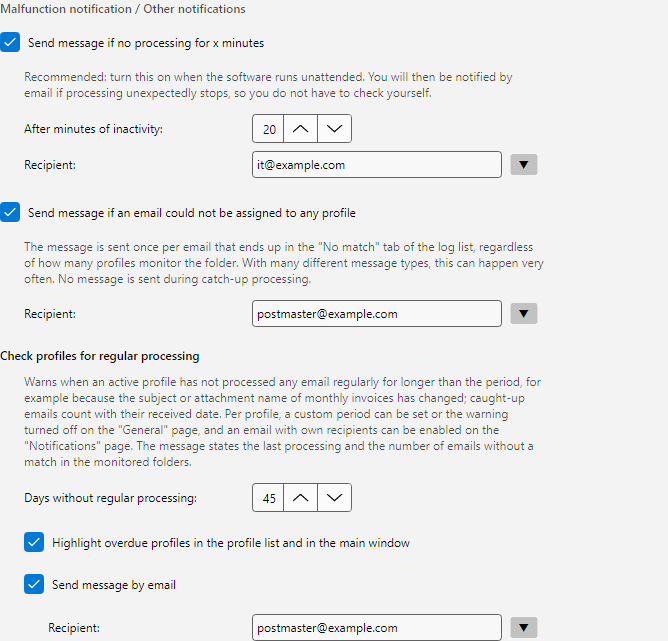 Program options, section Malfunction notification / Other notifications: malfunction notification after minutes without activity and notification for emails without a profile match, each with a recipient field
With the malfunction notification, the program detects when processing has been inactive for a longer time (e.g. because the email server is not reachable or the engine hangs) and sends a notification. Since version 4.8.1, the notification also names the accounts that cannot be accessed at that time, including the duration and the last error message. Independently of this, a dedicated message with a recommended action appears in the error log when signing in to an account has been failing continuously for more than two hours.
| Field |
Description |
| Send message if no processing for x minutes |
Enables malfunction detection |
| After minutes without activity |
Threshold (default: 20 minutes, range 5-1440) |
| Recipient |
Email address(es) for the malfunction notification, separated by semicolons; the button next to the field offers the recently used addresses |
No Profile Match
With Send message if an email could not be assigned to any profile, the specified recipients receive an email for every message that ends up in the No Match tab of the log list - that is, it arrived in a monitored folder but was not processed by any active profile. The notification states subject, sender and date of the email as well as the reason that is also shown in the log (e.g. “No profile with matching filter criteria”).
| Field |
Description |
| Send message if an email could not be assigned to any profile |
Enables the notification |
| Recipient |
Email address(es) for the notification, separated by semicolons; the button next to the field offers the recently used addresses |
Notes:
- The notification is sent once per email, regardless of how many profiles monitor the folder. No notification is sent during catch-up processing.
- With many different message types, the notification can be triggered very frequently. Only enable it if you really want to be notified about every unprocessed email.
- Up to version 4.9, “No profile match” was a setting per profile (Profile settings - Notifications). At the first start after the update, the checkbox and recipients are transferred from the profiles to this option.
Check Profiles for Regular Processing
If an active profile has not processed any email regularly for longer than the period, it is highlighted and, if desired, reported by email. This otherwise slips through easily: if a supplier changes the subject or the attachment name of its monthly invoice, the filter criteria no longer apply and the invoices remain unnoticed.
| Field |
Description |
| Days without regular processing |
Shared period for highlighting and message (default 45 days, range 1-3650). 45 days cover monthly invoices even with 31-day months and delayed sending; for profiles with daily or weekly emails, the period can be shorter |
| Highlight overdue profiles in the profile list and in the main window |
Warning symbol in the Last application (regular) column and a wine-red notice bar below the profile list; enabled by default |
| Send message by email |
Additionally an email to the specified recipients, for all profiles; disabled by default. Independently of this, the email can be enabled per profile |
| Recipient |
Email address(es), separated by semicolons; the button next to the field offers the recently used addresses |
Notes:
- Counting starts from the profile’s last regular processing, for profiles without a match from the creation date. Catch-up and “Reprocess message as new” count with the received date of the matched email: if a caught-up email received on the 15th matches, the current filter recognizes emails up to that day and the period counts from the 15th. After a filter correction or a pause, it is therefore best to catch up. A re-enabled profile is usually overdue right away, as a reminder of this; the email is sent 15 minutes after enabling at the earliest.
- Per profile, a custom period can be set or the warning turned off under Profile settings - General (see section 8.7.10); with a custom period, the profile is highlighted even if highlighting is turned off here. Per profile, the email can be turned on or off independently of this switch with Individual under Profile settings - Notifications, with own recipients (see section 8.14.3).
- The notice bar in the main window states the number of overdue profiles; a click opens the Processing overdue window with a table of the affected profiles (days since the last regular processing, period, last regular processing or “never” with the creation date). Open profile… leads directly to the period setting on the General page for the selected row. No warning for checked profiles sets the period of the checked profiles to No warning, for example after the update for profiles that only rarely process emails; for profiles with rare but expected emails, a longer custom period is the better choice (see section 4.10).
- The check runs in the processing process once per hour, independently of processing times and runs - as long as the process is running, the notification arrives. Only while a backup is running does it wait, for at most 15 minutes. After being sent, it is sent again only when another period has passed or the profile has matched again in the meantime. It states the last match and the number of emails that have since arrived in the profile’s monitored folders without a match (No Match tab of the log list). This shows whether nothing arrived at all or something arrived but bypassed the filter.
Note: All notifications of this section are sent via the default sending account configured under Program options - Notifications.
40.8.5 HTML Storage 
| Option |
Description |
| Embed images in HTML |
Embedded images are written directly into the HTML file as Base64 data (without external file) |
Use case: If you want to send or archive HTML emails and need to make sure all images appear when opening - even without an internet connection.
40.8.6 PDF Font 
| Option |
Description |
| Use Arial font for PDF |
Forces Arial as the default font in generated PDF files |
Note: Without this option, the PDF generator tries to use the original fonts of the email. If those are not installed on the PC, substitute fonts are chosen - the appearance may then differ from the original.
40.8.7 Printing 
| Option |
Description |
| Show subject in print queue |
In the Windows print queue dialog, the email subject appears as the job name |
Use case: With multiple print jobs, the subject is more helpful than the generic job name - especially with printers handling jobs from multiple users or profiles.
40.8.8 Error Logging 
| Option |
Description |
| Log errors |
Writes errors to the error log (see Chapter 80.2) |
| Show problems |
Shows hints about problems in the UI (dialogs, toast notifications) |
Tip: In service mode without UI login, Show problems has no effect - but error logging should always remain active, so that a diagnosis is possible afterwards.
40.8.9 External Processor 
As of version 4.5.0, the “Use external processor” option is located on the dedicated “Windows Service” options page. There you also continuously see the state of the processing service (set up, started, startup type, account) and can set it up, start, stop, correct, and remove it.
Further information: (see Chapter 60.3).
40.8.10 Path Lengths 
Windows allows at most 255 characters per folder or file name. When using placeholders in the storage path - typically the subject placeholder - this limit can quickly be exceeded; saving then fails.
| Option |
Description |
| Automatically shorten folder and file names that are too long when saving |
Automatically shortens names that are too long to the permitted length; the file extension is preserved (default: enabled, recommended). If a name that is too long contains the email subject, the subject part is shortened first - fixed parts after it (e.g. date or sender) are preserved |
| Additionally limit the total path to … characters |
Optional limit for the total length of the storage path (0 = no limit). If exceeded, the file name is shortened first, then the deepest folder level |
Use case for the total limit: storage locations synchronized with OneDrive or SharePoint. There, the entire server path is limited to 400 characters, and special characters (e.g. umlauts or spaces) may count multiple times in the server address. A proven starting value is 300; subtract more accordingly for very long SharePoint addresses.
Fixed names remain untouched: Only names with placeholder parts are shortened. Folder and file names that are fixed in the path pattern without placeholders (e.g. “Project correspondence”) are never shortened.
Note: If shortening is disabled, an affected message is skipped with an understandable error message in the error log. If two long names result in the same file name after shortening, the respective task’s “If file already exists” setting applies as usual.