8.12 Post-Processing
8.12.1 Overview 
In the Post-Processing area, you define actions that are applied to the email after processing by all profiles. While the regular tasks (save, print, forward, etc.) are executed immediately upon a match, the actions configured here run at the end of the processing run - once all profiles have completed their work.
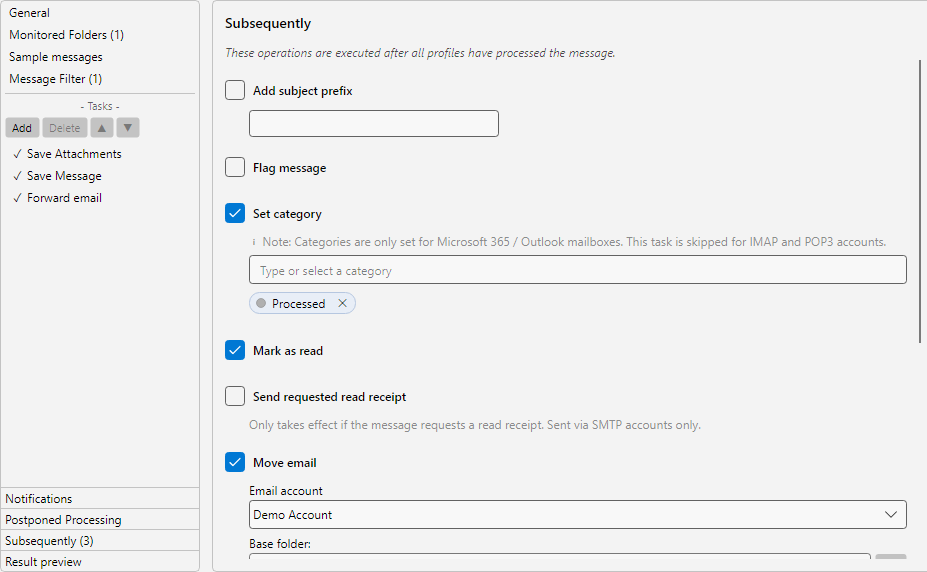 Profile settings, Post-Processing area: downstream operations like move, delete, mark, set category and subject prefix
The order of the actions on this page corresponds to the order of execution - from top to bottom.
8.12.2 Why “Post-Processing”? 
This area exists for email operations that modify the mailbox itself (move, delete, flag, categorize). If several profiles each moved or deleted the same email immediately, conflicts would arise. By performing these actions exclusively at the end of a run - and exactly once per email - processing remains reliable, even when multiple profiles match the same email.
Note: With POP3 accounts, move, categorize and flag cannot be performed technically. A note appears at the top in red text if a POP3 account is used in the profile.
8.12.3 Add Subject Prefix 
Prepends a fixed text to the subject of the email in the mailbox. Useful for visually marking processed emails, for example “[Processed]” or “[Archived]”.
| Field |
Description |
| Active |
Enables the action |
| Prefix |
The text to prepend. Multiple profiles with a prefix action can also cascade (“[A][B] Original subject”). |
8.12.4 Flag Message 
Marks the email in the mailbox with the standard flag - equivalent to manually setting a flag in an email program.
| Field |
Description |
| Active |
Enables the action |
Note: For Microsoft 365 (Graph), the standard flag is set. For IMAP, the server’s flag system is used, as far as it is supported by the mailbox.
8.12.5 Set Category 
Sets one or more Outlook categories on the email. The categories are entered in the drop-down or selected from the categories already assigned in the mailbox.
| Field |
Description |
| Active |
Enables the action |
| Categories |
List of categories to set. Multiple categories are shown as “chips” and can be removed individually |
Note: This action only works for Microsoft 365 and Outlook mailboxes. For IMAP and POP3 accounts the action is skipped at runtime - a corresponding note appears in the editor.
8.12.6 Mark as Read 
Sets the email in the mailbox to status “read”.
| Field |
Description |
| Active |
Enables the action |
Use case: Emails that a profile has processed automatically should disappear from the Inbox counter, so that only emails to be checked manually appear as unread.
8.12.7 Send Requested Read Receipt 
Sends a read receipt to the sender, provided the email requests a read receipt. If the email does not carry such a request, the action has no effect.
| Field |
Description |
| Active |
Enables the action |
Note: Read receipts are sent exclusively via SMTP. A detailed description is available in Chapter 26.
8.12.8 Move Email 
Moves the email to another folder - either in the same mailbox or in another email account. The target folder is composed of two parts: a fixed base directory and an optional dynamic subfolder with placeholders.
| Field |
Description |
| Active |
Enables the action |
| Email Account |
Target account. By default, the account of the incoming email is used |
| Base directory |
Fixed path in the target account, selected via the … button |
| Dynamic folders |
Optional: path components with placeholders such as <EmailYear4>\<EmailMonth> for automatically creating subfolders per time period or sender |
| Preview |
Shows the resolved path for a sample message or the stored preview data |
| Do not process the email again |
Prevents the email from being matched by a profile again in the target folder - if that folder is also monitored |
Tip: The Insert Placeholder button opens a selection menu with all available placeholders (see Chapter 70.1).
Note: If the target folder does not yet exist, the program creates it automatically, provided the server allows this.
8.12.9 Move to Trash 
Moves the email to the mailbox’s trash folder. The email is thus not permanently deleted and can be restored manually.
| Field |
Description |
| Active |
Enables the action |
| Trash folder |
Path to the trash. In most cases the program recognizes the standard trash folder automatically - the field can be left empty |
| Permanently delete after X days |
When enabled: emails moved to the trash by this profile are irrevocably removed after the specified number of days |
Warning: Permanent deletion cannot be undone. Use this option carefully and only for emails whose long-term retention is definitely not required.
Note: With POP3 accounts, the protocol does not know a trash folder. In that case the email is deleted directly from the mailbox. A note appears in the editor.
8.12.10 Order and Conflict Resolution 
When multiple profiles match the same email and configure different post-processing actions, the actions are merged as follows:
| Action |
Behavior on multiple matches |
| Subject prefix |
All prefixes are cascaded in front |
| Flag |
Takes effect only once - status is set or not |
| Set category |
All categories are merged (union set) |
| Mark as read |
Takes effect only once |
| Read receipt |
Takes effect only once |
| Move |
First profile with active move wins - subsequent ones are ignored |
| Move to trash |
If one profile wants to delete, delete wins over move |
This keeps the behavior predictable, even when profiles are applied in different orders.