8.7 General
8.7.1 Overview 
In the General area, you define the key data of the profile: name, status, color highlighting, as well as the behavior for embedded messages and delays. You can also define your own processing times for the profile here.
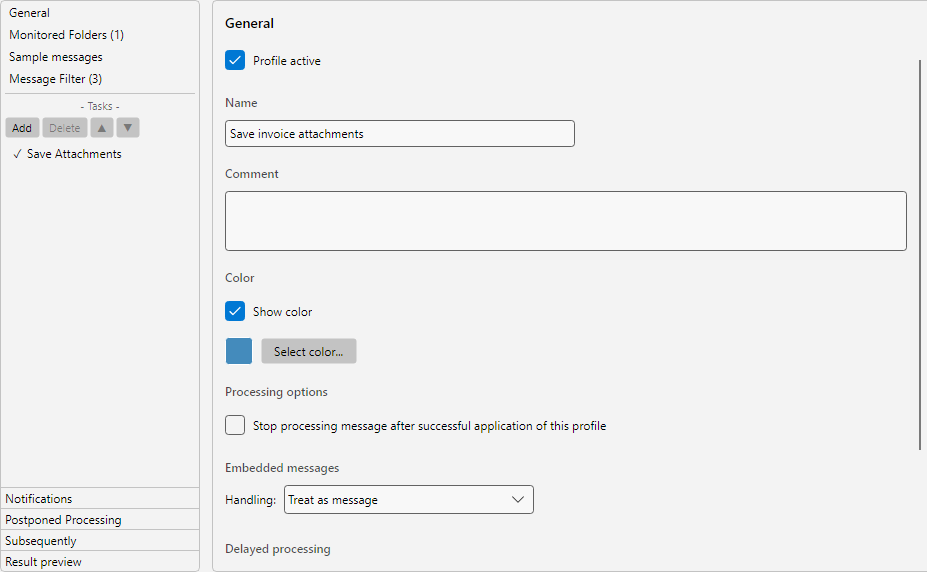 Profile settings, General area: profile-active switch, name, comment, profile color and options for embedded messages and postponed processing
8.7.2 Profile Active 
The Profile active check box determines whether the profile is considered during processing. Disabled profiles retain all their settings but do not monitor any folders and do not process any messages. Next to the check box you see since when the profile has been active or inactive (only from the first change with version 4.10.0).
Tip: Disable profiles temporarily when you want to make larger changes without messages being processed in the meantime. Re-enable the profile afterwards to resume normal operation.
8.7.3 Name 
The name of the profile. The name appears in the profile list, in the log list, and in notification emails.
Use cases for meaningful names:
| Good |
Bad |
| “Archive incoming invoices” |
“Profile 1” |
| “Forward order confirmations to purchasing” |
“Test” |
| “Import delivery note PDFs into database” |
“New profile” |
8.7.4 Comment 
Optional multi-line free-text field for internal notes about the profile. The comment is displayed in the profile list and can be helpful when editing or handing over the profile to colleagues.
Examples of useful comments:
- Contact person and department responsible for the profile
- Date of the last review
- Reference to the associated internal case number
8.7.5 Color 
The color visually marks the profile in the log list. A colored stripe appears at the left edge of each associated log entry.
| Option |
Description |
| Show profile color |
Enables the color display for this profile |
| Choose color |
Opens a color picker dialog. A small preview shows the current color; the color value can also be entered directly as a hex code, for example #624118. |
Use case: If you maintain many profiles, a consistent color scheme helps with quick identification in the log list - for example, green for productive profiles, yellow for test profiles, red for profiles requiring special attention.
8.7.6 Processing Options 
Stop Processing After This Profile
When enabled, processing of an email stops after this profile - even if further profiles would theoretically also match the email.
Mind the order: Profiles are applied in alphabetical order of their name. Stop processing after this profile therefore only affects the profiles whose name comes after the current profile - only those are reached by the stop.
Use case: You have several specialized profiles and a general safety-net profile. Set Stop processing after this profile on the specialized profiles so that the safety net does not also take effect afterwards.
Warning about broad suppression: If a profile with Stop processing after this profile enabled has no filter criteria, it matches every message in its monitored folders and thus blocks all alphabetically later profiles that watch the same folders. This is often unintentional: an unfiltered collector profile “All receipts” would, for example, completely override the later profile “Accounting” - whose tasks would then only run via the Catch up function. When you save such a profile, the program now points this out with a message and lists the affected profiles. You can then either clear the checkbox or add filter criteria so that the profile only matches the messages you want.
8.7.7 Embedded Messages 
Some emails contain other emails as attachments (e.g. forwarded messages). Here you specify how the program should handle such embedded messages.
| Mode |
Description |
| Ignore |
Embedded messages are not processed separately |
| Treat as attachment |
The embedded message is treated like a regular attachment of the main email |
| Treat as message |
The embedded message is processed like a separate new email |
| As attachment and message |
Both behaviors at once - the embedded message is saved as an attachment and additionally processed as a standalone email |
Tip: The default setting is Treat as message. Only switch to Treat as attachment if you want to store the embedded message as a whole file (e.g. as EML).
8.7.8 Postponed Processing 
Enable the check box Postpone processing if this profile should not run its tasks immediately when an email arrives, but only after a waiting period has elapsed. Enter the value and the unit below.
Available units: seconds, minutes, hours, days, weeks, months, years.
Use cases:
| Scenario |
Example delay |
| Send reply to customer no earlier than the next working day |
1 day |
| After receiving a confirmation, wait for a possible cancellation |
30 minutes |
| Permanently delete advertising emails only after one week |
7 days |
Note: Postponed emails are shown in the Postponed Processing tab of the log list. Via the Manage Postponed Processing button in the log toolbar, individual operations can be canceled. A detailed description is available here (see Chapter 60.1).
8.7.9 Processing Times 
When enabled, this profile uses its own time windows instead of the global settings under Program Options -> Processing Times (see Chapter 40.18).
| Button |
Effect |
| Edit |
Opens the schedule dialog for entering individual time windows |
Below the button, a summary shows the currently configured time windows (e.g. “Mon-Fri 09:00-17:00”). As long as no time window has been entered, a warning is displayed in red instead.
Use cases:
- Certain profiles should only run on weekdays during the day
- Newsletter processing should be limited to nighttime hours
- Test profiles should continue running outside regular business hours
Note: The profile-specific processing times take precedence over the global processing times in the program options. Business hours are only relevant for automatic replies and are not overridden here.
8.7.10 Period for Regular Processing 
If a profile has had no match for more than a certain number of days (catch-up and Reprocess message as new count with the received date of the matched email), it is highlighted with a warning symbol in the profile list and with a notice bar in the main window - typically when the subject or attachment name of monthly invoices has changed and the filter criteria no longer apply. Period and highlighting for all profiles are set under Program Options -> Processing (see section 40.8.4). Here you decide what should apply to this profile:
 Profile settings, General area: period for regular processing with the selection Default, Custom period or No warning
| Selection |
Meaning |
| Default (x days) |
Period from the program options. If highlighting and email are turned off there, this reads “Default (off)” |
| Custom period |
Own number of days for this profile, for example 10 days for a weekly report. Highlighting then also applies if it is turned off in the program options |
| No warning |
This profile is neither highlighted nor reported, for example profiles for rare events |
Counting starts from the last regular processing or the received date of the most recently caught-up email with a match, whichever is more recent; for profiles without a match from the creation date. A profile that is re-enabled after a longer pause is therefore usually overdue right away - as a reminder to catch up on the pause. An email about missing processing is enabled on the Notifications page (see section 8.14.3).