11 Save Message
11.1 Overview 
The Save Message task stores the email itself - not just its attachments - as a file in the file system. It is useful for archiving correspondence, for example for retention in the accounting archive or for export to a document management system.
Five file formats are available: EML, MSG, HTML, TXT, and PDF. With PDF, additional options exist for embedding attachments and embedded images directly into the PDF file.
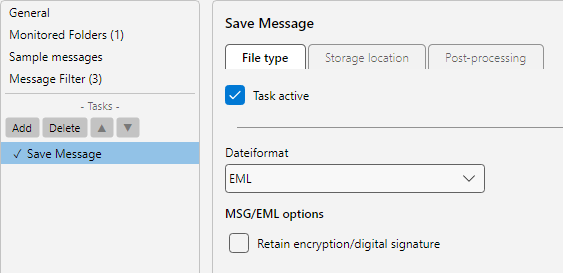 Profile settings, Save Message task: file format selection (EML, MSG, HTML, TXT, PDF), target path and attachment embedding
11.2 “File Type” tab 
11.2.1 File format 
| Format |
Description |
| EML |
Standardized format. Platform-independent, readable by all email programs |
| MSG |
Outlook-native format. Preferable when Outlook is the target system |
| HTML |
Visual representation of the message in web-browser format |
| TXT |
Plain text, without formatting |
| PDF |
With extended options for embedding attachments |
Note on V3 import: Profiles from AEP 3 in which the format “Original format” was configured are automatically mapped to TXT on import - that was the most common resolution of the original format in AEP 3. If you prefer a different format, change it after import.
11.2.2 Options for EML/MSG 
| Option |
Description |
| Keep encryption |
If the message is S/MIME-encrypted, it is saved unchanged. Otherwise it is saved decrypted. |
11.2.3 PDF options - General 
| Field |
Description |
| Page format |
A4, A5, Letter, Legal |
| Orientation |
Portrait or Landscape |
| Append attachments as pages |
Appends the attachments at the end of the PDF file as additional pages |
| Append inline images as pages |
As above, but for embedded images |
| Add bookmarks |
Creates bookmarks per part (original email, attachment 1, attachment 2, …) |
| Carry over original PDF bookmarks |
Takes over existing bookmarks from embedded PDFs |
| Message last |
Places the message itself at the end instead of the beginning of the PDF |
11.2.4 PDF options - Embedding 
Instead of appending attachments as additional pages, they can be stored as embedded files (attachments) within the PDF - analogous to the regular attachments of an email. Advantage: the original format is preserved and can be opened from within the PDF.
| Option |
Description |
| Embed email as MSG |
Embeds the original email as an MSG file in the PDF, with a choice of with or without encryption |
| Embedded emails as MSG |
Treats nested (e.g. forwarded) messages as MSG attachments |
| Embedded emails as EML |
As above, but in EML format |
| Embed other attachments |
Embeds all other attachments in the PDF |
| Embed inline images |
Embeds embedded images as attachments |
11.2.5 PDF options - Attachment filter 
Two sub-tabs, one for embedding as a file, one for appending as a page. Both offer the same filter criteria (see chapter 9.3) - file name, file type, file size, image width, image height, and e-invoice type.
11.2.6 PDF options - Header 
Configures the email data displayed in the PDF at the top of each page (sender, recipient, subject, date). Layout, font, and content are customizable.
11.2.7 Header for HTML/TXT 
If the chosen format is HTML or TXT, a separate header configuration for these formats appears below the format area.
11.3 “Storage Location” tab 
Analogous to the Save Attachments task: directory, file name (with placeholders), preview, and behavior if the file already exists. The fields are described in detail (see chapter 9.2).
Placeholders from message text
Additionally, values can be extracted from the message text - for example an order number or job code from the email signature - and used as placeholders in the file name. The Configure button opens the rule editor (see chapter 70.2).
Use case: Storage path D:\Archive\Orders\<MRuleId:N(OrderNo)>.pdf, where <MRuleId:N(OrderNo)> is extracted from the message.
11.4 “Post-processing” tab 
Analogous to Save Attachments (see chapter 9.7):
- Run program after saving
- Save copies in additional locations
- If destination directory is unreachable define the action
11.5 Use case 
Archive email correspondence by case - PDF format with attachment embedding. Directory: D:\Archive\Cases\<EmailYear4>\<MRuleId:N(OrderNo)>. File name: <EmailYear4>-<EmailMonth>-<EmailDay>_<SenderName>_<Subject>. As a result, the original email and all attachments are available as a single, searchable PDF with bookmarks.
11.6 Tip 
- For long-term retention, PDF with embedded attachments is recommended - the entire document stays together as a single file