8.11 Result Preview
8.11.1 Overview 
The Result Preview simulates the processing of a sample message by the current profile. You see whether the filters match, which tasks would be executed, how placeholders resolve, and which notifications would be triggered - all without any emails actually being sent, attachments saved, or printers addressed.
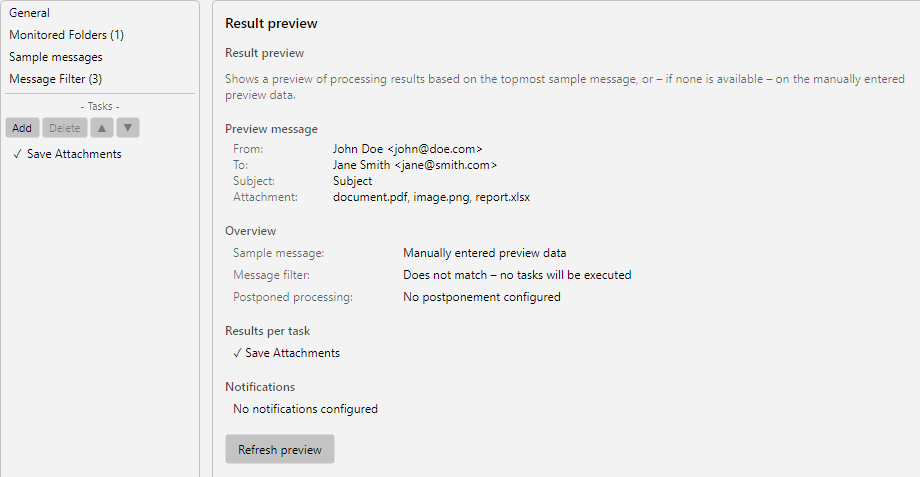 Profile settings, Result Preview area: match list for the stored sample messages with filter status per entry
The result preview is the most important tool for testing a profile before productive use.
8.11.2 Data Source for the Preview 
The preview preferably uses the first stored sample message (see Chapter 8.10). If no sample message is available, the preview falls back to manually entered preview data (sender, recipient, subject, attachment name). This way the configuration can be meaningfully tested even without an EML file.
8.11.3 Preview Sections 
Preview Message
The upper area displays the key data of the selected sample message:
| Field |
Description |
| From |
Sender (name and address) |
| To |
Recipient |
| Subject |
Subject line of the email |
| Attachments |
List of attachment names |
Overview
Shows whether the email meets all filter criteria and whether currently active delays or processing times would apply. For filter matches, a confirmation appears in green text; for non-matches, an explanation appears in red text.
Results Per Task
For each active task in the profile, the preview shows what would actually happen:
- Save attachments: the concrete resolved target path and file name
- Print email: the selected printer and the print options
- Forward email: recipient addresses and subject of the forward
- Automatic reply: recipient and subject of the reply
- Save to database: table, columns and values of the record to be inserted
- Download: URL and storage location of the file
This way, placeholder configurations can be checked directly, for example how <SenderName> or <EmailYear4>-<EmailMonth>-<EmailDay> resolve with the values of the sample message.
Notifications
Lists which notifications the profile would trigger with the selected sample message - success, error or missing attachments - and to which recipients.
8.11.4 Refresh 
The Refresh Preview button triggers another simulation, for example after you changed filter criteria or tasks. If you want to test a different sample message, first switch to the Sample Messages area, select the desired entry there, and return to the Result Preview.
8.11.5 Use Case 
First configure the filter criteria and check in the preview whether the desired match is achieved. Only then create the tasks. Before the first productive run, check each task again in the preview - especially save paths and email forwarding.
8.11.6 Tip 
- Also include emails that intentionally should NOT be matched - this way you detect filter gaps in both directions