14 Download
14.1 Overview 
The Download task searches the message body for hyperlinks (URLs) and downloads the files behind them. It is the solution for correspondence in which suppliers or service providers send documents not as attachments but via a download link - a common pattern for large files and secure transmission platforms.
The task is organized into three tabs: Download Filter, Storage Location, and Post-processing.
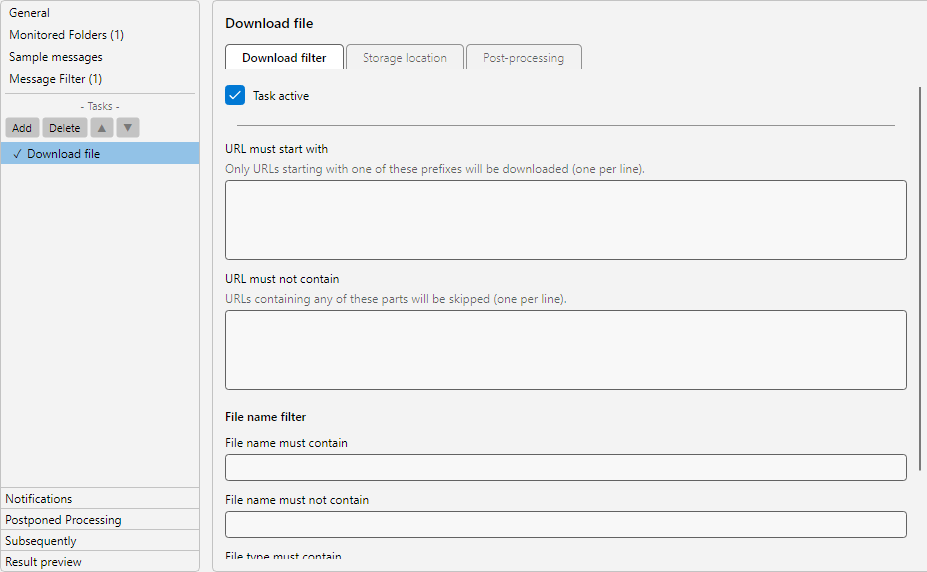 Profile settings, Download task: URL pattern editor, target path with placeholders and filter for external content
14.2 “Download Filter” tab 
14.2.1 URL prefixes 
A list of URL beginnings that should be considered for downloading. Several prefixes can be entered line by line:
https://download.supplier-a.com/
https://portal.serviceprovider.com/documents/
https://my.tax-advisor.com/documents/
Note: This list is a whitelist. Only URLs that start with one of the listed prefixes are downloaded. This prevents the program from accidentally downloading tracking pixels or advertising links.
14.2.2 Excluded URL parts 
A list of strings that must not appear in the URL - for example to exclude tracking or logout links:
unsubscribe
tracking
&logout=
14.2.3 File name filter 
Filters the files by their name - analogous to the attachment filter of the Save Attachments task:
| Field |
Example |
| File name must contain |
Invoice |
| File name must not contain |
Preview |
| File type must contain |
.pdf |
| File type must not contain |
.exe |
Note: The file name is determined from the URL path or from the Content-Disposition header of the server response. For pure search URLs without an explicit file name, the program may assign a default name.
14.3 “Storage Location” tab 
Identical to the Save Attachments task (see chapter 9.2): directory and file name with placeholder support, preview, behavior if the file already exists, and folder hierarchy limitation.
Available placeholders include both mail-related values (<SenderName>, <EmailYear4>-<EmailMonth>-<EmailDay>, …) and file-related values (<FileName>, …) (see chapter 70.1).
14.4 “Post-processing” tab 
14.4.1 Run program 
Starts an external program after downloading - e.g. to import the file into a DMS or to move it to a downstream system (see chapter 9.7.1).
14.4.2 Save copies in additional locations 
Saves the downloaded file additionally in further destination folders (see chapter 9.7.3).
14.4.3 If the destination directory did not exist 
Controls the behavior if the destination directory is unreachable - for example moving the email to an error directory (see chapter 9.7.4).
14.5 Security notes 
Since the task loads content from the Internet, special care applies:
- Only list trusted URL prefixes - the prefix whitelist is your most important safeguard against phishing links
- Do not download
.exe, .scr, .bat and similar executable formats - exclude them via File type must not contain
- Downloaded files are tagged with the “Mark of the Web”, so that Windows shows a security warning when opening them
- The maximum file size is internally limited to prevent “ZIP bomb” and endless-stream attacks
14.6 Use case 
Supplier delivery notes
URL prefix: https://supplier-x.com/delivery-notes/. Directory: \\Server\Warehouse\Incoming\<EmailYear4>-<EmailMonth>. File name: <FileName> (keep original).
14.7 Tip 
- Watch the log list closely during the first few days - experience shows that the URL prefix whitelist is often set too narrow or too wide