8.10 Sample Messages
8.10.1 Overview 
In the Sample Messages area, you store test emails that the profile uses to dry-run its filters and tasks in the Result Preview. Sample messages are used solely for configuration - they are not processed productively, not sent, and not retrieved from the mailbox.
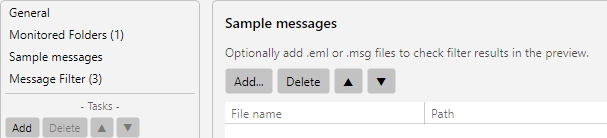 Profile settings, Sample Messages area: list of stored test EMLs with a preview panel on the right
8.10.2 Purpose 
Sample messages enable the following workflows:
- Check filters: In the filter preview (at the bottom of the Message Filter tab), it is shown which of the sample messages meet the current criteria.
- Simulate tasks: In the Result Preview, the planned actions (save paths, reply texts, print output, etc.) can be simulated for a sample message - without actually being executed.
- Check placeholder resolution: You see how placeholders such as
<EmailYear4>, <EmailMonth> or <SenderName> resolve with the values of the sample message.
8.10.3 Toolbar 
Above the list you will find the following buttons:
| Button |
Effect |
| Add |
Selects one or more email files from the file system |
| Remove |
Removes the selected entry from the list |
| Up / Down |
Moves the entry up or down in the list |
The sample files are not copied into the profile but stored as path references. If the file is deleted at its original location, the program can no longer load it.
8.10.4 List Columns 
| Column |
Description |
| File name |
Name of the file without path |
| Path |
Full path to the file |
8.10.5 Supported Formats 
Sample messages can be in the following formats:
| Format |
Extension |
Source |
| EML file |
.eml |
Export from most email programs |
| Outlook message |
.msg |
Export from Microsoft Outlook |
Tip: From most email programs, an email can be saved as an EML file via drag-and-drop or “Save as…”. If you can freely choose the format, EML is the most robust choice.
8.10.6 Obtaining Sample Messages 
There are two simple ways to obtain meaningful sample messages:
From “No Match” Entries
If an email arrives in a monitored folder but is not captured by any profile, it appears in the No Match tab of the log list. Such emails are the ideal candidates for refining a filter. Save the email from the mailbox as EML and add it here.
From the Productive Mailbox
Choose 3-5 typical examples of the emails your profile is supposed to process, as well as 2-3 similar emails that your profile should not match. This way you test the filter boundaries in both directions.
8.10.7 Tip 
Representative Selection
Cover different variations - different senders, attachment names, importance levels, with and without attachments. This way, unintended filter gaps stand out directly in the preview.