12 Print Message
12.1 Overview 
The Print Message task prints the email itself - the message body with sender, recipient, and subject - on a configured printer. Attachments are not printed by this task. If attachments should also be printed, you can achieve this with an additional task of type Print Attachments (see chapter 10).
The task is organized into two tabs: General and Printer Settings.
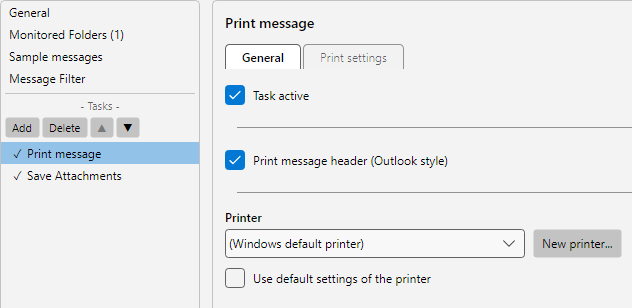 Profile settings, Print Message task: printer selection, print format and content options for header and attachments
12.2 “General” tab 
12.2.1 Print message header 
If enabled, a header block with sender, recipient, subject, and date is printed at the top of the first page - similar to the Outlook standard view. Otherwise, only the message body is printed.
12.2.2 Printer 
Selection from the printers configured under Program Options -> Printers (see chapter 40.14). Via New Printer…, one can be created directly without closing the profile editor.
12.2.3 Use default printer settings 
If enabled, the default values stored on the printer apply (duplex, tray, page format). The Printer Settings tab then has no effect.
12.2.4 PDF printer (storage location) 
If a PDF printer is selected, fields appear for PDF folder and PDF file name with placeholder support, as well as a control for what happens if the target file already exists (rename, overwrite, skip, append date or time). The behavior is identical (see chapter 10.2.3).
12.3 “Printer Settings” tab 
The fields largely correspond to those of the Print Attachments task (see chapter 10.3) - copies, collated, duplex, orientation, color printing, margins, layout (rotate, center), scaling, and page range.
12.3.1 Font settings for the message 
Specific to Print Message: you can set your own font for the message body in case the font referenced in the mail body is not available on the printing computer or a uniform appearance is desired.
| Field |
Description |
| Use custom font |
Enables the font settings |
| Font name |
Choice from the available system fonts |
| Size |
Font size (6-72 pt) |
| Bold, Italic, Underlined |
Style attributes |
Tip: This font setting takes effect primarily for plain-text emails (TXT). For HTML emails the layout contained in the HTML dominates the printout, which is why the font chosen here is only conditionally visible there.
12.4 Use case 
Print order confirmations - Printer: shipping printer. Print message header enabled. Portrait. Default printer settings.
12.5 Tip 
- If you want to print both the message body and the attachments, combine this task with Print Attachments (see chapter 10) in the same profile