4 Profile List
4.1 Overview 
The profile list shows all configured profiles in a clear table view. Here you can see at a glance the status, the task type, the most recent application times and the monitored folders of all profiles, and manage them.
The list always sorts active profiles first and disabled profiles last. Within these two groups, sorting follows the column that is currently selected as the sort column.
4.2 Columns 
The profile list contains the following columns:
4.2.1 Status 
Shows whether the profile is active:
| Symbol |
Meaning |
| check mark |
Profile is enabled and monitors folders |
| empty |
Profile is disabled |
Tip: Click directly on the check mark to enable or disable a profile quickly - without going through the toolbar.
Note: Disabling a profile takes effect immediately - even in the middle of a processing pass that is already running. If you want to quickly stop processing by a particular profile, simply disable it; it then immediately stops processing further messages, while the other profiles continue as usual. Enabling or adding a profile, on the other hand, only takes effect on the next pass and does not change a run that is already in progress.
4.2.2 Name 
The name of the profile. The name can be changed in the profile settings under General.
Sorting: Click the column header to sort the list alphabetically.
4.2.3 Task Type 
A sequence of symbols showing which tasks the profile runs - e.g. save, print, forward, reply or move. The order of the symbols matches the order in which the tasks are executed.
Note: This column is not sortable, since an alphabetical sort of the symbols would not provide added value.
4.2.4 Created/Modified On 
Date and time of the last profile change. A change to the profile affects the detection behaviour: a profile is applied automatically only to messages whose detection date is after the profile’s change date. Re-enabling a profile also counts as a change and updates this date.
4.2.5 Last Application (Regular) 
Date and time of the most recent regular processing by this profile. “Regular” means that a newly arrived message was detected and processed automatically.
Catch-up and Reprocess message as new do not count as regular processing and do not appear in this column. If a profile has had no match for longer than the period set under Program Options -> Processing (or its own period on the General profile page), a warning symbol appears in front of the date and a notice bar below the profile list points it out (see section 40.8.4). For this warning, caught-up emails count with their received date.
Display: If no processing has taken place yet, the field remains empty. The suffix “(regular)” in the column header can be hidden by narrowing the column.
4.2.6 Last Application (Catch-Up) 
Date and time of the most recent catch-up processing by this profile. This refers to processing triggered via the Catch Up… button.
4.2.7 Postponements 
Number of messages currently being processed with a delay by this profile (see chapter 60.1). A value greater than zero means the system is waiting for the delay to elapse before the tasks are run.
Note: Clicking the number has no effect. Open the postponement manager via the Manage postponed processing… button in the log toolbar or via the corresponding profile category.
4.2.8 Monitored Email Folders 
Shows the monitored folders configured in the profile. With several folders they are listed separated by semicolons.
Tip: Hover the mouse over the cell to see the full path in the tooltip.
4.2.9 Comment 
Shows the optional profile comment. Comments can be entered in the profile settings under General.
4.3 Adjusting Column Width 
You can adjust the width of each column individually:
- Move the mouse pointer to the dividing line between two column headers
- The cursor changes to a double arrow
- Drag the dividing line to the left or right
4.4 Sorting 
Click a sortable column header to sort the list by that column:
- First click: sort ascending (A-Z, oldest first)
- Second click: sort descending (Z-A, newest first)
A small arrow in the column header shows the current sort direction. Regardless of the sort direction, active profiles always appear above disabled profiles.
Note: Regardless of the sorting set here, profiles are always processed in name order at runtime.
4.5 Multiple Selection 
You can select several profiles at the same time:
| Method |
Description |
Ctrl + click |
Adds individual profiles to the selection or removes them again |
Shift + click |
Selects a whole range of profiles |
| Right-click -> Select All |
Selects all visible profiles |
Actions for Multiple Profiles
The following actions can be applied to multiple selected profiles:
- Enable
- Disable
- Remove
- Catch up
4.6 Context Menu 
Right-click a profile to open the context menu:
| Menu item |
Description |
| Edit… |
Opens the selected profile for editing |
| Select All |
Selects all visible profiles |
| Select None |
Clears the selection of all profiles |
| Invert Selection |
Inverts the current selection |
| Export Profile to JSON File… |
Exports the selected profile to a JSON file |
Note: The command Import Profiles… is not in the context menu but in the drop-down of the Profiles button in the toolbar.
4.7 Profile Colors 
Profiles can be color-coded. The color is shown as a short colored stripe at the left edge of every related log entry. The color is set in the profile settings under General.
Use Cases for Profile Colors
| Color |
Example use |
| Green |
Profiles in production use |
| Yellow |
Test profiles |
| Red |
Profiles needing special attention |
| Blue |
Archiving profiles |
4.8 Tips for Profile Management 
Although there are no real groups, profiles can be grouped visually by name prefixes:
[Accounting] 1 - Archive incoming invoices
[Accounting] 2 - File outgoing invoices
[Sales]      1 - Archive quotes
[Sales]      2 - Forward orders to ERP
4.9 Central Profile Management 
With central profile management enabled (configured in the program options), profiles can be maintained centrally on a network drive. In this case:
- profiles are loaded from the central file at program start
- changes are written directly to the central file
- multiple installations can use the same profiles
Note: If editing of centrally managed profiles is disabled, the buttons for creating, editing and removing are greyed out. A lock symbol in the profile toolbar indicates the restricted mode.
4.10 Notice Bars Below the Profile List 
Below the profile list, the program shows colored bars when needed. They disappear on their own as soon as the cause is resolved.
| Bar |
Meaning |
Click |
| Email accounts incompletely configured (red) |
There are profiles, but no fully configured email account |
Opens the account setup |
| Profiles refer to a deleted email account (orange) |
A monitored account was deleted and recreated; the affected profiles no longer find any emails |
Shows the profiles and opens the first one on the Monitored Folders page for relinking |
| License expires (orange) / License expired (red) |
Expiry within the next 30 days or grace period after expiry (see chapter 60.6) |
Opens the order page |
| No regular processing within the period (wine-red) |
At least one profile has not processed any email regularly within its period (see section 40.8.4) |
Opens the Processing overdue window (see below) |
| Outside the processing times (wine-red) |
Processing is paused until the next time window (Program Options -> Processing Times) or all profiles are outside their processing times |
No action |
“Processing Overdue” Window
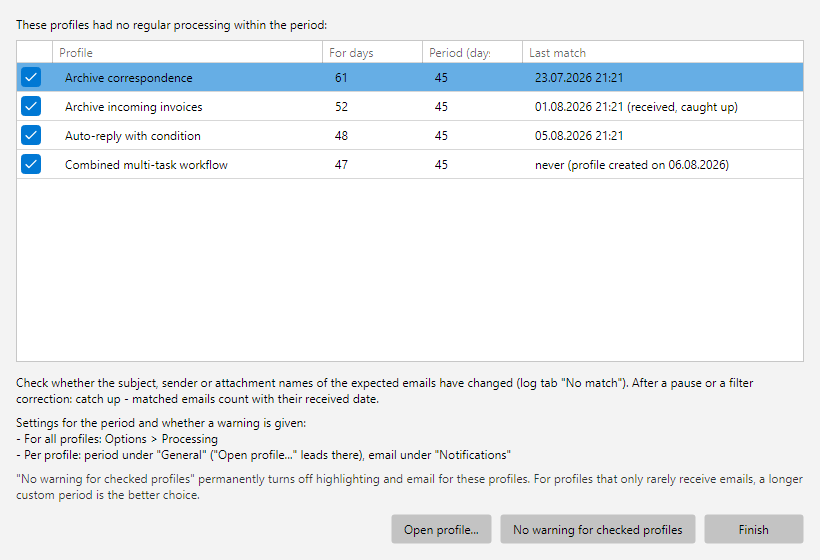 Processing overdue window: table of overdue profiles with checkboxes, days since the last regular processing, period and last regular processing
The table lists per profile the days since the last match, the applicable period and the last match. If it comes from a catch-up, the received date of the email is shown with the suffix “(received, caught up)”; for profiles without a match it reads “never” with the creation date. After a pause or a filter correction, it is best to catch up: if an email received within the period matches, the warning disappears. The columns can be sorted by clicking the header.
| Button |
Effect |
| Open profile… |
Opens the selected profile on the General page, where the period is set (also by double-clicking the row) |
| No warning for checked profiles |
Sets the period of all checked profiles to No warning; the rows disappear from the table. All profiles are checked when the window opens |
| Done |
Closes the window |
Note: “No warning” permanently turns off highlighting and email for the profile. For profiles that only rarely but regularly receive emails, a longer custom period is the better choice (see section 8.7.10).