15 Save to Database
15.1 Overview 
The Save to Database task stores data from the incoming message (sender, recipient, subject, receive date, freely selectable fields) as a record in a SQL Server database. It is the foundation for your own evaluations, reporting, ERP integration, or connections to downstream workflows.
The task is organized into five tabs: Database, Fields, Attachment Filter, Embedded Images (optional), and Options.
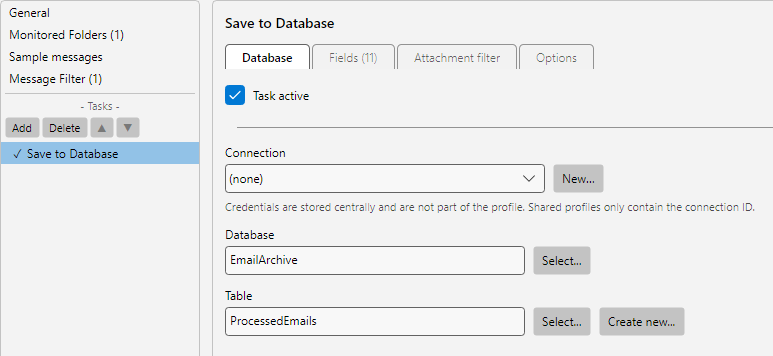 Profile settings, Save to Database task: connection selection, table name and column mapping to placeholders
15.2 “Database” tab 
15.2.1 Connection 
Selection from the SQL Server connections configured under Program Options -> Database Connections (see chapter 40.13). Via New Connection…, one can be created directly without closing the profile editor.
Note: The connection contains server, authentication, and connection options - it is managed centrally in the program options so that credentials do not have to be maintained multiple times.
15.2.2 Database 
Name of the target database on the selected server. The Select button retrieves the list of available databases from the server.
15.2.3 Table 
Name of the table into which the record is written. Three buttons assist with configuration:
| Button |
Effect |
| Select |
Lists existing tables of the database |
| Create new table |
Automatically creates a suitable table with default columns |
Tip: If the table does not yet exist, Create new table is the fastest path. The program creates a table with sensible columns (date, sender, recipient, subject, attachment name, attachment size, …), which you can then extend at will.
15.3 “Fields” tab 
The task works with a fixed set of predefined columns, each corresponding to a specific email property. Per column you enable or disable, via the checkbox, whether this column is included in the record. The column name in the SQL table is fixed and cannot be renamed.
Available columns:
| Column |
Content |
| Message ID (mandatory, always active) |
Unique key of the email (Internet Message ID); serves as the identifier for the On existing entries option |
| Sender address, Sender name |
Sender |
| Recipient addresses, Recipient names |
Recipients (To) |
| CC recipient addresses, CC recipient names |
Recipients (CC) |
| Subject |
Subject of the email |
| Delivery date |
Receive/send date |
| Message |
Mail body as text |
| Profile name |
Name of the profile that processed the message (as of version 4.7.0; disabled by default). After enabling, the column is added to the table automatically during the next processing run - useful for tracking in downstream systems which profile created a record |
| MSG file / EML file |
Original email as a blob (optional) |
| Name of primary attachment |
First or filtered attachment |
| Primary attachment |
Attachment as a blob (optional) |
| Attachments as ZIP file |
All attachments together as a ZIP blob (optional) |
15.4 “Attachment Filter” tab 
Per email exactly one record is created. The attachment filter determines which attachment is written as the primary attachment into the columns Name of primary attachment and Primary attachment - the first attachment that matches the filter criteria configured here. The filter criteria are analogous to the Save Attachments task (see chapter 9.3).
If no attachment matches the filter and the attachment-related columns are active, the task is logged as Skipped. If the attachment-related columns are not active, the record is written with the pure mail data - the attachment filter then has no effect.
15.5 “Embedded Images” tab 
Visible when the Process inline attachments option is enabled on the Options tab. Filter criteria for embedded images analogous to the attachment filter.
15.6 “Options” tab 
| Option |
Description |
| Process inline attachments |
Also treat embedded images as attachments |
| Strip headers from message body |
Intended for removing mail headers from the text written into the Message column |
| On existing entries |
Overwrite (replace existing record) or Cancel (leave record unchanged, task is logged as “Skipped”) |
15.7 Use case 
Incoming-invoice reporting
Table IncomingInvoices with enabled columns Delivery date, Sender address, Sender name, Subject, Name of primary attachment. Attachment filter: PDF only, optionally e-invoice type ZUGFeRD or XRechnung. An evaluation in Excel or a BI tool can then prepare supplier volumes, monthly incoming counts, and the share of e-invoices. Optionally also enable MSG file or Primary attachment if the originals should reside directly in the database for research purposes.
15.8 Tip 
- On the first run against an existing table, the program automatically adds missing columns - existing data remains unchanged