9 Save Attachments
9.1 Overview 
The Save Attachments task stores selected attachments of incoming emails as files in the file system. It is probably the most frequently used task - typical use cases are archiving incoming invoices, delivery notes, orders, or contract documents.
The task is organized into several tabs: Storage Location, Attachment Filter, Embedded Images (optional), ZIP Archives, PDF Conversion, and Post-processing.
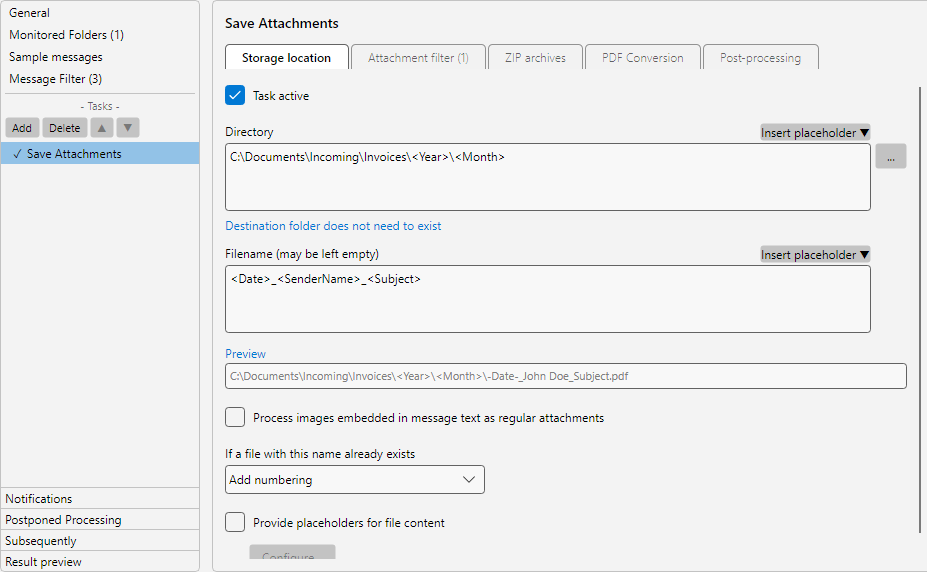 Profile settings, Save Attachments task: target path editor with placeholder button, attachment filter and options for duplicates and ZIP handling
9.2 “Storage Location” tab 
The Storage Location tab specifies where attachments are saved and how the file name is constructed.
9.2.1 Directory 
Path to the destination folder. You can enter a fixed path (D:\Archive\Invoices) or insert placeholders (D:\Archive\<EmailYear4>\<EmailMonth>). The Insert Placeholder button opens a selection menu containing all available placeholders (see chapter 70.1). The menu item Copy from profile copies the value of the field from a task of another profile: Recently used lists the last ten sources, All profiles all profiles with matching tasks; the respective value is shown as a hint. With many profiles, Search… at the top of All profiles opens a search window that filters by profile name, task and value as you type; Enter or a double-click applies the selected entry. The same menu item is available for the File name field and for the tasks “Save email” and “Download”. The … button lets you pick a folder via the file browser.
Tip: With placeholders such as <EmailYear4>\<EmailMonth>, the program automatically creates a time-based folder hierarchy. With <SenderName> or <Subject> the hierarchy can be structured by sender or case.
Below the path field, a button indicates whether the destination directory must already exist or may be created by the program - the mode can be toggled there.
9.2.2 File name 
Schema for the file name without extension. Placeholders can be used here too, for example <SenderName>_<EmailYear4>-<EmailMonth>-<EmailDay>_<FileName>. If the field stays empty, the original attachment name is used unchanged.
9.2.3 Preview 
In the Preview area, the program shows a resolved sample path - based on the test emails stored under Sample Messages. If no sample messages are available, the preview data entered via the Preview link is used instead.
9.2.4 Process embedded inline images 
If enabled, inline images (images embedded in the message body) are also treated as attachments and saved. Otherwise, only files marked as “real” attachments are considered.
9.2.5 If the file already exists 
| Option |
Behavior |
| Rename (with number) |
Appends a sequential number: Invoice.pdf -> Invoice (2).pdf |
| Overwrite |
Replaces the existing file |
| Skip |
Leaves the existing file and skips the save operation |
| Append date |
Appends the processing date: Invoice_20260507.pdf |
| Append time |
Appends date and time: Invoice_20260507_103045.pdf |
9.2.6 Placeholders from file content 
If enabled, the file name may contain placeholders whose values are extracted from the content of the file to be saved - for example an order number from a plain-text file. The Configure button opens the rule editor (see chapter 70.2).
Note: Content can only be extracted from pure text files (e.g. TXT, CSV, XML, JSON, HTML). Binary formats such as PDF, DOCX, or XLSX are not decoded.
9.3 “Attachment Filter” tab 
While the profile’s message filter decides whether the email as a whole is processed, the attachment filter restricts which attachments are actually saved. Example: an email contains an invoice and an advertising flyer as attachments - only the invoice should be saved.
9.3.1 File name and file type 
| Field |
Example |
| File name must contain |
Invoice |
| File name must not contain |
Ad |
| File type must contain |
.pdf |
| File type must not contain |
.exe |
9.3.2 File size 
Optional size filter with the operators Less than, Greater than, or Between and the units B, KB, and MB.
9.3.3 Image width and image height 
For image files, width and height in pixels can additionally be filtered - for example to save only photographic files (large images) while ignoring small logos in the signature area.
9.3.4 E-invoice type 
Filter specifically for e-invoices: ZUGFeRD invoice, XRechnung, or ZUGFeRD or XRechnung.
9.3.5 Respect leading and trailing spaces 
By default, the filter ignores leading and trailing spaces in input values. With this option, you can specifically match attachments with spaces at the start or end of the file name.
9.4 “Embedded Images” tab 
This tab is only visible if the Process inline images option is enabled on the “Storage Location” tab. Here, the same filter criteria as for regular attachments can be configured separately for embedded images.
Use case: You want to save regular attachments unfiltered but only embedded images above a certain size - to exclude signature logos and tracking pixels.
9.5 “ZIP Archives” tab 
This option automatically unpacks attachments in ZIP format.
| Field |
Description |
| Unpack ZIP archives |
Enables unpacking |
| Password |
Optional password for encrypted ZIPs |
| File filter (contains / does not contain) |
Filter on the names of files inside the ZIP |
| Save archive in addition |
Saves the ZIP itself in addition to the unpacked files |
| Unpack into subfolder |
Creates a subfolder per ZIP file |
| Files only (no directory structure) |
Discards the directory structures contained in the ZIP |
| Use ZIP name in path |
Includes the ZIP name in the destination path - either original or dynamically via placeholders |
Note: For security reasons, the program checks the size of unpacked files against the ZIP to prevent so-called “ZIP bomb” attacks.
9.6 “PDF Conversion” tab 
Optional conversion of certain attachment types to PDF before saving.
| Source |
Target |
| Word files (.docx, .doc) |
PDF |
| RTF files |
PDF |
| Excel files (.xlsx, .xls) |
PDF |
| Images (.jpg, .png, .gif, .bmp, …) |
PDF |
Use case: Incoming Office attachments should be stored uniformly as PDF so they can be displayed on any PC without an Office license.
Note: PDF conversion works independently of an installed Office version. Complex layouts (e.g. embedded fonts, macros) may be rendered slightly differently in the conversion.
9.7 “Post-processing” tab 
Actions that are executed after the attachments have been saved.
9.7.1 Run program 
Starts an external program after successful processing. Possible use cases: invoking your own processing pipeline, triggering a DMS import, calling a PowerShell file.
| Field |
Description |
| Program file |
Path to the executable file |
| Arguments |
Command-line parameters, placeholders allowed |
| Hide program window |
Hides the console for background calls |
| Run only once |
Collects multiple processings and calls the program once after the entire processing run has finished - that is, after all matching profiles have been applied to all messages |
9.7.2 Replace attachments with links 
If enabled, the attachments stored in the Storage Location step are replaced in the original email by a small .attlnk file. The .attlnk file contains the path to the stored original file (storage location + file name).
| Field |
Description |
| Replace attachments with links |
Enables the replacement. |
| Delay execution by |
Waits the specified number of days after saving before the attachments are replaced in the email. Without the check mark, the replacement takes place immediately. Useful if you want the attachments to remain available directly in the email for a few days, or if you want a safety window in which you can check the saved files. |
How the delay works: The attachments are saved immediately, the email initially remains unchanged. The log shows the line “Attachment replacement scheduled” for the task, including the earliest execution time. Once the delay has passed, the program replaces the attachments as part of the regular cleanup after the full check (every 15 minutes by default) and updates the log entry. The email is found even if it has been moved to another folder in the meantime. If it has been deleted, the saved file has been removed or the replacement has since been disabled in the task, no replacement takes place and the log states the reason. A copy with the option Create copy after attachment replacement (see chapter 18) is also created only after the delayed replacement. A temporarily deactivated profile keeps its scheduled replacements until it is active again; if the profile is deleted, they are dropped. The scheduled replacements of a profile are listed on its Postponed processing page, and the result preview names the replacement including the delay.
Restorable: Via Menu -> More -> Restore attachments… linked attachments can later be restored as real attachments in the email, provided the original files are still present in the storage location.
Prerequisites: IMAP account with write permissions or Microsoft 365 (Graph). POP3 accounts do not support replacement, since POP3 does not allow modifying mail on the server.
9.7.3 Save copies in additional locations 
Saves the file additionally in any number of further destination folders.
| Field |
Description |
| Destination folder list |
One or more additional storage paths |
| If folder is missing |
Create, ignore, or report as an error |
| If the file already exists |
As on the “Storage Location” tab |
Use case: An invoice should be filed in the accounting archive and at the same time in a project folder.
9.7.4 If the destination directory did not exist 
Configuration for the case that the primary storage path was not reachable.
| Field |
Description |
| Move email to error folder |
If the destination folder is unreachable, the message is moved to an error folder in the mailbox |
| Error folder |
Path of the error folder |
9.8 Use case 
Archive incoming invoices - Directory: D:\Archive\Incoming-Invoices\<EmailYear4>\<EmailMonth>. File name: <SenderName>_<EmailYear4>-<EmailMonth>-<EmailDay>_<FileName>. Attachment filter: PDF only, name contains “Invoice”. E-invoice: optionally ZUGFeRD or XRechnung.
9.9 Tip 
- For all profiles that save attachments, set a meaningful attachment filter - this is the only way to avoid the unintended storage of logos, tracking pixels, and advertising attachments