17 Forward Email
17.1 Overview 
The Forward Email task sends the incoming message to one or more additional recipients. In contrast to the Auto Reply task, forwarding is directed to third parties - the original message (often with attachments) is delivered to the new recipients with an optional introductory note in the preamble.
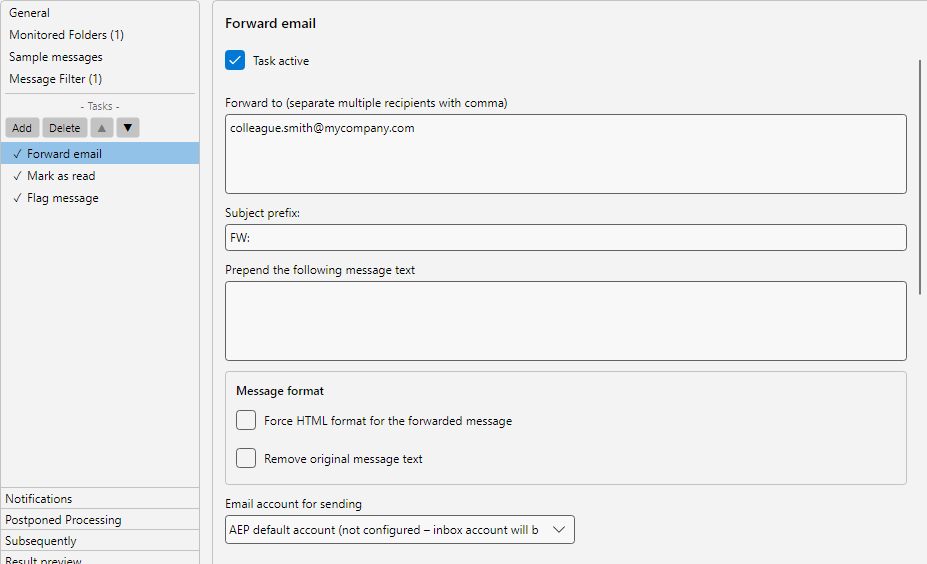 Profile settings, Forward Email task: recipient list, sending account, additional text and attachment options
The settings are spread over three tabs: General (recipients, subject, text, message format, sending account), Attachments (which attachments are included and in what form) and Pre-filter (additional conditions under which forwarding takes place at all).
17.2 “General” tab 
17.2.1 Forward to 
List of recipient addresses. Multiple addresses can be entered comma-separated or line by line:
accounting@company.com
purchasing@company.com
archive@company.com
Placeholders are allowed here as well - for example <SenderAddress> or an address resolved via a mapping table per supplier.
17.2.2 Subject prefix 
Is prepended to the original subject. Often “Fwd:” or “FW:”. If the field stays empty, the subject is carried over unchanged.
If the original subject already starts with the configured prefix, it is not prepended again. For the common forwarding markers (“FW:”, “Fwd:”, “WG:”) this also applies across languages, so that repeated forwarding does not produce “FW: Fwd: …”. A custom note such as “Please check:” is always prepended, even to a subject that already starts with “FW:”.
If the field contains the placeholder <Subject>, its content is treated as the complete new subject. The original subject is then inserted only in place of the placeholder and is not appended in addition.
17.2.3 Prepend message text 
Optional text inserted before the forwarded original message - e.g. an accompanying note: “Please forward to accounting for processing.”
If the text is entered as a complete HTML document, the program detects this and adjusts the layout accordingly. A note then appears in the editor.
17.3 Message format 
| Option |
Description |
| Force HTML format |
Sends the forward in HTML format even if the original message was plain text |
| Remove original message text |
Sends only the prepended text and the attachments - the body of the original mail is not quoted |
Use case for “Remove original message text”: You want to forward the attachment but hide the mail content from further recipients - for example if it contains internal notes.
17.4 Email account for sending 
Selection of the sending account from the accounts configured under Program Options -> Email Accounts. If no account is selected explicitly, the multi-stage account resolution applies as with the Auto Reply task (see chapter 13.5).
Note: A prerequisite is an account with SMTP sending. POP3 accounts alone cannot send.
17.5 “Attachments” tab 
17.5.1 Forward stored message file 
Additionally attaches to the forward the file(s) that were previously written by a Save Message task in the same profile - in the format chosen there (PDF, EML, MSG, HTML, or TXT). This way, an already prepared case file (e.g. PDF with Outlook header and embedded attachments) can be passed on without the recipient having to do the preparation step themselves.
Prerequisite: The Save Message task must be in the same profile and must come before the forward in the order. If it is placed after the forward (or is missing entirely), the forward task is flagged as an error at runtime. The profile editor already blocks this constellation when saving; imported profiles are automatically reordered correctly on load.
Multiple save tasks in the same profile result in multiple attachments - e.g. once as a PDF case file for accounting and once as an EML original for the archive mailbox.
17.5.2 Forward attachments 
If enabled, the attachments of the original message are forwarded as well. Otherwise, the forward proceeds without attachments.
| Sub-option |
Description |
| Include offloaded attachments |
If a previous profile has replaced attachments with links (see chapter 9.7.2), the original files are loaded from the offload path and re-attached to the forward as real attachments |
17.5.3 Attachment filter 
When Forward attachments is active, you can restrict which attachments are included. The fields correspond to the attachment filter of the Save Attachments task (see chapter 9.3):
| Field |
Example |
| File name must contain |
Invoice |
| File name must not contain |
Ad |
| File type must contain |
.pdf |
| File type must not contain |
.exe |
| File size |
Less than, greater than or between, in B, KB or MB |
| Respect leading and trailing spaces |
Enabled/disabled |
Important: At first, the attachment filter only decides which attachments are sent along, not whether forwarding takes place. If no attachment remains after filtering, the forward goes out without attachments. If forwarding should be skipped in this case, enable Do not forward if no attachment remains after the attachment filter. The task then appears in the log with the status “No matching attachment”; the other tasks of the profile continue. The option evaluates the final set of attachments, i.e. after the attachment filter, ZIP extraction and PDF conversion; a stored message file sent along counts as an attachment. For conditions on the email itself (sender, subject, original attachments), use the Pre-filter tab (section 17.6). Embedded images from signatures are not affected by the attachment filter.
The file name filter of older versions (“Filter contains” / “Filter does not contain”) is automatically carried over into the new fields when the profile is opened.
17.5.4 Forward ZIP content 
If the original message contains a ZIP, its individual files can be extracted and attached to the forward - instead of the ZIP. Optionally, a password for encrypted ZIPs can be specified.
17.5.5 PDF conversion 
Office and image attachments can be converted to PDF before forwarding - analogous to the Save Attachments task (see chapter 9.6):
- Word documents
- RTF documents
- Excel documents
- Images
Use case: Recipients without an Office license receive attachments uniformly as PDF.
17.6 “Pre-filter” tab 
The pre-filter is an additional condition for this task only: forwarding only takes place if all filter criteria defined here are met. Without criteria, every email captured by the profile is forwarded.
The difference to the profile’s message filter (chapter 30): the message filter decides whether the profile processes the email at all and therefore affects all tasks. The pre-filter only affects the forward. Typical case: the profile recognizes a customer’s emails by the sender and always saves all attachments, but forwards only if a PDF attachment is present - for example because the recipient, a service provider or a software, rejects emails without attachments with an error.
The criteria are created as in the message filter (property, operator, value), but are always combined with AND here; there is deliberately no OR in the pre-filter. If the profile has sample messages, the preview below the list shows which of them meet the pre-filter.
If the pre-filter does not match an email, the task appears in the log with the status “Pre-filter not met” (entry “Not forwarded”). This is not an error: the other tasks of the profile continue unchanged, and the result preview with sample messages shows the decision as well.
17.7 Use case 
Accounting forward
Recipient: accounting@company.com. Subject prefix: “Fwd:”. Message text: “For processing. Kind regards, Secretariat.” Forward attachments enabled. Filter: PDF only with “Invoice” in the name.
17.8 Tip 
- Avoid infinite loops: if the forwarding address itself is monitored by a profile, a mail can run through multiple times. Filter out forwarded messages based on the subject prefix