13 Auto Reply
13.1 Overview 
The Auto Reply task sends a prepared reply to the sender of an incoming email. The reply can be tied to three different conditions - typical use cases are acknowledgments of receipt, notices about missing attachments, or notifications that an order has been processed successfully.
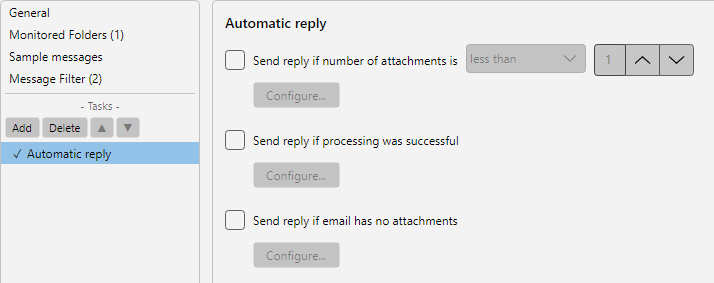 Profile settings, Auto Reply task: reply text editor, sender account, attachment selection and repeat conditions
13.2 Trigger conditions 
The task offers three separate conditions that can be combined freely. Each condition has its own reply content and its own sending account.
13.2.1 Send reply when the attachment count… 
Sends the reply when the number of attachments matches a condition. Available operators:
| Operator |
Description |
| equals |
Exactly X attachments |
| less than |
Fewer than X attachments |
| greater than |
More than X attachments |
| not equal |
Any number except X |
Use case: “If no attachments are included (count equals 0), send back a request: ‘Please send the missing attachments.’”
The Configure button opens the reply editor.
13.2.2 Send reply when processing was successful 
Sends the reply after the other tasks of the profile have completed successfully.
Use case: Acknowledgment to the sender as soon as the invoice has been filed in the archive and accounting has been notified.
Note: This condition is only evaluated after all preceding tasks. If any task fails, the reply is not sent.
13.2.3 Send reply when the email has no attachments 
Sends the reply when the incoming message contains no attachments at all.
Use case: An incoming mailbox for invoices occasionally receives text-based inquiries without attachments. The sender automatically receives a reply: “Please send invoices with the corresponding attachment as PDF.”
13.3 Reply editor 
Via Configure, a separate editor opens for each condition with the following inputs:
13.3.1 Reply texts (tabs) 
| Tab |
Description |
| Standard reply |
Reply text used during business hours |
| Reply outside business hours |
Optional alternative text outside business hours. If the field remains empty, the standard reply is used |
| Custom business hours |
Only visible if the business hours source is set to Custom. Here you define the weekdays and times that apply to this reply |
The reply text can contain plain text or HTML. The Insert Placeholder button opens a selection menu with all available placeholders (see chapter 70.1).
13.3.2 Business hours source 
| Option |
Description |
| Default business hours |
Uses the business hours from the program options |
| Custom business hours |
Enables the Custom business hours tab, in which you define separate time windows for this reply |
13.3.3 Sending account 
In the Send reply with field you choose the email account from which the reply is sent. If the field is left at the default, the four-stage resolution applies (see chapter 13.5).
13.3.4 Options 
| Field |
Description |
| Force HTML format |
Sends the reply as HTML even if the original message was plain text |
| Remove ‘Replied’ status from original message |
Removes the reply flag from the original message in the mailbox so that it appears as unanswered again |
13.4 Placeholders in the reply text 
In the reply text, all placeholders (see chapter 70.1) are usable - e.g.:
| Placeholder |
Sample value |
<SenderName> |
Name of the original sender |
<SenderAddress> |
Sender address |
<Subject> |
Original subject |
<EmailYear4>-<EmailMonth>-<EmailDay> |
Receive date as a formatted string |
<NumberOfAttachments> |
Number of attachments in the original message |
Sample reply:
Hello <SenderName>,

thank you for your message "<Subject>" from <EmailYear4>-<EmailMonth>-<EmailDay>.
We have received it and will process it
as soon as possible.

Kind regards
Accounting
13.5 Sending account resolution 
The account that actually sends the reply is determined in four stages:
| Stage |
Source |
| 1 |
Account chosen manually in the reply editor |
| 2 |
Default reply account from the program options under Program Options -> Notifications |
| 3 |
Default sending account from the program options |
| 4 |
Account at which the incoming message arrived |
The resolution proceeds from top to bottom. As soon as a stage yields a match, that account is used.
Note: A prerequisite for sending is that the sending account supports SMTP sending. POP3 accounts can only receive, not send - for pure POP3 setups, an additional SMTP account must therefore be set up under program options.
13.6 Use case 
Acknowledgment for invoices - Condition: Processing successful. Reply: “Hello , thank you for your invoice. It was recorded in our system on -- and will be processed by the due date.”
13.7 Tip 
- Avoid infinite loops: filter out automatic replies and read receipts via the message type filter (see chapter 30.17) so that an auto reply does not trigger another auto reply