23 Create SEPA Payment File
23.1 Overview 
The Create SEPA payment file task turns incoming invoices into credit transfers. An e-invoice contains the payee, IBAN, amount, and due date in machine-readable form. There is nothing to type.
One file SEPA_YYYY-MM-DD.xml is created per processing day, in the format of the German Banking Industry Committee (pain.001). You load this file into your online banking or banking software and release the transfers there. The program itself does not transfer any money.
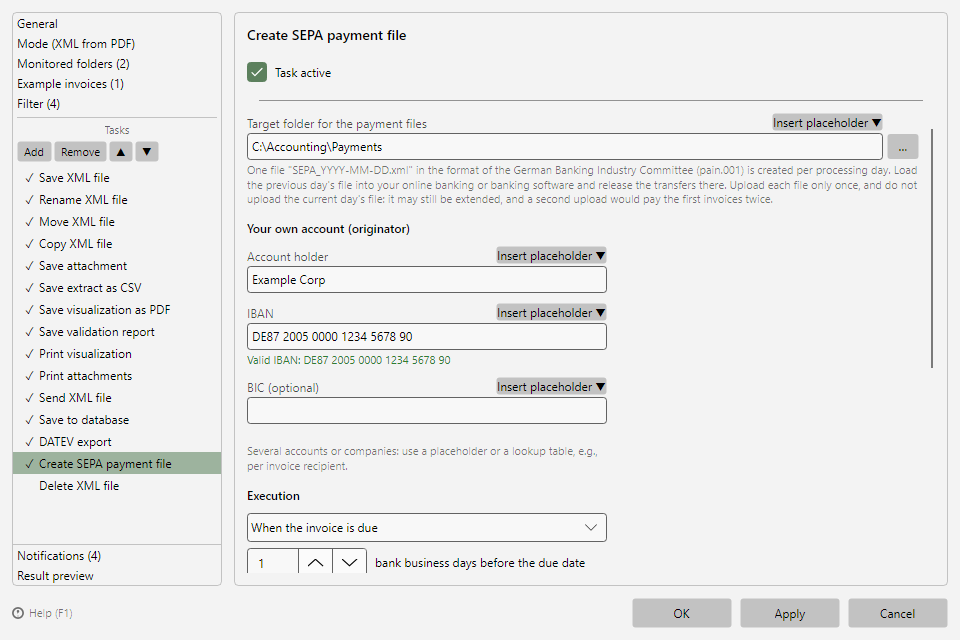 Create SEPA payment file task with target folder, own account, and execution date
23.2 Day-to-day workflow 
- The program processes your incoming invoices and writes one transfer per invoice to the day's file.
- On the next day, you load the previous day's file into your banking.
- You check the transfers in your bank's preview and release them.
- Afterwards, you move or delete the file.
Why the previous day's file? The current day's file grows with every further invoice. If you upload it today and again later, the first transfers are contained twice.
Tip: A separate profile for payments keeps things clear, for example with a filter on your suppliers. You can also add the task to an existing profile, for example after archiving.
23.3 Settings 
| Setting |
Meaning |
| Target folder for the payment files |
Folder where the daily files are stored. Placeholders are allowed. |
| Account holder |
Name of your own account as your bank keeps it |
| IBAN |
IBAN of your own account. The program checks it as you type (length and check digits). |
| BIC (optional) |
BIC of your own account. May be left empty. |
| Execution |
When the invoice is due or On the next bank business day (see section 23.4) |
| Bank business days before the due date |
Lead time before the due date, default 1 |
| Use the cash discount while its period is still running |
Off by default (see section 23.5) |
| Remittance information (optional) |
Empty: the remittance information from the invoice, otherwise "Invoice dated ". Placeholders are allowed, at most 140 characters. |
| Replace umlauts and special characters |
Off by default (see section 23.7) |
Several accounts or companies: Account holder, IBAN, and BIC accept placeholders. Using a lookup table, you choose the account per invoice recipient, for example (see chapter 70.2). Alternatively, set up one profile per company and filter by the VAT ID of the invoice recipient (see chapter 30.5).
23.4 Execution date 
With When the invoice is due, the program transfers shortly before the due date:
Due on Friday, 2026-11-20, lead time 1 bank business day
→ execution on Thursday, 2026-11-19
The following applies:
- A SEPA credit transfer reaches the payee's bank no later than the bank business day after execution. With a lead time of 1 bank business day, the money therefore arrives on the due date.
- If the date falls on a weekend or bank holiday, the previous bank business day is used.
- Bank business days are the business days of the TARGET payment system: Monday to Friday, except New Year's Day, Good Friday, Easter Monday, May 1, and December 25 and 26. The program does not know regional holidays.
- The earliest date is the bank business day after processing. You upload the file on the next day, and banks treat dates in the past differently.
- Invoices without a due date and invoices that are already due get the earliest date.
With On the next bank business day, all transfers get the earliest date.
Note on dates far in the future: Banks only have to accept an order 15 calendar days before the execution date. If an invoice is due in 30 days, for example, some banks reject the file. In this case, upload the file later or choose On the next bank business day.
23.5 Cash discount 
With Use the cash discount while its period is still running, the program transfers the reduced amount on the last discount day:
Invoice dated 2026-11-02 for 1,000.00 EUR, 2 % cash discount for payment within 14 days
→ last discount day: Monday, 2026-11-16
→ with 1 bank business day lead time: transfer of 980.00 EUR on Friday, 2026-11-13
→ remittance information: "Invoice INV-1 dated 2026-11-02 less 2 percent cash discount (20.00 EUR)"
The following applies:
- The program reads the cash discount terms from ZUGFeRD invoices (payment terms with a discount) and from XRechnung invoices (line
#SKONTO#TAGE=14#PROZENT=2.00#).
- The period counts from the invoice date.
- If the invoice states a basis amount, the program calculates the discount on it, otherwise on the amount due.
- With several discount levels, the level with the highest deduction whose period can still be met is used.
- If the period is no longer sufficient at processing, the program transfers the full amount when due.
With the execution On the next bank business day, the program also transfers the reduced amount on the next bank business day. The field for the bank business days is grayed out there and does not count. The program assumes one bank business day for the transfer: if the money arrives by the last discount day that way, it uses the cash discount, otherwise it transfers the full amount.
The addition in the remittance information helps the supplier to match the reduced payment. It always stays complete: if the remittance information is too long, the program shortens the text before it.
23.6 Which invoices are transferred? 
| Invoice |
Result in the log |
| Credit transfer in euros with a valid IBAN |
Successful with file, amount, payee, and date |
| Credit note |
Skipped |
| Direct debit or SEPA direct debit |
Skipped - the supplier collects the amount |
| Cash, card, cheque, standing order, or offsetting |
Skipped |
| Currency other than euros |
Skipped - SEPA credit transfers exist only in euros |
| No amount due, for example fully prepaid |
Skipped |
| Invoice was already in a payment file |
Skipped (see section 23.8) |
| No or invalid IBAN, no payee name |
Error - please transfer the amount yourself |
| Payee outside the EEA (for example Switzerland) without BIC or without town and country |
Error - please transfer the amount yourself |
| Payee IBAN equals the IBAN of your own account |
Error - usually the IBAN field of your own account contains a placeholder for the supplier's IBAN |
As with all tasks, after an error the program does not run the following tasks of the profile. After "Skipped", they continue.
Payee name: The program uses the account holder from the invoice, otherwise the different payee, otherwise the supplier. When you release the transfers, the bank compares the name with the account holder (verification of payee). The account holder from the invoice gives the best match.
End-to-end reference: Each transfer carries the invoice number as its reference. It travels all the way to the supplier and helps with queries.
23.7 Umlauts and special characters 
German banks must accept umlauts, ß, and the characters &, *, $, and %. The program therefore keeps them in names and remittance information:
Müller & Söhne Straßenbau GmbH
With Replace umlauts and special characters, this becomes:
Mueller + Soehne Strassenbau GmbH
Only switch on the replacement if your bank rejects the file otherwise. Some online validators report umlauts as errors because they only know the basic European character set. For German banks, this is irrelevant.
Regardless of the setting:
- The program always replaces other characters, for example é with e or ø with o.
- The reference (invoice number) only contains letters without umlauts, digits, and a few punctuation marks.
INV_2026#5 becomes INV-2026-5.
- Names are limited to 70 characters, the remittance information to 140 characters. The program shortens longer texts, but never the cash discount addition (see section 23.5).
23.8 Protection against double payment 
Each invoice is written to a payment file only once. The program recognizes it by invoice number, invoice date, and supplier. The protection also applies:
- when you have moved or deleted the payment file after uploading it,
- when you process an invoice again or catch up on it,
- when the same invoice arrives as PDF and as XML.
The program records the invoices in the file SepaZahlungsregister.txt in the program's data folder. If processing runs as a Windows service, it is in the data folder of the service account. The backup includes the file (see chapter 60.3); the backup for support does not (as of version 2.6.0).
Important in service operation: Automatic backups are only created while the program window is running (see chapter 40.10.2). If the window stays closed, back up the data folder of the service account with the server's data backup. If the file is lost, the program no longer knows the paid invoices - during catch-up, an invoice could end up in a payment file a second time.
Payment file lost before it was uploaded? Then transfer the affected invoices yourself. Alternatively, open SepaZahlungsregister.txt in a text editor, delete the lines of these invoices, and process the invoices again.
23.9 Result preview 
The result preview applies the rules to the example invoice (see chapter 8.11). It shows, for example:
Create SEPA payment file Transfer 624.75 EUR to Baker IT Services LLC, execution 2026-11-19 → C:\Accounting\Payments\SEPA_2026-11-17.xml
If the invoice is skipped, the preview names the reason. The preview does not check whether an invoice was already in a payment file.
23.10 Technical details 
- Format: pain.001.001.09 according to the specification of the German Banking Industry Committee (DFÜ agreement, Annex 3, version 3.9), character encoding UTF-8
- One batch per execution date and own account. On the bank statement, each batch appears as one collective booking.
- When an invoice is added, the program rewrites the daily file completely, with a new message reference.
- The Excel report counts the transfers and names the payment file per invoice (see chapter 80.3).