50.4 Drafts
50.4.1 Overview 
The Send file task can save emails as drafts instead of sending them (option "Do not send message, but only save it in the draft folder", see chapter 17.2) - e.g. for review during the introduction phase or as an approval step. The processing log shows "Saved as draft" for such messages.
50.4.2 The drafts window 
When drafts exist, the Email drafts (N) button appears next to the main menu (see chapter 2.3); clicking it opens the overview window.
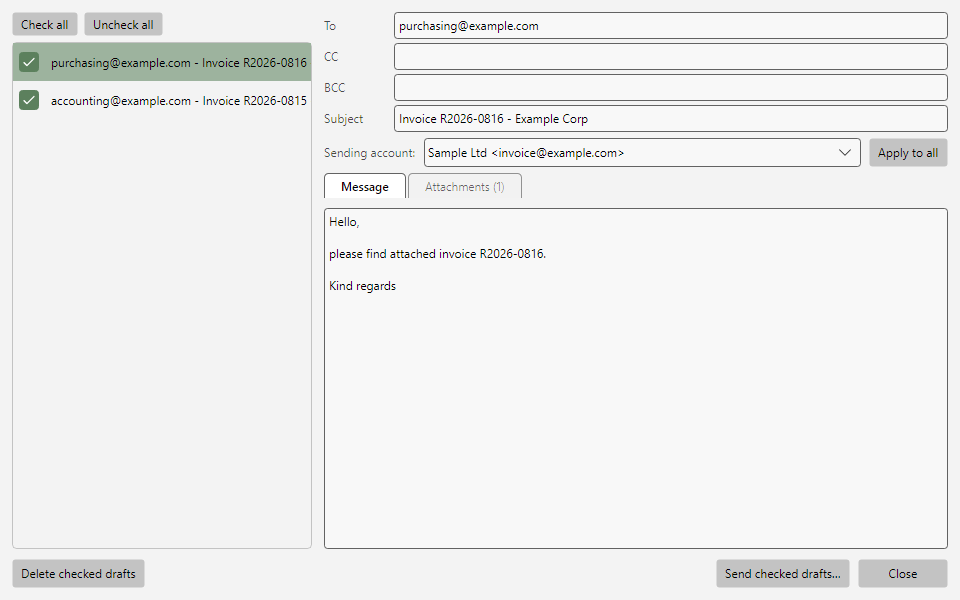 Drafts window with draft list, message, and attachments
| Area |
Function |
| Draft list |
All stored drafts with selection checkboxes (Check all / Uncheck all) |
| Message tab |
Recipients (To/CC/BCC), subject, and text of the draft - still editable before sending |
| Attachments tab |
View/open, add, and remove attached files |
| Sending account |
Adjust the draft's send settings; optionally apply to all drafts |
50.4.3 Sending and deleting 
- Send checked drafts... sends the checked drafts via the configured sending method (see chapter 40.8); after successful sending the draft disappears and the log entry shows the normal sending status.
- Delete checked drafts removes the checked drafts permanently.