8.8 Monitored Folders
8.8.1 Overview 
Here you define which folders the profile monitors for new invoice files. For each folder you can choose whether subfolders are included.
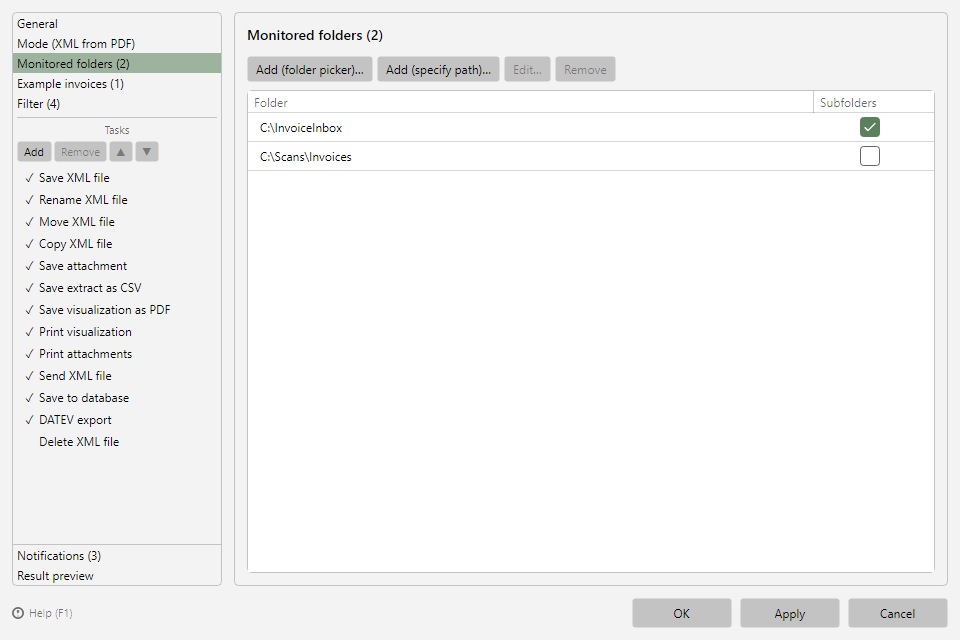 Profile settings, Monitored folders area with two entries and the subfolders column
8.8.2 Buttons 
| Button |
Function |
| Add (folder picker)… |
Select a folder via the Windows folder dialog |
| Add (specify path)… |
Enter the path as text - with support for environment variables (e.g. %USERPROFILE%), an insertion menu of the common variables, and a live preview of the resolved path. This way, the same profile export works on machines with different user profiles. |
| Edit… |
Opens the specify-path dialog for the selected entry |
| Remove |
Removes the selected entry from monitoring (the folder itself remains) |
8.8.3 "Subfolders" column 
If the checkbox is set, the profile also monitors all subfolders of the entry.
8.8.4 Behavior for newly added folders 
On first contact with a new monitored folder, the existing files are not processed but only marked as known - from then on, newly arriving files are processed. Adding a folder containing thousands of old invoices therefore does not trigger an unwanted mass processing.
Tip: If existing files should be processed after all, use Catch up… (see chapter 60.2).
8.8.5 Considered file types 
Which files in the monitored folders are considered depends on the processing mode (see chapter 8.7): in "Process XML file" mode only XML files, in the two PDF modes only PDF files. The program ignores other file types.