11 Save Extract as CSV
11.1 Overview 
The Save extract as CSV task writes selected invoice fields to a CSV file - one file per invoice, or continuously into a collective file. Use it to hand invoice data over to Excel, analyses, or import interfaces.
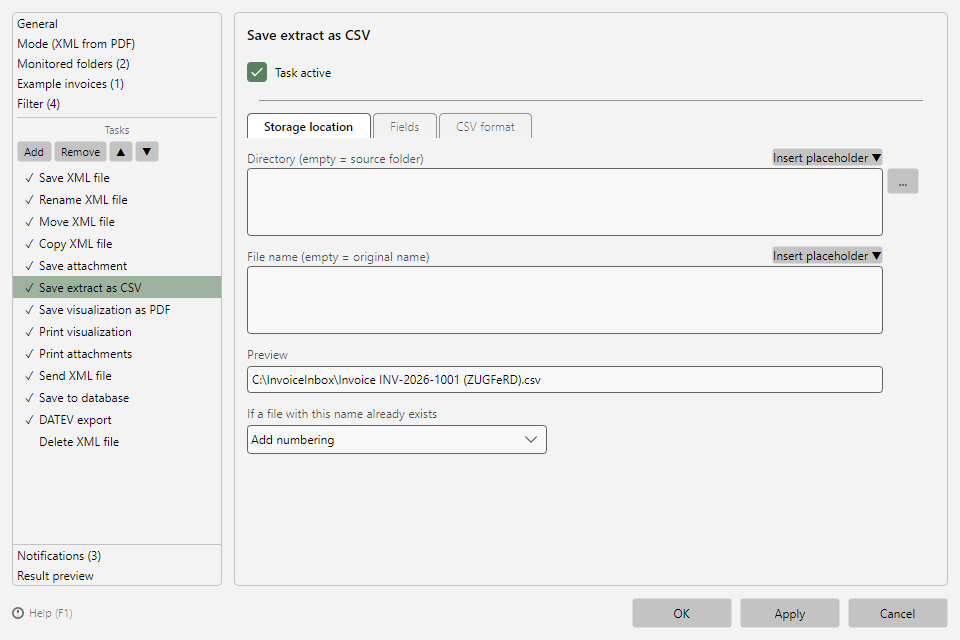 Save extract as CSV task with the Storage location, Fields, and CSV format tabs
11.2 "Storage location" tab 
Layout and conflict behavior as for all saving tasks (see chapters 9.2 and 9.3). Without an entry, the original file name with the .csv extension is used.
11.3 "Fields" tab 
Here you compose the fields to extract - the CSV columns in this order. You can choose from all invoice fields (invoice data, seller/buyer, payment data, line item fields) and the file properties.
 Fields tab with the field selection and the Multiple… and Import… buttons
| Button |
Function |
| Add |
Appends the field selected on the left |
| Multiple… |
Opens a list of all fields with check boxes and a search field. The checked fields are appended in the order in which you check them; fields that are already included are greyed out |
| Remove |
Removes the selected fields - hold down Ctrl or Shift to select several at once |
| ▲ / ▼ |
Moves the selected field (when exactly one field is selected) |
| Import… |
Copies the field list of another "Save extract as CSV" task (see below) |
Importing a field list: The dialog lists all other "Save extract as CSV" tasks that contain fields - from other profiles and from this profile - each with the profile name, the number of fields and the first fields; if a profile has several such tasks, they are numbered. The search field finds profiles and fields, and the three most recently used sources are listed at the top. If the task already contains fields, you choose whether the imported list replaces them or whether only the missing fields are appended. The source remains unchanged. Typical use: several profiles write to the same collective file and therefore need the same columns.
Line item list: If the field selection contains at least one line item field (item, quantity, unit price, ...), one row per invoice line item is written - the header data (invoice number etc.) is repeated in every row. Without line item fields, exactly one row per invoice is produced.
11.4 "CSV format" tab 
| Setting |
Meaning |
| CSV collective file |
All invoices are continuously appended to ONE file (instead of one new file per invoice). The collective file is protected against corruption by an automatic backup copy (.bak). |
| CSV column headers |
Writes the field names as the first row (for the collective file only when it is created) |
| CSV delimiter |
Column separator; empty = the system's list separator |
| Encoding / Code page |
Character encoding of the file; default: UTF-8 with BOM (directly Excel-compatible) |
Typical use: one collective CSV per month as an invoice journal (directory/file name with date placeholders), or a line item list for further processing in Excel.