13 Save to Database
13.1 Overview 
The Save to database task transfers the invoice data into a Microsoft SQL Server table - optionally with an additional dedicated table for the invoice line items. The data is then directly available for analyses, dashboards, or follow-up systems.
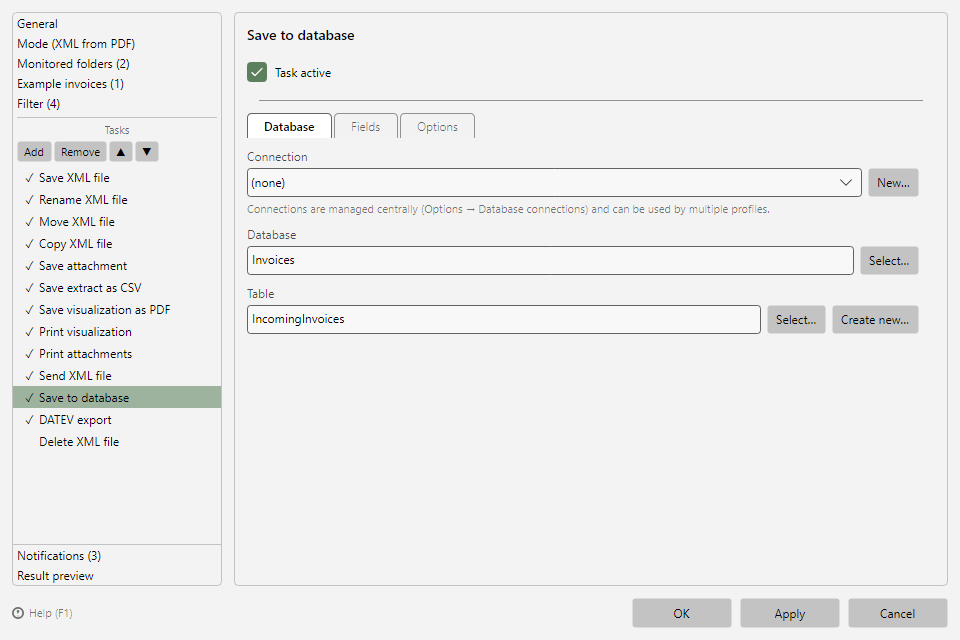 Save to database task with the Database, Fields, and Options tabs
13.2 "Database" tab 
| Setting |
Meaning |
| Connection |
The database connection to use. Connections are managed centrally in the program options (see chapter 40.15); New... takes you straight there. |
| Database |
Target database on the server |
| Table |
Target table; Create new... creates a new table with the selected fields as columns |
| Line item table |
Only with line item saving enabled (see section 13.4) |
13.3 "Fields" tab 
The selected fields are stored as columns in the table. The field catalog is grouped by topic (invoice data, seller, buyer, amounts, payment, ...).
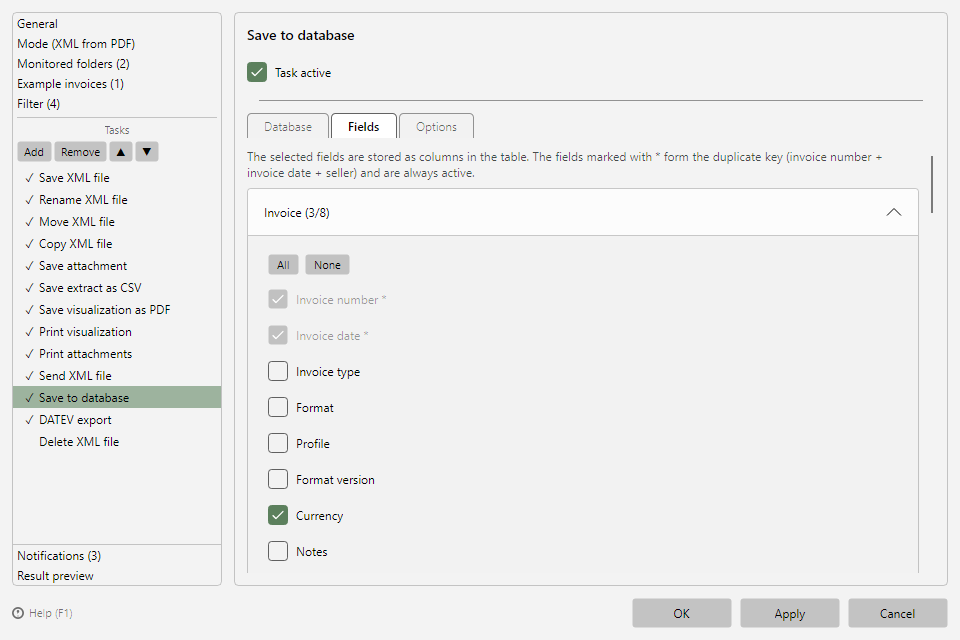 Fields tab of the database task with the grouped field catalog
The fields marked with * form the duplicate key (invoice number + invoice date + seller) and are always active.
13.4 "Options" tab 
| Setting |
Meaning |
| If an entry already exists (same invoice number, same invoice date, same seller) |
Overwrite entry or Skip (do not save again) - this keeps the table free of duplicates even when the same invoice is processed again |
| Additionally save invoice line items to a separate table |
Writes one row per invoice line item to the configured line item table (linked to the invoice entry) |