8 Profile Settings
8.1 Overview 
The Profile settings window is the central configuration dialog for a single profile. Here you define which folders are monitored, which file type is processed, which invoices the filter lets through, and which tasks are executed.
Opening: Click New profile… in the profile toolbar, or double-click an entry in the profile list.
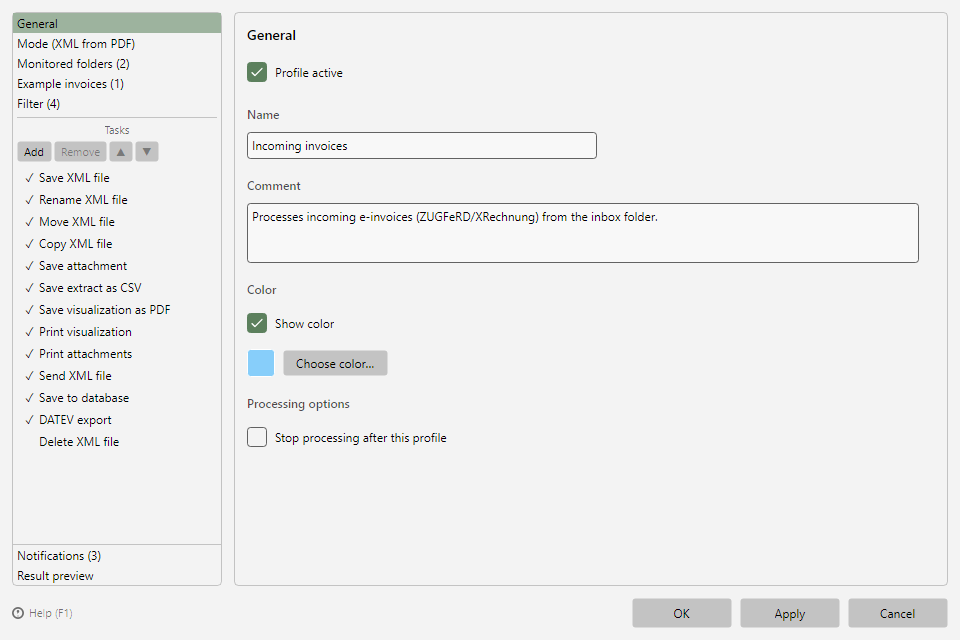 Profile settings with navigation on the left (categories and task list) and page content on the right
8.2 Window layout 
The navigation is on the left, the content of the selected page on the right:
| Navigation area |
Content |
| Fixed categories (top) |
General, Mode (…), Monitored folders, Example invoices, Filter - the mode label shows the current processing mode in parentheses |
| Tasks (middle) |
Toolbar and list of the configured tasks (see section 8.3) |
| Bottom |
Notifications, Result preview |
The Monitored folders, Example invoices, Filter, and Notifications entries show the number of configured elements in parentheses, e.g. "Monitored folders (2)" - for the notifications, the number of enabled notification types. The window title follows the profile name live as you type.
8.3 Task list 
The task list shows all tasks of the profile in their execution order. Each task has:
- a check mark - the task is active; without it, the task stays configured but is not executed
- a mode-dependent name - the file tasks name the target file of the processing mode, e.g. "Rename PDF file" or "Rename XML file" (see chapter 8.7)
8.3.1 Task list toolbar 
| Button |
Function |
| Add |
Opens a menu with all task types (see chapters 9 to 21). The same task type can be added multiple times - e.g. two "Copy file" tasks with different target folders. New print tasks adopt the print defaults from the program options (see chapter 40.11). |
| Remove |
Removes the selected task |
| ▲ / ▼ |
Moves the selected task within the execution order |
Clicking a task shows its settings page on the right.
8.4 OK, Apply, Cancel 
| Button |
Effect |
| OK |
Saves all changes and closes the window |
| Apply |
Saves all changes, the window stays open |
| Cancel |
Discards all unsaved changes and closes the window. If the window was opened via New profile… and never saved, the new profile is discarded entirely. |
Before saving, the program validates the configuration for completeness (e.g. empty profile name, storage task without a target directory, email task without a recipient). If an issue is found, a message appears and the window jumps directly to the affected page or task.
Context help: The Help (F1) link at the bottom left (or the F1 key) opens the online help chapter for the currently displayed page.
8.5 The pages at a glance 