60.5 Licensing
60.5.1 Registration with a license key 
After the purchase you receive a license key. Main menu → Enter license key... opens the registration window:
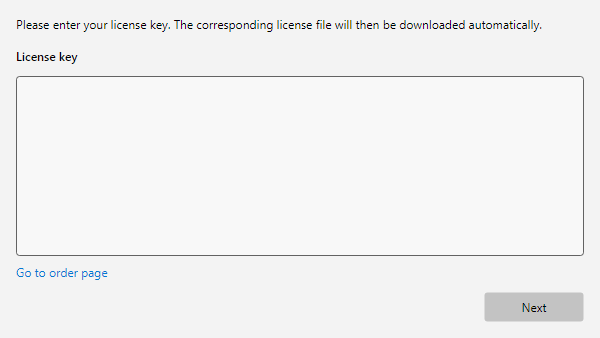 Registration window with input field for the license key
- Enter the license key - the corresponding license file is then downloaded automatically
- On success, the window confirms: "Registration was successful. Thank you!"
- If the key is not accepted, the window states the reason and the next step - for example an invalid key, an expired or blocked license, or a license server that cannot be reached. The reason is also written to the error log and thus to the error report (see chapter 80.2).
The Go to order page button leads to purchasing a license key.
60.5.2 Manual registration without internet access 
If the license file cannot be downloaded automatically (e.g. firewall/proxy), the window offers the manual download path:
- Open the displayed license file link in a browser (on another machine if necessary) and save the file
- Place the file in the application data folder (Open application data folder)
- Click Retry registration
60.5.3 Viewing the license status 
Main menu → About... shows the program version and license information (see chapter 2.1).
In addition, the title bar of the main window shows the current license status: "Lifetime license" or "License valid until " for registered licenses, "Demo ( days)" during the trial period, and "Trial period expired" after it has ended. If a license key was entered and not accepted, the reason follows, for example "Demo (12 days), license not confirmed since 5/29/2026" - also in the About... window.
60.5.4 Trial period and license expiration 
Without a license key, the program can be tested for 30 days; on startup, the number of remaining trial days is shown. During the trial period, the number of profiles is limited to two - the full version has no restrictions whatsoever - and the top toolbar shows the Order now button (see chapter 2.3). If the trial period has expired, a red notice bar appears above the log area; clicking it opens the registration window. Automatic processing is then stopped, and the program prompts for registration on startup.
For a time-limited license, an orange notice bar with the expiry date and the remaining days appears from 30 days before the license ends, and a red one after it has expired; clicking it opens the order page for renewing.
This also applies when running as a Windows service or with --headless: the processing process checks the license at startup and daily afterwards. If it is invalid or the trial period has expired, it pauses processing, writes an entry to the error log, and the status bar shows "Processing stopped - registration required". As soon as a valid license is available - for example after registering in the program window under the same user account - it resumes processing by itself within a few seconds.
60.5.5 Privacy during the license update 
During the license update, the program only transfers a checksum of the license key and the product name - not the key itself and no invoice or log data. When this happens and which data the program stores overall is described in chapter 1.7.