1 Introduction
1.1 What is Automatic X-Invoice Processor? 
Automatic X-Invoice Processor processes electronic invoices (e-invoices) automatically: the program monitors folders for new invoice files, reads the structured invoice data, and then runs the tasks you have configured - for example renaming and filing by invoice data, converting to a readable PDF, printing, sending by email, saving to a SQL Server database, or exporting a DATEV posting batch.
Supported formats:
| Format |
Variants |
| ZUGFeRD / Factur-X |
Versions 1.0 to 2.5, all profiles (PDF with embedded XML as well as plain XML) |
| XRechnung |
All versions, both syntaxes: UN/CEFACT CII and UBL |
| EN 16931-compliant invoices |
e.g. Peppol BIS Billing |
1.2 How it works 
Processing is organized in profiles. A profile defines:
- Monitored folders - where new invoice files arrive (see chapter 8.8)
- Mode - which file type is processed: XML, PDF, or "extract XML from PDF" (see chapter 8.7)
- Filter - which invoices the profile processes, e.g. only certain suppliers (see chapter 30)
- Tasks - what happens to each matching invoice (see chapters 9 to 21)
The actual processing is done by a background process. New files are processed as long as the program is running - including minimized or moved to the notification area; the main window does not have to be visible for that (see chapter 60.1).
1.3 The main window 
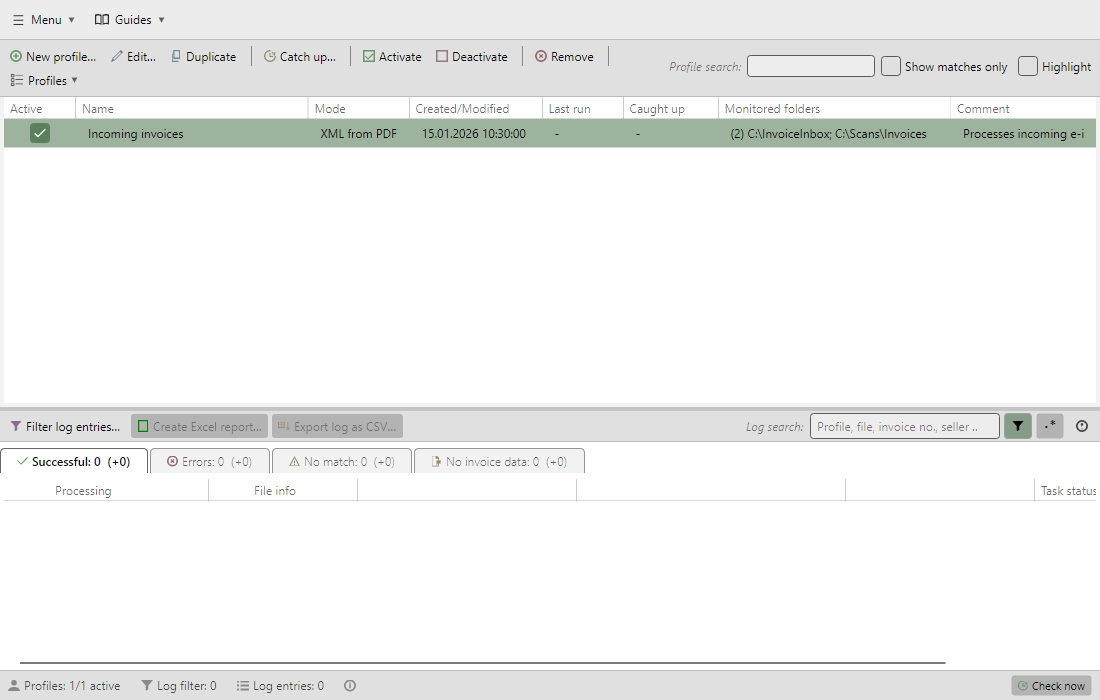 Main window with profile toolbar, profile list, log toolbar, log list, and status bar
From top to bottom, the main window consists of the following areas:
| Area |
Description |
| Main menu |
Program-wide functions such as options, license, help, backups (see chapter 2) |
| Profile toolbar |
Create, edit, duplicate, catch up, activate/deactivate profiles (see chapter 3) |
| Profile list |
All processing profiles with status and key data (see chapter 4) |
| Log toolbar |
Filter, search, and export the processing log (see chapter 5) |
| Log list |
Processing log with tabs (see chapter 6) |
| Status bar |
Status information and the Check now button (see chapter 7) |
1.4 Getting started 
As long as no profile exists, the main window shows a getting-started card in place of the log list, with the two steps to your first automatic invoice processing and the Set up demo button.
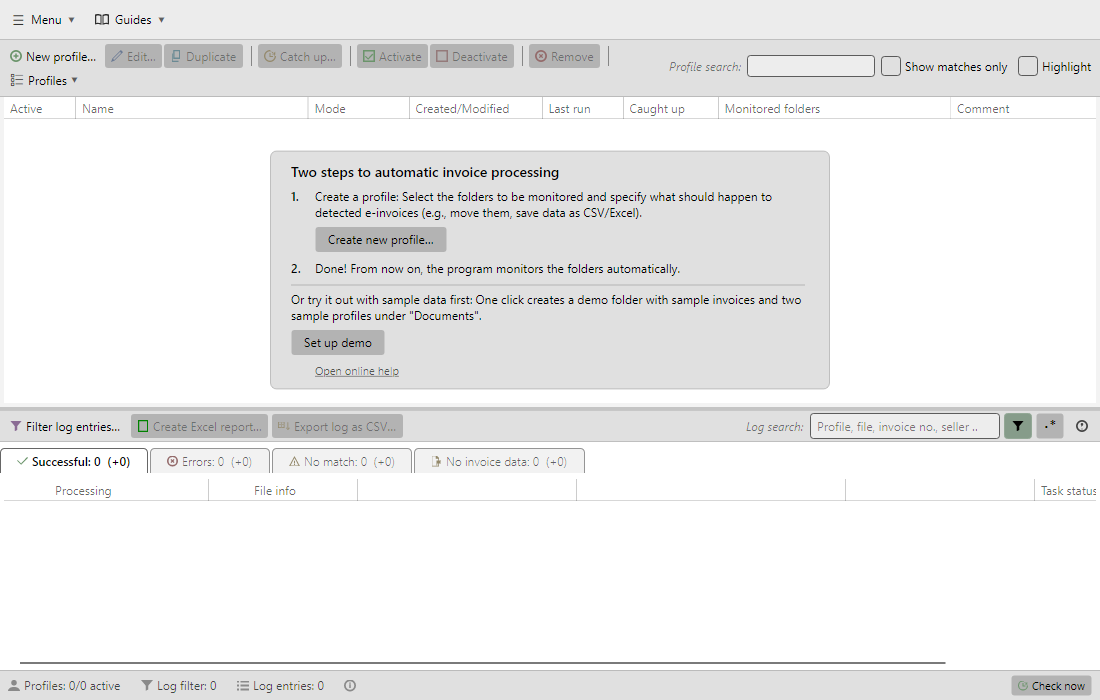 Getting-started card in the main window when the profile list is empty
Set up demo creates a demo folder with sample invoices under "Documents" and adds two sample profiles - so you can try the program immediately with harmless test data (see chapter 50.3).
1.5 Keyboard shortcuts 
The following keyboard shortcuts are available in the main window:
| Key |
Function |
| F1 |
Opens the online help |
| F5 |
Check now, or cancel a running processing cycle (same as the status bar button, see chapter 7.3) |
| Ctrl+N |
Create a new profile |
| Ctrl+E or Enter |
Edit the selected profile |
| Ctrl+D |
Duplicate the selected profile |
| Del |
Remove the selected profiles (with confirmation) |
| Esc |
Move the window to the notification area (only with the option "Move to the notification area on close" enabled and not in service operation, see chapter 40.5.3) |
1.6 Languages 
The user interface is available in English and German. You can switch the language in the program options (see chapter 40.5).
1.7 Privacy: what data the program stores 
Automatic X-Invoice Processor works exclusively on your computer or server. Besides the invoices themselves, it stores settings and logs that can contain personal data - such as names of invoice issuers and invoice recipients, file paths and email addresses. There are no usage statistics (telemetry); invoices, logs and error reports are not transferred to the manufacturer automatically.
What is stored
| Data |
Content |
Retention |
| Options and profiles |
Monitored folders, filter texts, lookup tables, senders and recipients of the emails, SMTP user. Depending on the setting, passwords are stored encrypted in the configuration or in the Windows credential store; passwords from the custom send settings of a task are always stored encrypted in the profile (see chapter 40.5.5) |
Until you change or delete them |
| Processing log |
Per file the path, invoice number, dates, amount, name and number of the invoice issuer and the invoice recipient, references and the result of each task, such as the target path or the recipients of an invoice that was sent |
Retention period under Options → Other (default 90 days, at least 30, see chapter 40.17). The program removes older entries at startup and daily afterwards - also in pure service operation without a program window |
| Identifiers for duplicate detection |
File path with size and modification time as well as invoice number, invoice date and name of the invoice issuer |
Without time limit - also after the retention period, so that invoices that have already been processed are not processed again. The same applies to invoices that were skipped with the option "Skip new files with already processed invoice data as duplicates" (see chapter 40.6.5): once the file has not been in the folder for longer than the retention period, only the identifiers of its entry remain |
| Error logs |
Technical error messages, partly with file paths or replies from the mail server (see chapter 80.2) |
7 days; the program removes older entries at startup and with every new entry |
Diagnostics log ServiceDiagnostics.log |
Start, stop and operating events with the Windows user and profile path, in special cases also file paths |
Retention period as for the processing log, checked daily. When the file reaches 5 MB, it becomes ServiceDiagnostics.log.bak and a new one is started; an older .bak is replaced in the process |
| Recently used recipients (▼ button) |
Up to 15 email addresses |
Newer addresses push out older ones |
| Email drafts (see chapter 50.4) |
Complete messages including attachments |
Until they are sent or deleted in the "Email drafts" window |
| Automatic backups (see chapter 40.10) |
ZIP archives of the application data without the log databases, i.e. with options, profiles, drafts as well as error and diagnostics logs; not encrypted |
The latest 50 (adjustable) |
| Sign-in to Microsoft 365 (Exchange Online) |
Sign-in token from Microsoft instead of a password, encrypted and bound to the Windows user account |
Until you sign out under Options → E-mail sending |
| License |
License key and signed license information |
Permanently |
Where the data is located
- Application data folder
%APPDATA%\Automatic X-Invoice Processor 2 - for the Windows service, that of the service account. Main menu → More → Open application data folder shows it.
- Backups: by default in the folder
%APPDATA%\Automatic X-Invoice Processor 2 - Backups.
- Sign-in token for Microsoft 365:
%LOCALAPPDATA%\Automatic X-Invoice Processor 2.
- Working files:
%LOCALAPPDATA%\GillmeisterSoftware - they are deleted after use or at the next start of processing.
- Registry:
HKEY_CURRENT_USER\SOFTWARE\Gillmeister Software\Automatic X-Invoice Processor 2 with control and status values; during processing, the path of the current file is stored there briefly.
- Passwords in the Windows credential store (if selected): Windows Credential Manager, entries "AutomaticXInvoiceProcessor_...".
- The results of the tasks - saved files, CSV extracts, DATEV batches, database entries, stored Excel reports - are located where you specify. The program does not delete them.
Access: The respective Windows user or the service account and the administrators of the computer have access to the files, the manufacturer does not. Data only leaves the computer by the routes you set up - emails via your own account, network folders, SQL Server - and with files you pass on yourself, such as the error report or the backup for support (see chapters 80.2 and 60.3.4).
Connections to the manufacturer
- Update check: At startup and every 4 hours afterwards, the program window retrieves the version list
https://www.gillmeister-software.de/downloads/updates.csv - without parameters.
- License update: only with a license key entered. The program contacts the license server at registration, when the license information is missing or invalid, and for licenses with regular confirmation as soon as the last confirmation is 14 days old. A checksum of the license key (not the key itself) and the product name are transferred.
- The web server records the usual access data (see the privacy policy of the website).
- Links to the online help or the order page only open the browser when you click them.
Deleting data
- Log list: Main menu → More → Clear log database (see chapter 2.2.7). Error logs: Clear error logs (see chapter 80.2.5).
- Completely: Uninstalling only removes the program files and Windows services that have been set up. Afterwards, delete the application data folder, the backup folder, the folder
%LOCALAPPDATA%\Automatic X-Invoice Processor 2, the registry key and, if applicable, the credential store entries - for the Windows service also those of the service account.