17 Send File
17.1 Overview 
The Send file task sends the invoice file by email - e.g. to forward it to accounting, the tax consultant, or an approval workflow. The sending method (SMTP or Microsoft 365) is configured centrally in the program options (see chapter 40.8); each task can override it with custom send settings.
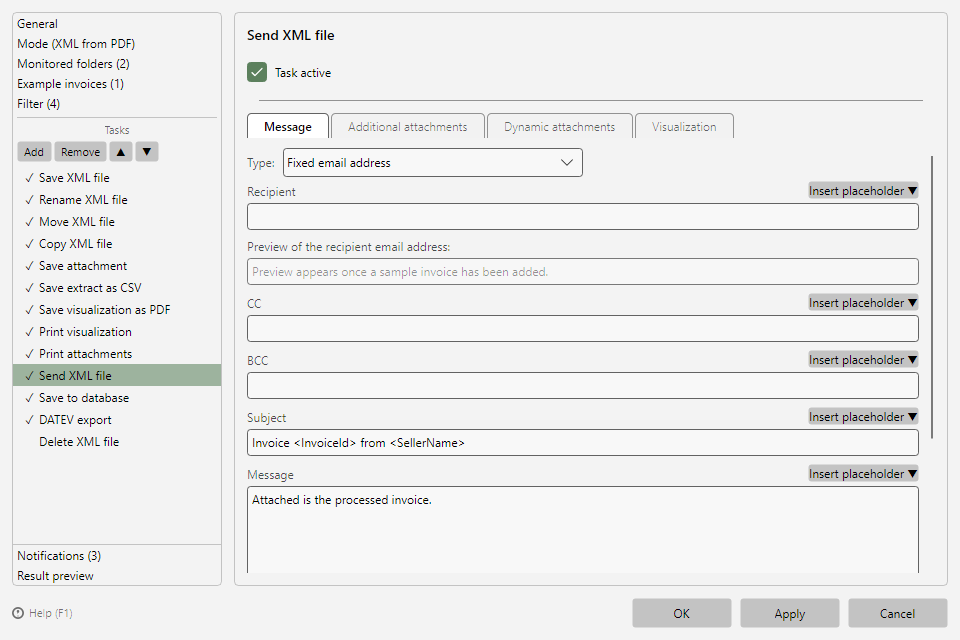 Send file task with message tab, recipient, subject, and message
17.2 "Message" tab 
| Field |
Meaning |
| Type |
Fixed email address or Email address from CSV mapping (see section 17.3) |
| Recipient, CC, BCC |
Recipient addresses - with placeholder support; a preview shows the resolved recipient address based on the example invoice |
| Subject, Message |
Subject and message text, also with placeholders (e.g. Invoice <InvoiceId> from <SellerName>) |
| Format message as HTML |
Sends the text as HTML instead of plain text |
| Do not send message, but only save it in the draft folder |
Stores the email as a draft instead of sending it - for review before sending (see chapter 50.4); the log shows "Saved as draft" |
| Include visualization PDF (XML mode) |
Additionally attaches the readable PDF visualization of the invoice (see chapter 12) |
| Use custom send settings |
Overrides the global send settings for this task (Configure send settings...) |
17.3 Recipient from CSV mapping 
With the type Email address from CSV mapping, the recipient is determined per invoice from a CSV file: you specify the CSV file, the delimiter, the column containing the email addresses, the column containing the placeholder value, and the placeholder. At runtime, the placeholder value (e.g. the seller name) is looked up in the CSV and the matching address is used - so, for example, each clerk receives the invoices of "their" suppliers.
17.4 "Additional attachments" tab 
Any fixed files to be sent along with the invoice (e.g. a cover letter).
17.5 "Dynamic attachments" tab 
Other files to be sent along with the invoice that are searched for in the source folder at runtime - each entry with a name, a file name pattern (placeholder support), and a maximum wait time for new files. Typical use: a delivery note belonging to the invoice that arrives in the same folder shortly after it.
17.6 "Visualization" tab 
Header of the included visualization (Left/Center/Right) - applies to the PDF generated via Include visualization PDF (see chapter 12.3).
Note: In the program options you can configure a pause between email sends; the countdown appears in the status bar (see chapter 7.2.4).