60.2 Catch-Up Processing
60.2.1 Overview 
Catch-up processing applies profiles retroactively to files already present in the monitored folders - for example:
- process the pre-existing contents of a newly monitored folder (deliberately skipped when the folder is added, see chapter 8.8.4)
- run files through again after correcting the profile settings
- let a temporarily deactivated profile catch up (catch-up also works for deactivated profiles)
Start: toolbar → Catch up... for the selected profiles, or Profiles → Catch up all profiles... (see chapter 3.5). For a single file, the log context menu Process file again is quicker (see chapter 6.4).
60.2.2 The "Apply profiles retroactively" dialog 
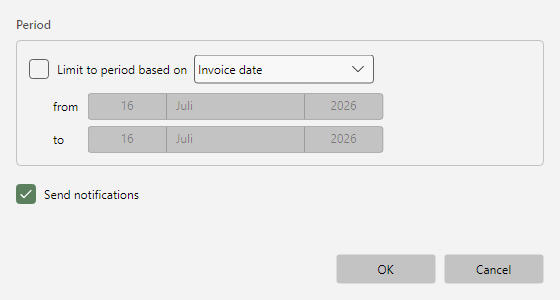 Catch-up dialog with profile list, period limitation, and notification option
| Setting |
Meaning |
| Profile list |
Which profiles are caught up |
| Limit to period based on + period (from/to) |
Only process files or invoices of the chosen period |
| Send notifications |
Whether the profile notifications (see chapter 8.12) are triggered during catch-up as well |
A progress window shows the course (successfully processed / no match / not overwritten / errors) and allows cancellation; after completion it closes by itself after a moment. If the run ended exclusively with filter non-matches, it stays open with a corresponding hint. The time of the last fully completed catch-up appears per profile in the Caught up column of the profile list - together with the caught-up period in parentheses, or "(unlimited)"; a canceled run is not recorded (see chapter 4.2).
If no processor is running for the signed-in Windows user account - for example because the Windows service logs on with a different account -, catch-up processing does not start: the progress window points this out after a few seconds and starts automatically as soon as a processor is available. If you close the window before that, the catch-up request is withdrawn.
60.2.3 Interplay with duplicate handling 
During catch-up, already processed files are processed again - the content-based duplicate detection of regular processing (see chapter 40.6.5) deliberately does not apply here. Keep this in mind for tasks with external effects (email sending, database): the database task stays uncritical thanks to the duplicate key (see chapter 13.4), but an email send would be triggered again.