8.11 Result Preview
8.11.1 Overview 
The result preview shows, for a selected example invoice, what would happen if the current profile were applied - without actually processing anything. Example files are managed on the Example invoices page (see chapter 8.9).
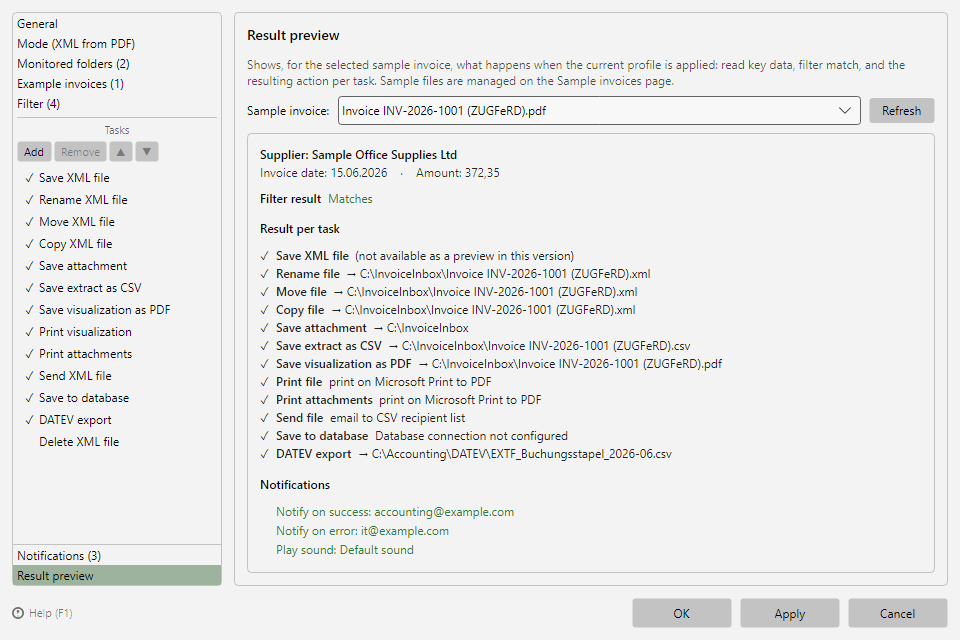 Profile settings, Result preview area with key data, filter result, and result per task
8.11.2 Usage 
Select the example invoice in the dropdown at the top and click Refresh to recalculate the preview with the current state of the profile settings.
8.11.3 Display areas 
| Area |
Content |
| Key data |
Invoice data read from the file: seller, invoice date, amount |
| Filter result |
Whether the profile filter matches, with the reason as in the filter preview: for a match, the group that is met, otherwise per group the rows that are not met (see chapter 8.10.4) |
| Result per task |
For each active task the resulting action - e.g. the full target path for saving/renaming (with resolved placeholders), the target printer for printing, or the recipient for sending |
| Notifications |
One line per enabled notification with its recipients: success and error (see chapter 8.12), the program-wide message for files without a filter match (see chapter 40.6.6) and, if it applies to the profile, the message about missing processing (see chapter 40.6.7). If the recipient is missing, the line appears red with the hint "(no recipient specified)". An enabled notification sound is listed as well. Without any enabled notifications the area shows a dimmed "(no notifications active)". |
If the filter does not match, the preview points out that the tasks would not be executed for this file - the task results are still shown for review.
Tip: The result preview is the fastest way to verify placeholder expressions in target paths and file names before real invoices are processed.