9 Save XML File
9.1 Overview 
Save XML file is only available in the "Extract XML from PDF file" processing mode (see chapter 8.7). In this mode, the program automatically extracts the embedded XML invoice to a temporary folder - this task then stores the extracted XML file permanently at the selected target. The subsequent tasks then refer to the saved file.
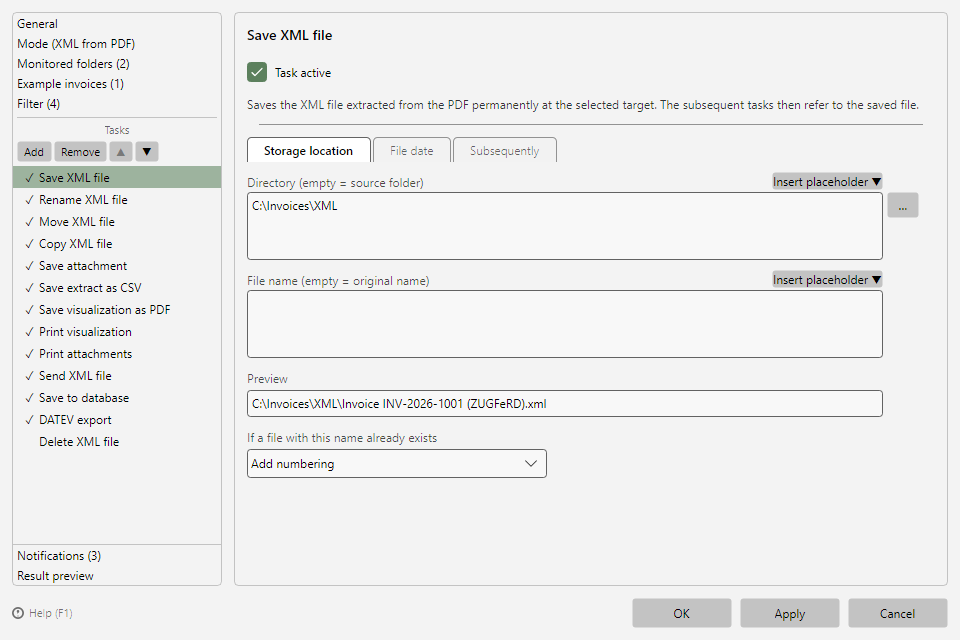 Save XML file task with the Storage location, File date, and Subsequently tabs
Note: Without this task, the extracted XML file remains in the temporary folder and is cleaned up at the next program start. If the profile only evaluates the XML data (e.g., save extract as CSV, save to database), that is perfectly fine - the task is only needed if the XML file itself is to be kept.
9.2 "Storage location" tab 
The storage location tab has the same layout for all saving tasks:
| Field |
Meaning |
| Directory (empty = source folder) |
Target folder of the file. Via Insert placeholder, invoice data can be used in the path, e.g. a subfolder per seller (see chapter 70.1). |
| File name (empty = original name) |
New file name, also with placeholders - e.g. <InvoiceDateComplete> <SellerName> <InvoiceId>. |
| Preview |
Shows the resolved target path based on the selected example invoice (see chapter 8.9). |
| If a file with this name already exists |
Conflict behavior, see section 9.3 |
9.3 Conflict behavior 
| Option |
Effect |
| Overwrite |
Replaces the existing file |
| Add numbering |
Appends a running number to the file name (default) |
| Add date processed |
Appends the processing date to the file name |
| Add time processed |
Appends the processing time to the file name |
| Cancel |
Does not save; the task is skipped for this file |
9.4 "File date" tab 
Optionally sets the file timestamps of the saved file:
- Set creation date to: and/or Set modification date to:
- Available sources: Original date (of the source file), File creation date, File modification date, Invoice date
Tip: With "Set modification date to: Invoice date", filed invoices can be sorted chronologically by invoice date in Explorer.
9.5 "Subsequently" tab 
Optionally runs a program after saving:
| Setting |
Meaning |
| Execute program |
Enables the program execution |
| Program |
Path to the executable |
| Parameters |
Command-line arguments; placeholders: <PathIncludingFilename>, <ParentDirectory>, <Filename> |
| Hide program window |
Starts the program invisibly |
| Execute only once (after completion of the run) |
Starts the program not per file but once at the end of the processing cycle |
Typical use: handing the saved file over to a follow-up system (import script, archiving tool).