22 Save Validation Report
22.1 Overview 
The Save validation report task stores the validation report for each invoice - as an HTML file for reading and printing and/or as an XML file for archive and downstream systems. This creates proof of the formal check that can be kept together with the invoice or passed on to the supplier. What validation checks and what the report contains is described in chapter 50.5.
The task is located in the Add menu in the group of saving tasks.
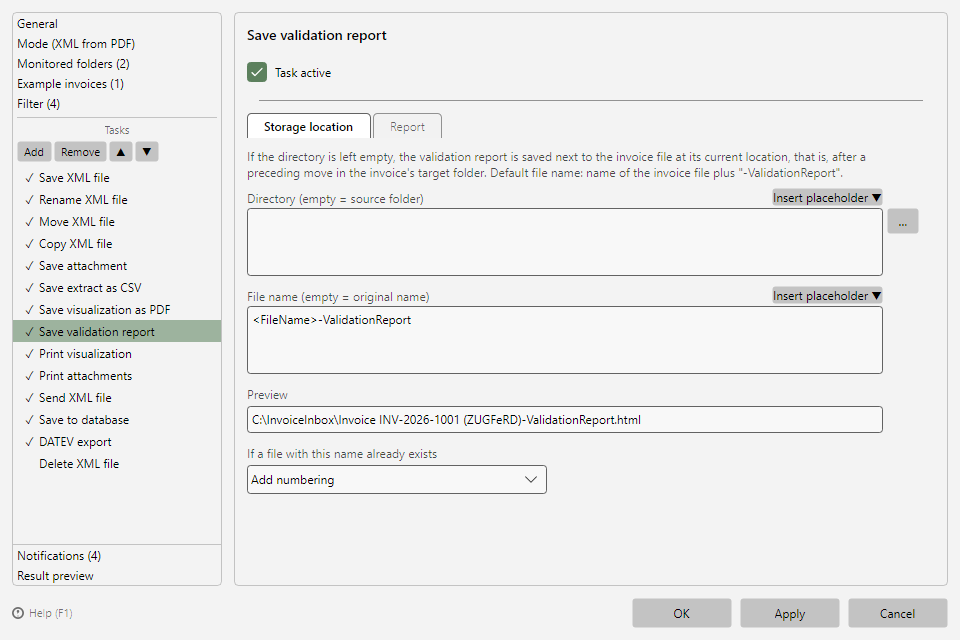 Save validation report task with the Storage location and Report tabs
22.2 "Storage location" tab 
Layout and conflict behavior as for all saving tasks (see chapters 9.2 and 9.3). Two special features:
- If the directory is left empty, the report is stored next to the invoice file at its current storage location - that is, after a preceding Move file task, in the invoice's target folder.
- The default file name is
<FileName>-ValidationReport, i.e. the name of the invoice file with the suffix "-ValidationReport". The extension (.html or .xml) follows from the selected format.
All placeholders are available (see chapter 70.1), including the validation placeholders such as <ValidationStatus>.
22.3 "Report" tab 
| Setting |
Meaning |
| File format of the validation report |
HTML (readable, also for printing; default), XML (for archive and downstream systems), or HTML and XML (both files) |
| Write report |
Always (default; retention with the invoice), Only with findings (errors or warnings), or Only with errors (result Invalid or Schema error) |
The report contains the program version, time of creation, file and SHA-256 hash of the checked XML data, the invoice header, the result, the rule sets with versions, the validation engine, and all stored findings with rule, text, and location.
22.4 Behavior without a result 
If there is no validation result for a file - because validation is switched off in the program options (see chapter 40.17) or the file could not be checked -, the task is skipped; the log states the reason. It is also skipped when the condition Only with findings or Only with errors does not apply.
Typical use: place the task after Move file and leave the directory empty - then the invoice and the validation report end up together in the archive folder. With Only with errors and a target folder "Clarification", on the other hand, you collect only the reports of faulty invoices for the follow-up with the supplier.