Convert e-invoices to readable PDF files automatically
XRechnung invoices are plain XML files - practically unreadable for humans. This how-to shows how Automatic X-Invoice Processor automatically converts incoming e-invoices into a readable PDF visualization: a neatly formatted invoice view with sender/recipient, invoice header, line item table, totals and payment information.
At a Glance
- Difficulty: Beginner
- Time required: about 5 minutes
- Prerequisites: Automatic X-Invoice Processor installed; a folder where e-invoices arrive
- Task used: Save visualization as PDF
Video tutorial: Save e-invoices as readable PDFs (with narration and optional subtitles)
Step 1: Create a profile and choose the mode
- Click New profile… in the profile toolbar and enter a name under General (e.g. "Make e-invoices readable").
- Under Mode, choose the appropriate processing mode - for XRechnung files, Process XML file (XRechnung). ZUGFeRD PDFs can be visualized as well (mode Process PDF file), e.g. to get a uniformly formatted view with an inbox stamp.
- Under Monitored folders, add the folder where your e-invoices arrive.
The basic setup of a profile is described in detail in the how-to "Getting started".
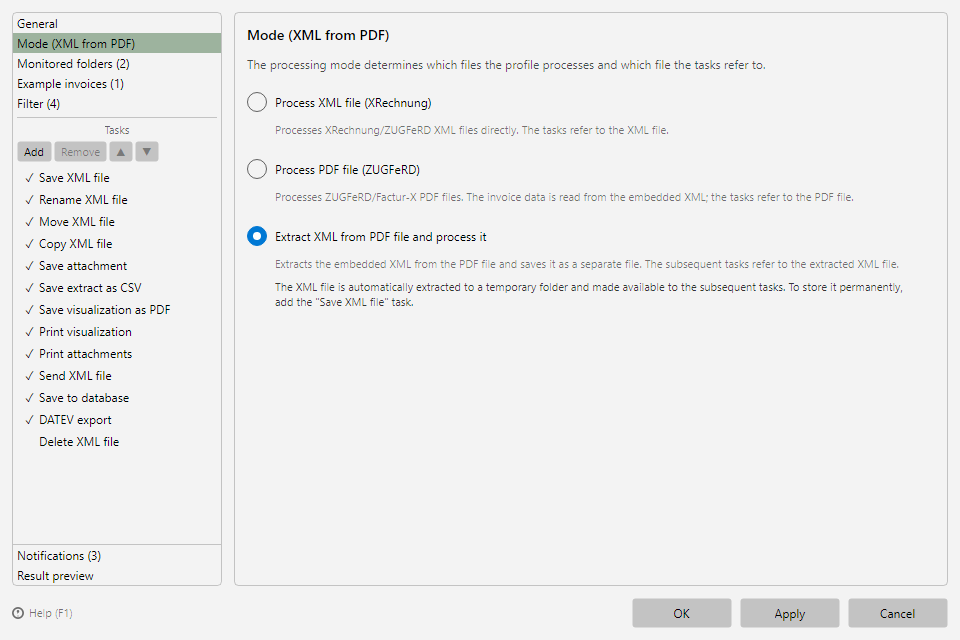 Profile settings, Mode area with the three processing modes
Step 2: Add the "Save visualization as PDF" task
Click Add in the task list and choose Save visualization as PDF.
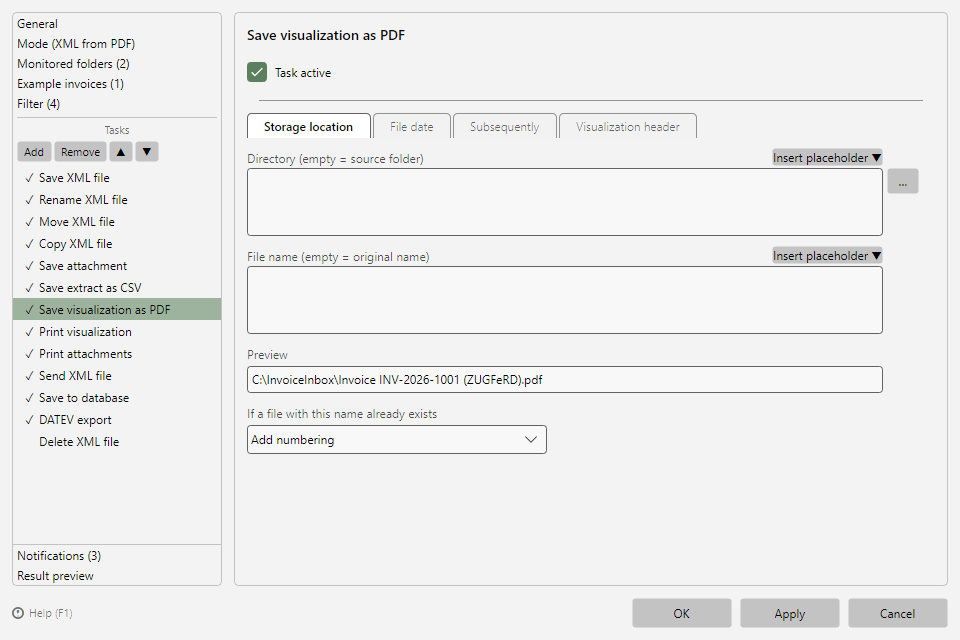 Save visualization as PDF task with storage location and visualization header
On the Storage location tab:
- Enter the target directory (e.g.
D:\Archive\Invoices (readable)). If the field is left empty, the PDF file is placed in the source folder.
- Optionally enter a file name with placeholders, e.g.
<InvoiceDateComplete> <SellerName> <InvoiceId> - so the generated PDFs carry descriptive names right away (see chapter 70.1).
- The preview shows the resolved target path based on an example invoice (see chapter 8.9).
- Define the conflict behavior if a file with this name already exists (default: Add numbering).
If desired, every page of the visualization gets a header with three freely configurable text areas (Left, Center, Right) - typical use: an inbox-stamp or processing note such as "Received electronically - Automatic X-Invoice Processor". Multi-line texts are possible.
Step 4 (optional): Archive the original afterwards
To keep the inbox folder empty, add Move file as a second task and move the original invoice file to an archive (see chapter 19). The order in the task list is the execution order - the PDF generation should come before the move.