Save e-invoices to a SQL Server database automatically
If you want to analyze invoice data, show it in dashboards or hand it over to follow-up systems, you need it in a database. This how-to shows how Automatic X-Invoice Processor automatically writes the data of every incoming e-invoice into a Microsoft SQL Server table - optionally with an additional table for the invoice line items and with built-in duplicate protection.
At a Glance
- Difficulty: Advanced
- Time required: about 15 minutes
- Prerequisites: Automatic X-Invoice Processor installed; a reachable Microsoft SQL Server with credentials and write permissions
- Task used: Save to database
Video tutorial: Save invoices to a SQL database (with narration and optional subtitles)
Step 1: Set up the database connection
Connections are managed centrally in the program options - profiles only reference the connection name; the credentials stay on this computer and do not travel with profile exports.
- Open Menu → Options…, page Database connections.
- Click Add… and enter server, authentication and credentials.
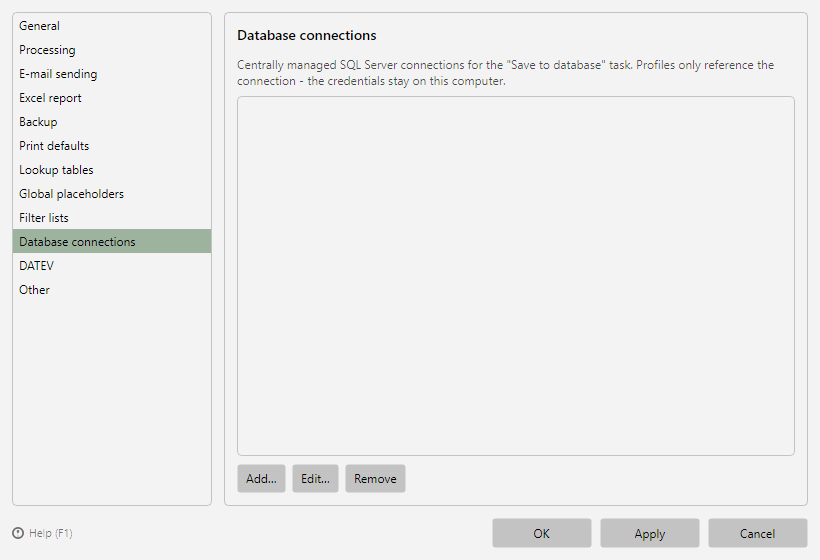 Program options, Database connections page
Note: Since the credentials stay local, a connection with the same name must be set up on every workstation that runs the database task (see chapter 40.15).
Step 2: Create a profile
- Click New profile… in the profile toolbar and enter a name (e.g. "Invoices to database").
- Under Mode, choose the file type of your invoices and add the inbox folder under Monitored folders.
- Add a typical invoice under Example invoices.
The basic setup is described in detail in the how-to "Getting started".
Click Add in the task list and choose Save to database.
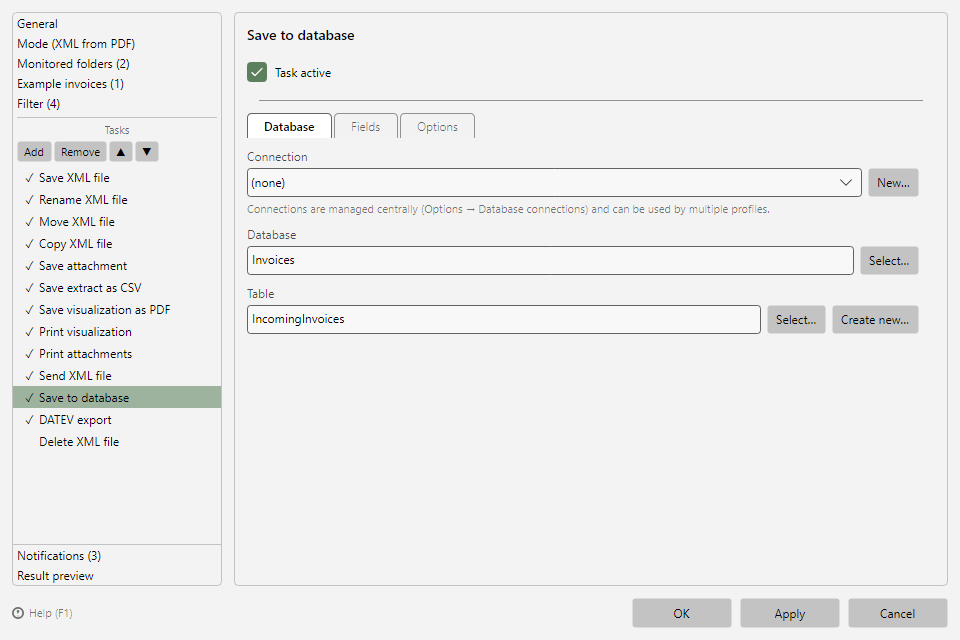 Save to database task with the Database, Fields and Options tabs
On the Database tab:
- Choose the connection from step 1 (New connection… leads directly to the program options).
- Choose the database on the server.
- Choose the target table - or click Create new…: the program creates a new table with the selected fields as columns.
Step 4: Select the fields
On the Fields tab you choose which invoice fields are stored as columns. The catalog is grouped by topic (invoice data, seller, buyer, amounts, payment, ...).
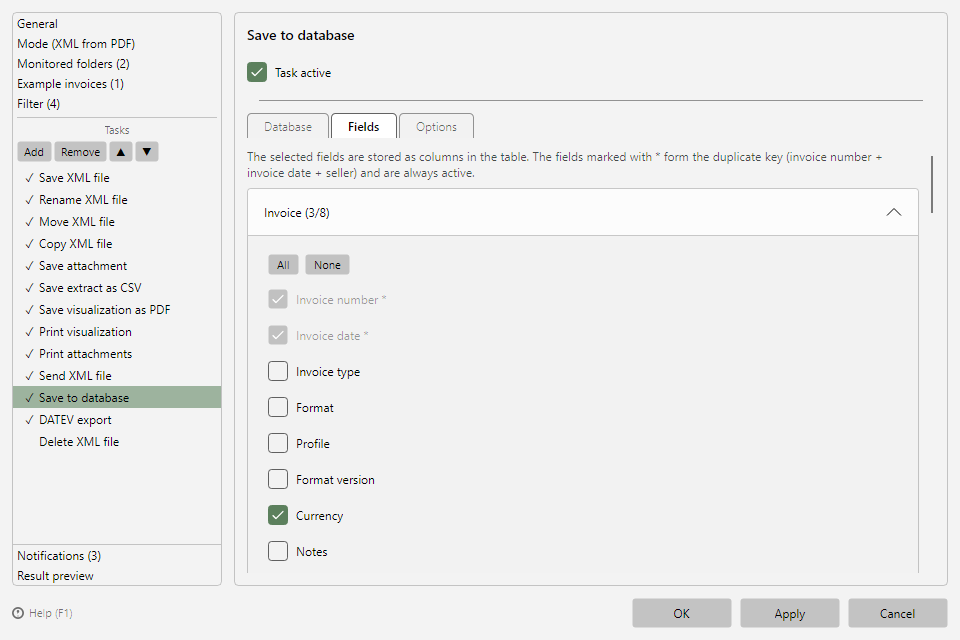 Fields tab of the database task with the grouped field catalog
The fields marked with * - invoice number, invoice date and seller - form the duplicate key and are always active.