Create DATEV accounting batches from e-invoices automatically
Instead of typing invoices into the accounting system manually, Automatic X-Invoice Processor can automatically generate a posting from every incoming e-invoice: the DATEV export task writes DATEV accounting batches in the EXTF format (CSV, DATEV format v700), directly importable into DATEV programs such as Kanzlei-Rechnungswesen. One file EXTF_Buchungsstapel_YYYY-MM.csv is created per posting month; further invoices of the same month are appended.
At a Glance
- Difficulty: Advanced
- Time required: about 15 - 20 minutes (plus alignment with your tax office)
- Prerequisites: Automatic X-Invoice Processor installed; DATEV master data from your tax office (consultant/client number, chart of accounts)
- Task used: DATEV export
Video tutorial: Create DATEV accounting batches (with narration and optional subtitles)
Step 1: Enter the central DATEV master data
The master data applies to all DATEV export tasks and appears in the header of every generated accounting batch file. The values come from your tax consultant.
- Open Menu → Options…, page DATEV.
- Enter: consultant number, client number, month of the fiscal year start (for a calendar fiscal year: January) and the ledger account length of your chart of accounts.
- Decide about finalize postings on import ("Festschreibung") - finalized postings cannot be changed in DATEV after the import (GoBD).
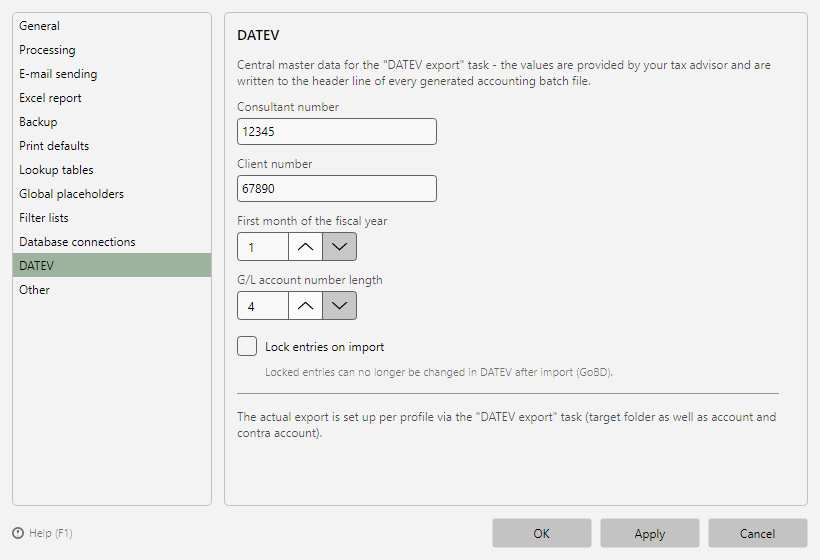 Program options, DATEV page
Step 2: Create a profile
- Click New profile… in the profile toolbar and enter a name (e.g. "Incoming invoices to DATEV").
- Under Mode, choose the file type of your invoices and add the inbox folder under Monitored folders.
- Add a typical invoice under Example invoices.
The basic setup is described in detail in the how-to "Getting started".
Click Add in the task list and choose DATEV export.
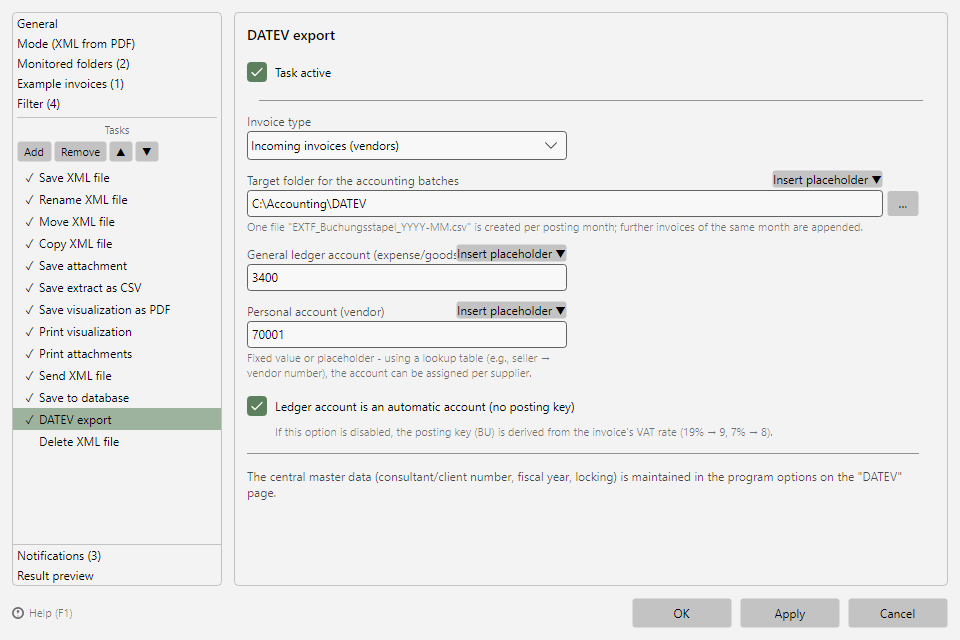 DATEV export task with invoice type, target folder and account fields
Choose the invoice type:
| Selection |
Meaning |
| Incoming invoices (vendors) |
Received invoices; the personal account is the vendor, the general ledger account is expense/goods received |
| Outgoing invoices (customers) |
Your own outgoing invoices; the personal account is the customer, the general ledger account is a revenue account |
The captions of the account fields adapt to the selected invoice type.
Enter the target folder for the accounting batches - e.g. a folder your tax office receives.
Enter the general ledger account and the personal account - as fixed values or with placeholders (see step 4).
Check the option Ledger account is an automatic account (no posting key): for automatic accounts, DATEV posts the tax itself; with the option disabled, the posting key (BU) is derived from the invoice's VAT rate.
Step 4: Assign accounts per supplier automatically
Both account fields accept placeholders. Combined with a lookup table (see chapter 70.2), the account is assigned automatically per business partner:
- In the program options under Lookup tables, create a table "Vendor accounts": comparison value "Invoice issuer: Company", one row per supplier with its vendor number.
- In the personal account field, insert the lookup table placeholder via the placeholder menu.
This way, every invoice is posted to the correct vendor account automatically - new suppliers are simply added to the table.