Validate e-invoices automatically, store validation reports, and sort out invalid invoices
An e-invoice must be formally correct to count as an invoice - the XML must conform to the schema and comply with the business rules of the EN 16931 standard and of the respective specification (XRechnung, ZUGFeRD/Factur-X). Automatic X-Invoice Processor checks this automatically for every invoice it reads, entirely locally and with the same rule sets that the KoSIT validator and the Mustang project use.
This guide shows how to read the result in the log, store a validation report for every invoice, route invalid invoices to a clarification folder automatically, and get notified by email.
At a Glance
- Difficulty: Beginner
- Time required: about 15 minutes
- Prerequisites: Automatic X-Invoice Processor version 2.4 or later; a profile that processes e-invoices (see the how-to "Getting started")
- Features used: Validation, "Save validation report" task, "Validation result" filter criterion, notification for invalid e-invoices
Video tutorial: Validate e-invoices and save validation reports (with narration and optional subtitles)
Step 1: Check the validation settings
Validation is enabled after installation. Open Menu → Options... → Validation to verify:
- Validate e-invoices when reading is checked.
- You can keep the time limit per file (default 60 seconds) and the maximum number of findings stored (default 300).
- Below, you see the included rule sets with their date and license.
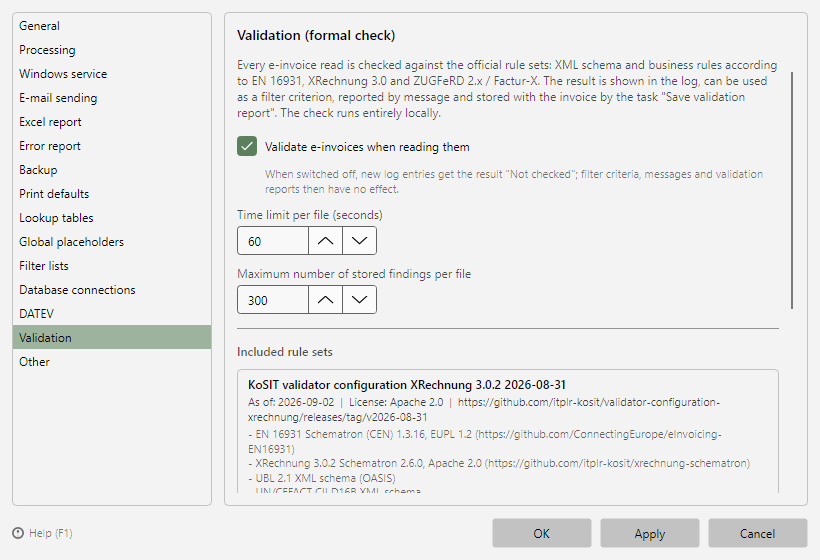 Program options, Validation page with switch, limits, and rule sets
Validation does not change processing: an invalid invoice still passes through the filter and the tasks as before. The result is added as extra information (see chapter 50.5).
Step 2: Read the result in the log
After the next processing run, every log entry shows the result in the Validation field group - for example "Valid" or "Invalid (2 errors, 1 warning)" - and below it the first violated rules. Hover over the entry and the tooltip lists the findings in full.
For the complete report, right-click the entry and choose Show validation report...:
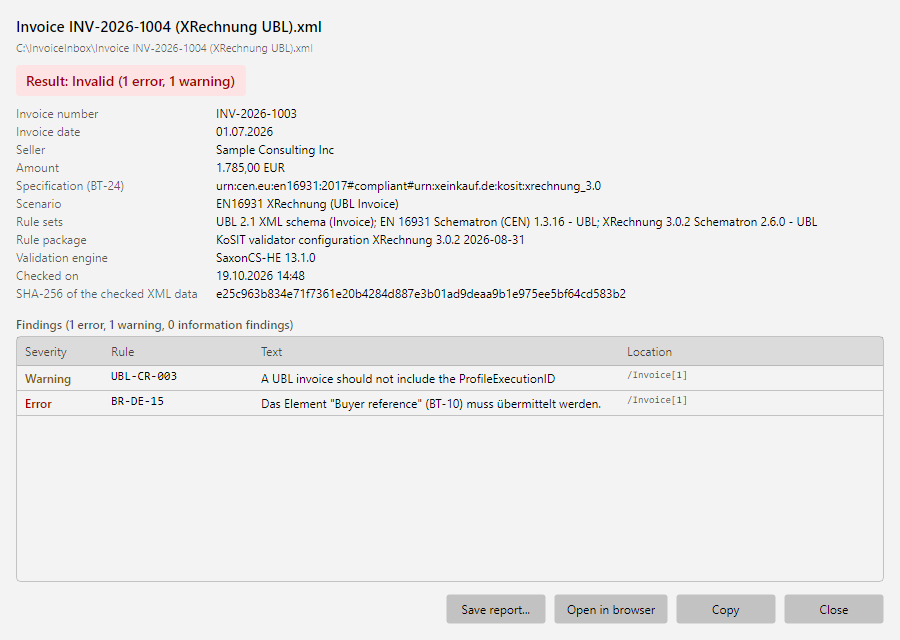 Validation report of an XRechnung with result, key data, and findings
Each row names the severity (error, warning, information), the rule such as BR-DE-15, the rule text, and the location in the XML. Save report... stores the report as HTML or XML, Open in browser shows it for printing, and Copy puts it on the clipboard as text - for example for an email to the supplier.
Possible results:
| Result |
Meaning |
| Valid |
No findings |
| Valid with warnings |
No errors, but recommendations of the standard not met |
| Invalid |
At least one business rule violated - a matter for the invoice issuer |
| Schema error |
XML structure faulty; the rule check is skipped |
| Not checked |
No result, e.g. plain PDF without an e-invoice, or validation switched off |
Step 3: Save a validation report for every invoice
To document the check for every invoice, add the Save validation report task to the profile:
- Open the profile (Edit...) and click Add → Save validation report in the task list.
- Storage location tab: leave the directory empty, then the report is stored next to the invoice file at its current location - after a preceding Move file task, that is the archive folder. The default file name is
<FileName>-ValidationReport.
- Report tab: choose the format HTML (readable, for printing), XML (for archive and downstream systems), or both. For Write report, Always remains the right choice for retention; Only with errors, on the other hand, collects only the reports of faulty invoices.
- Use ▼ to place the task after Move file if the profile moves the invoice.
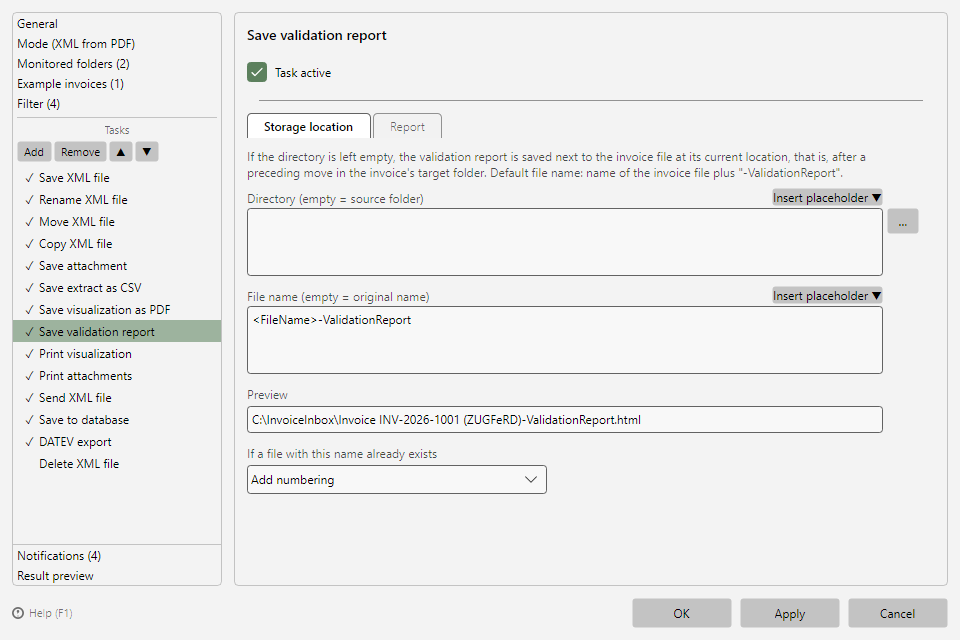 Save validation report task with the Storage location and Report tabs
The report contains the program version, time of creation, file and SHA-256 hash of the checked XML data, the invoice header, the result, the rule sets with versions, and all findings (see chapter 22).
Step 4: Route invalid invoices to a clarification folder
If faulty invoices should not end up in the regular archive, create a dedicated profile in front of it:
- New profile..., name e.g. "Invoices for clarification", same mode and same monitored folder as the regular profile.
- Filter page: Add, property Validation result (Validation group), operator is, value Invalid. Add a second row with OR and the value Schema error.
- Tasks: Move file to a folder "Clarification" and, after it, Save validation report (directory empty).
- General page: check Do not apply any further profiles after successful processing with this profile, so that the regular profile does not process the file as well.
- Make sure the profile is listed before the regular profile - the profiles are applied in the order of the list. The list is sorted by name (clicking a column header changes the sorting), so give the clarification profile a name that sorts first, e.g. "1 Clarification" and "2 Incoming invoices".
Use the result preview of both profiles with an example invoice to check which profile applies - the Validation line shows the result there (see chapter 8.11). Further criteria such as Finding contains BR-DE-15 are described in chapter 30.11.
Step 5: Enable the notification
So that accounting does not overlook invalid invoices, enable Send message for invalid e-invoices (validation) under Menu → Options... → Processing and enter the recipients. One email per file is sent with the result, rule set, and the first findings; the HTML validation report is attached. Warnings do not trigger a message. A configured sending account under E-mail sending is required (see chapter 40.6.6).
Step 6: Check a single file manually
For a supplier's query or to test one of your own outgoing invoices, you do not need a profile: Menu → More → Validate invoice... opens a file dialog (XML or PDF), checks the file immediately, and shows the validation report - even when validation is switched off in the options.