Pay incoming invoices with a SEPA payment file
An e-invoice contains everything you need for the transfer: payee, IBAN, amount, and due date. The Create SEPA payment file task writes transfers from it to a file in the format of the German Banking Industry Committee (pain.001). You load this file into your online banking and release the transfers there. No typing, no typos.
At a glance
- Difficulty: Advanced
- Time required: approx. 10 - 15 minutes
- Prerequisites: Automatic X-Invoice Processor installed; online banking or banking software that can import SEPA files (batch transfers in XML format)
- Task used: Create SEPA payment file
Video tutorial: Pay incoming invoices with a SEPA file (with narration and optional subtitles)
Step 1: Create a profile
- In the profile toolbar, click New profile… and enter a name, for example "Pay incoming invoices".
- Under Mode, choose the file type of your invoices and add the inbox folder under Monitored folders.
- Add a typical invoice under Example invoices.
The how-to "Getting started" describes the basic setup in detail.
Step 2: Add the task
In the task list, click Add and choose Create SEPA payment file.
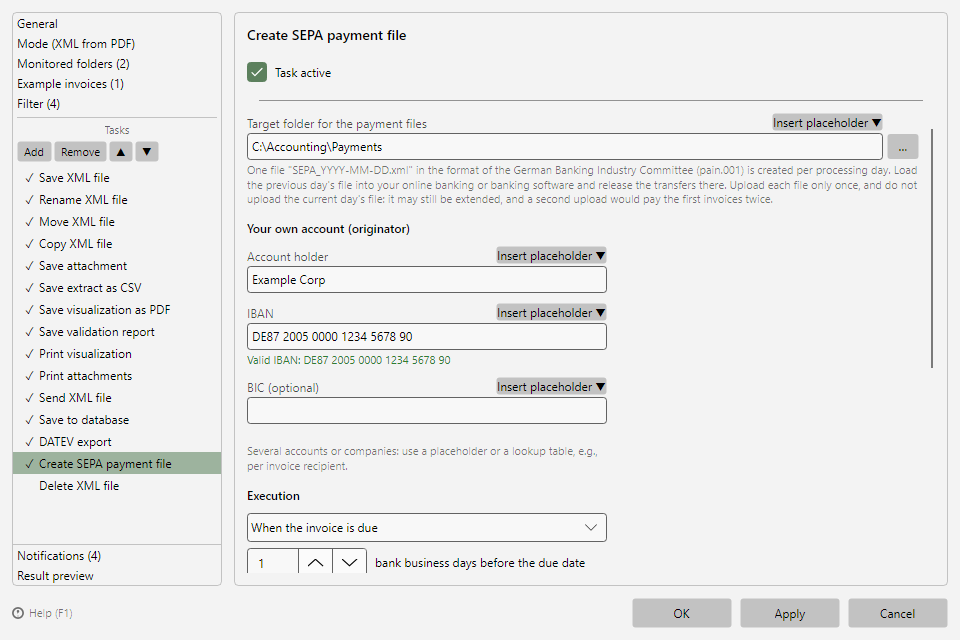 Create SEPA payment file task with target folder, own account, and execution date
Enter the Target folder for the payment files, for example C:\Accounting\Payments.
Under Your own account, enter the Account holder and the IBAN of your account. The program checks the IBAN as you type:
Valid IBAN: DE87 2005 0000 1234 5678 90
The BIC is optional. Leave the field empty if your bank does not require it.
Step 3: Choose the execution date
Under Execution, choose:
| Selection |
Meaning |
| When the invoice is due |
Transfer shortly before the due date. With a lead time of 1 bank business day, the money arrives on time. |
| On the next bank business day |
All transfers immediately, i.e. on the bank business day after processing |
If a date falls on a weekend or bank holiday, the program uses the previous bank business day.
Note: Banks only have to accept orders 15 calendar days before the date. If your invoices are usually due in 30 days and your bank rejects the file, choose On the next bank business day.
Step 4: Use the cash discount (optional)
Check Use the cash discount while its period is still running if you want to deduct the cash discount. The program then transfers the reduced amount on the last discount day:
Invoice dated 2026-11-02 for 1,000.00 EUR, 2 % cash discount for payment within 14 days
→ transfer of 980.00 EUR on Friday, 2026-11-13
→ remittance information: "Invoice INV-1 dated 2026-11-02 less 2 percent cash discount (20.00 EUR)"
If the discount period has already expired, the program transfers the full amount when due.
Step 5: Check and save
Open the Result preview. For the example invoice, it shows what would go into the file:
Transfer 624.75 EUR to Baker IT Services LLC, execution 2026-11-19 → C:\Accounting\Payments\SEPA_2026-11-17.xml
Click OK.
From now on, the program writes every new invoice as a transfer to the day's file, for example SEPA_2026-11-17.xml.
Step 6: Upload the file to online banking
- On the next day, upload the previous day's file to your online banking. Depending on the bank, the function is called "File upload", "Submit SEPA file", or "Import batch order", for example.
- Check the transfers in your bank's preview.
- Release the transfers.
- Afterwards, move the file to a "Done" folder or delete it.
Why the previous day's file? The current day's file still grows with every new invoice. Upload each file only once.