Save PDF data to a database automatically
Step-by-step tutorial: Automatically write invoice data to a database table
Using the example of an incoming invoice register, this tutorial shows how
Automatic PDF Processor automatically writes one record to a database for every incoming invoice:
invoice number, invoice date, amount and the storage location of the file end up in a table of your
accounting database — without any manual work.
The connection is established via ODBC. The task therefore works with practically
any database that offers an ODBC driver — Microsoft SQL Server, MySQL, MariaDB, PostgreSQL,
Oracle, Microsoft Access and many more. SQL knowledge is not required for the
approach shown here: you select a table and assign a value to each column.
At a glance
- Difficulty: Intermediate
- Time required: approx. 20 minutes
- Requirements: Automatic PDF Processor version 2.9.0 or later, a reachable database with a target table (or the rights to create one)
- Result: Every processed PDF file automatically creates a properly typed record in your database
Note: This tutorial uses the "Fill table" mode — the easiest way, with no SQL
knowledge required. If you prefer INSERT/UPDATE commands or stored procedures, you will find the
"Custom SQL command" mode at the end of this tutorial and in detail in the program help.
Video tutorial: Automatically save PDF data to a database (with narration and optional subtitles)
Step 1: Prepare the target table in the database
Create a table in your database (or use an existing one) that will receive the values. For the
invoice register, a table like this is sufficient (here for Microsoft SQL Server):
CREATE TABLE dbo.IncomingInvoices (
    Id          INT IDENTITY(1,1) PRIMARY KEY,
    Number      NVARCHAR(50) NOT NULL,
    InvoiceDate DATE,
    Amount      DECIMAL(18,2),
    StoragePath NVARCHAR(260),
    Recorded    DATETIME DEFAULT GETDATE()
);
Two columns are filled by the database itself: Id (identity column) and
Recorded (default value "current date"). These columns are simply left without an
assignment in the task.
Note: The columns may use "real" date and number types. Automatic PDF Processor
passes the values with the proper type — an extracted date as a date, an amount as a decimal
number — regardless of the format used in the PDF document.
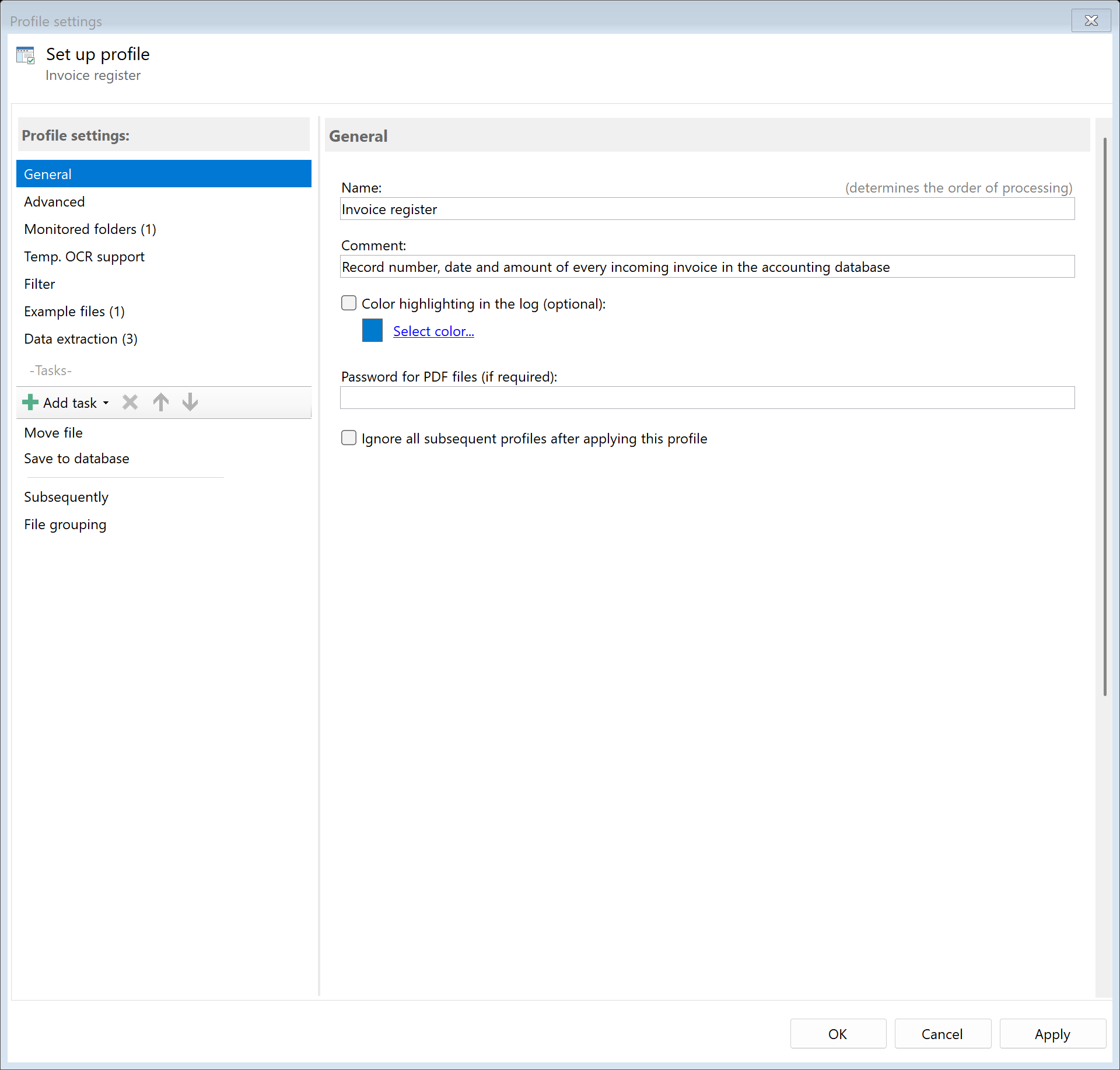
Step 2: Create a new profile
Create a new profile in Automatic PDF Processor with a descriptive name such as "Invoice register"
and set the folder where incoming invoices arrive (e.g. C:\Documents\Incoming\Invoices).
Step 3: Create extraction rules for the values
Create one data extraction rule for each value that should be written to the database. For the
invoice register, these are three rules:
| Rule |
Data type |
Example determination |
| InvoiceNumber |
Text |
Keyword "Invoice Number:", data to the right of it |
| InvoiceDate |
Date |
Keyword "Invoice Date:", data to the right of it |
| Amount |
Number |
Keyword "Total:", data to the right of it |

Important: Set the proper data type for the rules ("Date" and
"Number"). Only then are the values passed to the database as a date or decimal number —
otherwise they arrive as text and will not fit into date or number columns.
Tip: Add a few example files to the profile. The live preview in
the rule editor immediately shows whether the rules find the right values — and the preview of
the database task later uses the same files.
Step 4: Add the "Save to database" task and set up the connection
Switch to the Tasks page and add the "Save to database" task.
First, set up the database connection:
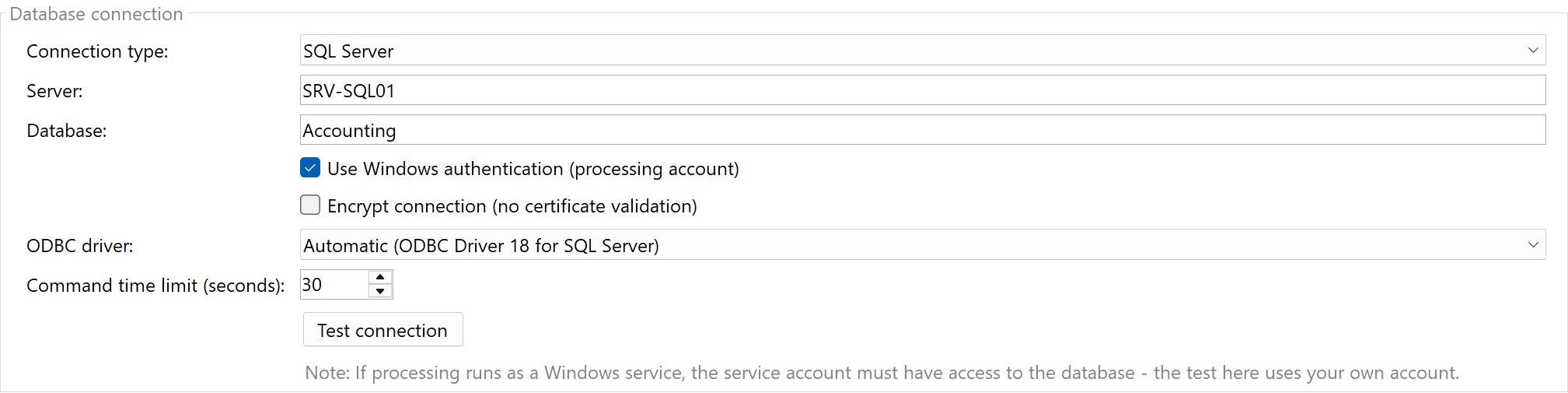
| Connection type |
When to use |
| SQL Server |
For Microsoft SQL Server: enter server (e.g. SRV-SQL01 or
COMPUTER\SQLEXPRESS) and database as fields — the program automatically
selects the best installed ODBC driver. |
| ODBC data source (DSN) |
For a data source configured in the Windows ODBC administration — the drop-down list
shows the available data sources. |
| Connection string (ODBC) |
For all other databases, e.g.
Driver={MySQL ODBC 8.0 Unicode Driver};Server=db01;Database=invoices;UID=app;PWD=...; |
For this example, the SQL Server connection type with server name, database
Accounting and Windows authentication is sufficient. Then click
"Test connection" — on success, server, version and database are displayed.
Note on 64-bit: Automatic PDF Processor is a 64-bit program and can only use
64-bit ODBC drivers and data sources. A data source created in the 32-bit ODBC administration does
not appear in the list — create it again in the 64-bit administration
(odbcad32.exe from C:\Windows\System32).
Windows authentication and Windows service: The connection is established with the
account under which processing runs. If background processing runs as a Windows service, the
service account must have access to the database — otherwise the connection
fails even though the test in the user interface succeeded.
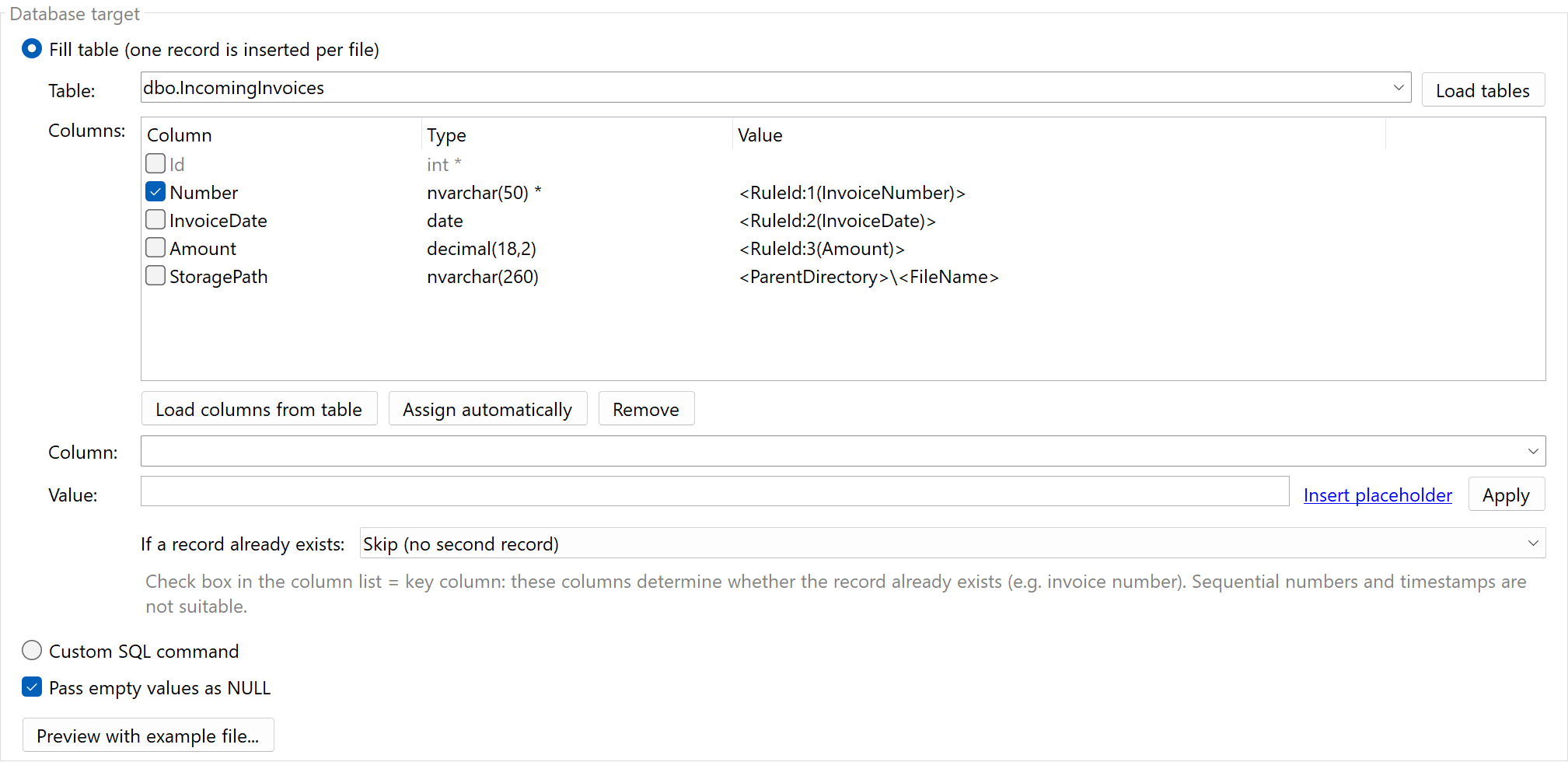
Step 5: Select the table and assign columns
In the Database target section, the "Fill table" mode is already
preselected. Proceed as follows:
- Table: Click "Load tables" and select
dbo.IncomingInvoices from the list.
- "Load columns from table": The columns appear in the list with their data types.
Mandatory columns are marked with
*; automatically generated columns such as
Id appear grayed out and remain without an assignment.
- Assign values: Select a column, enter the desired placeholder under
Value (via "Insert placeholder") and click Apply.
| Column |
Value |
Number |
<RuleId:1(InvoiceNumber)> |
InvoiceDate |
<RuleId:2(InvoiceDate)> |
Amount |
<RuleId:3(Amount)> |
StoragePath |
<ParentDirectory>\<FileName> (storage folder + file name) |
Tip — automatic assignment: The "Assign automatically" button
fills all still-empty columns whose name matches the name of an extraction rule — ignoring case
and prefixes such as fld_. With many rules, this saves a lot of manual work.
Duplicate protection: Mark the Number column as a
key column (check box in the column list) and select "Skip" as the
behavior. If the same invoice is processed a second time — for example by the retry logic after
an error — no duplicate record is created.
If the final storage location should also be recorded in the database, additionally add the
"Move" task to the profile and place it before the database task.
The placeholders <ParentDirectory> and <FileName> then already
deliver the folder and name after the move.
Step 6: Check the preview and run a test
Click "Preview with example file": The program shows the final command with the
values of one of the profile's example files — including the data type of each parameter (text,
date, number or NULL). The preview does not write anything to the database, but you
see exactly what will arrive during processing.
Save the profile and drop a test invoice into the monitored folder. After processing, you will find
the new record in the table — with a real date in the date column and a real decimal amount in
the amount column:
Id  Number         InvoiceDate  Amount   StoragePath                               Recorded
1   IN-2026-00147  2026-01-15   1293.84  C:\Documents\Archive\2026\Invoice.pdf     2026-09-02 14:31:07
Alternative: Custom SQL command
Users with SQL knowledge can select the "Custom SQL command" mode instead of the
table assignment — for example for UPDATE/MERGE commands or stored procedure calls. Placeholders
are written directly into the command, without quotation marks:
INSERT INTO IncomingInvoices (Number, InvoiceDate, Amount)
VALUES (<RuleId:1(InvoiceNumber)>, <RuleId:2(InvoiceDate)>, <RuleId:3(Amount)>)
The placeholders are not inserted as text but passed as typed parameters during
execution. Apostrophes or special characters in the values are therefore harmless, and the command
stays protected against SQL injection.
Common problems
| Problem |
Solution |
| The ODBC data source does not appear in the drop-down list |
It was probably created in the 32-bit ODBC administration. Create it again in the
64-bit administration (C:\Windows\System32\odbcad32.exe). |
| The connection test succeeds, but processing in the Windows service reports a connection error |
With Windows authentication, the processing account matters: grant the
service account access to the database (or store user name/password in the task). |
| "Load tables" does not find the table |
Enter the table name including the schema (e.g. dbo.IncomingInvoices) and check
whether the account used has read permission on the table. |
| Duplicate records are created |
Mark one or more key columns (e.g. the invoice number) and select "Skip" or
"Update existing record" as the behavior (see step 5). |
| Date or amount arrives as text or is rejected |
Set the data type of the extraction rule to "Date" or "Number" — only
then are values passed with the proper type. |
| The database server is unreachable at night |
No action required: the task reports an error, and the profile's retry logic
processes the file again at the configured times. |
Other step-by-step instructions
Getting Started
Basic Tasks
PDF Editing
E-Invoicing & Archiving
Practical Examples
Operation & Server
To the product page of Automatic PDF Processor