Step-by-step instructions for embedding files in PDF documents
Modern document management often requires bundling related documents together.
With Automatic PDF Processor, you can automatically embed receipts, supporting
documents, or other files into PDF invoices.
Video tutorial: Automatically embed receipts into PDF invoices (with narration and optional subtitles)
Typical use cases
- Embed expense receipts with travel expense reports
- Attach supporting documents to invoices
- Bundle related contracts together
- Include source data files with reports
- Create ZUGFeRD invoices with XML attachments
Step 1: Create a new profile
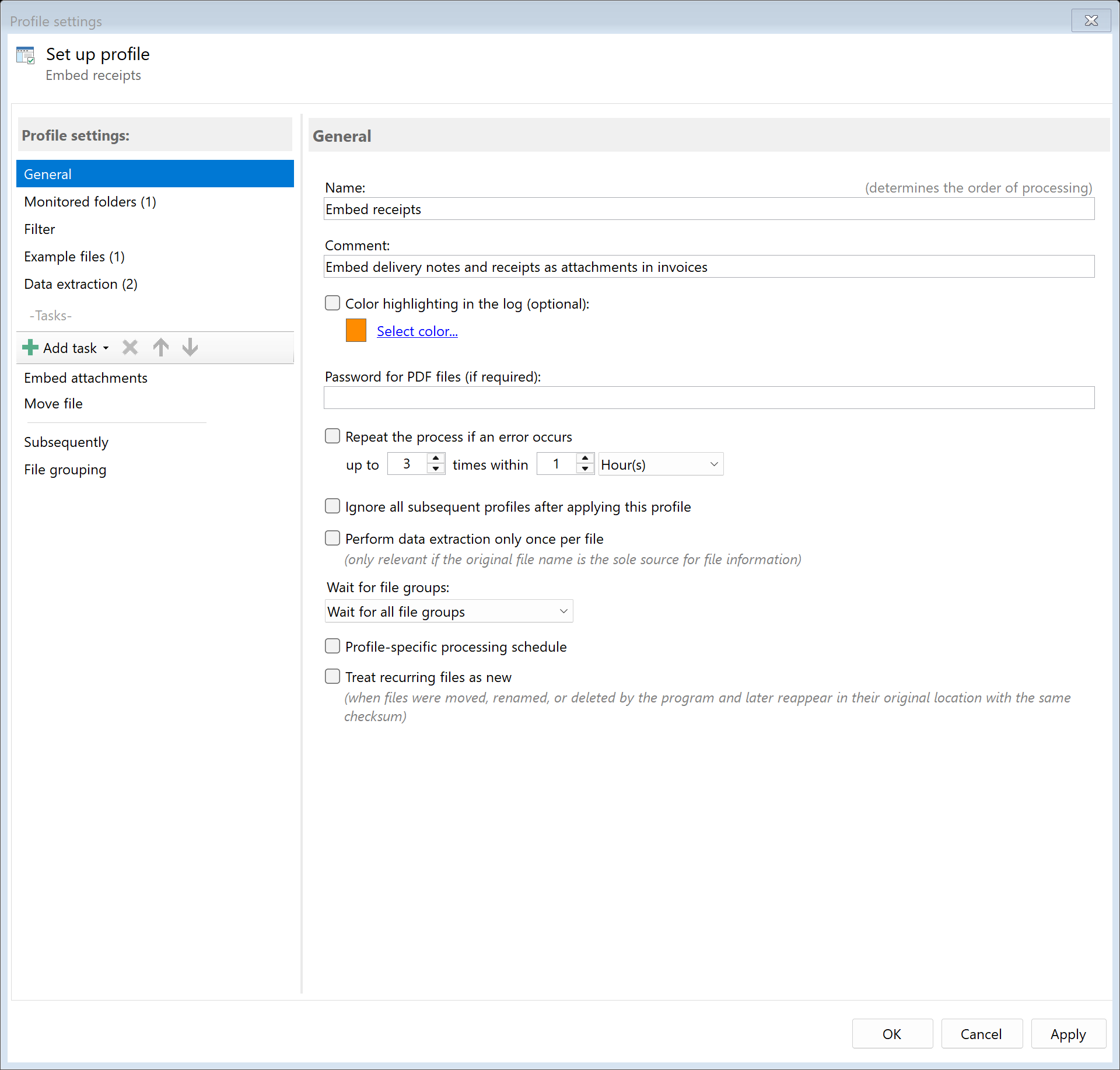
Create a new profile with a descriptive name such as "Embed receipts".
Set up the monitored folder where the main PDF files are placed.
Step 2: Activate the "Embed Attachments" task
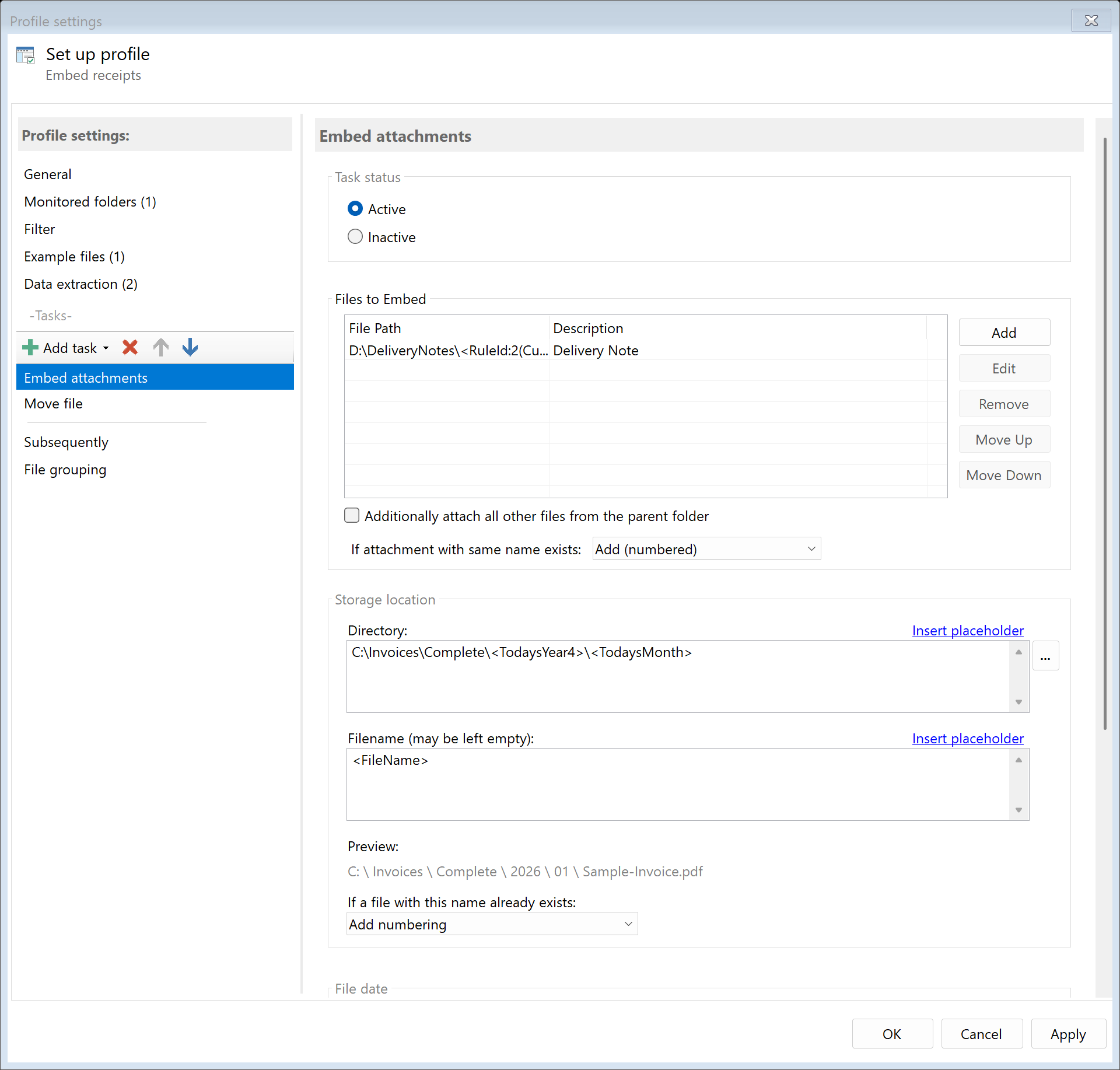
Go to the task view and select the "Embed Attachments" task.
Activate the task and configure the embedding settings.
Step 3: Specify files to embed
In the "Files to embed" table, add one entry per file. Each entry consists of a file path
and an optional description that is shown in the PDF reader's attachment panel. The file
path may contain placeholders, so the matching file can be found dynamically for each
processed document:
| File path |
Effect |
D:\Templates\Terms_and_Conditions.pdf |
Always embeds the same fixed file |
D:\Receipts\<RuleId:1(InvoiceNo)>.pdf |
Embeds the receipt whose name matches the extracted invoice number |
D:\Receipts\<FileNameWithoutExtension>_receipt.pdf |
Embeds the file matching the name of the processed PDF |
Use the buttons next to the table to add, edit, remove, and reorder entries.
Step 5: Configure storage location
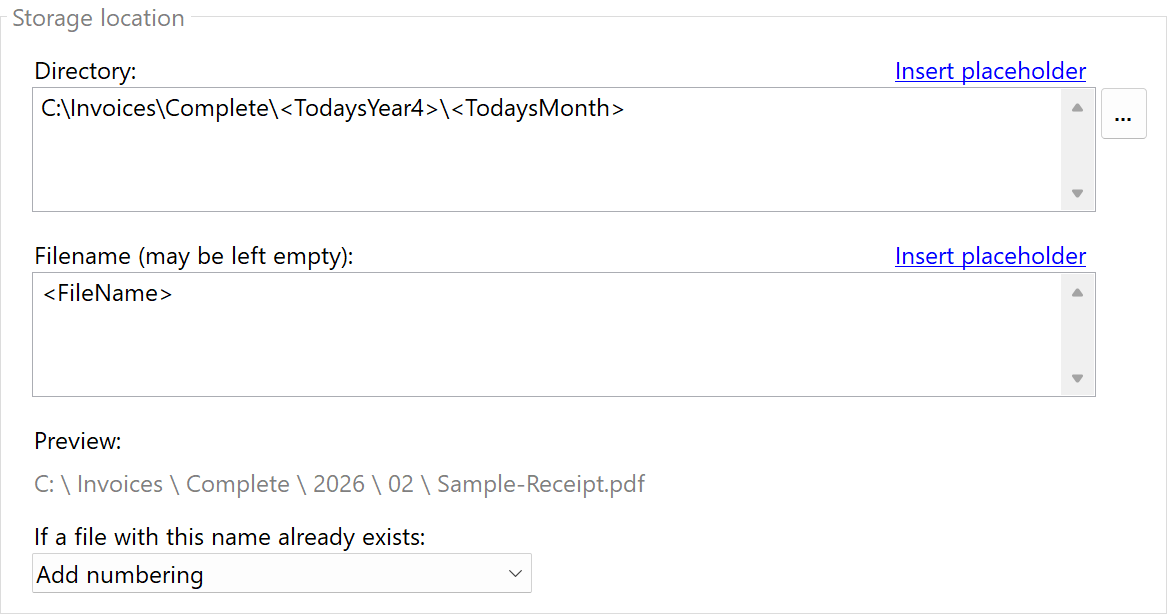
Specify where the documents with embedded attachments should be saved:
D:\Invoices\Complete\<TodaysYear4>\<TodaysMonth>
Result
After configuration, all PDF files placed in the monitored folder are automatically:
- Analyzed to find matching attachment files
- Attachments embedded into the PDF
- Saved as a single PDF containing all related documents
Recipients can extract embedded files using any PDF viewer that supports attachments.