Step-by-step instructions for automatically rotating PDF pages
Scanned documents often contain misaligned pages — some may be rotated 90° or 180°.
Automatic PDF Processor detects the text orientation of each page and automatically
corrects misrotated pages.
Video tutorial: Automatically rotate PDF pages (with narration and optional subtitles)
Typical use cases
- Scanner correction: Automatic correction of incorrectly fed or rotated scans
- Mixed orientation: Standardize documents with portrait and landscape pages
- Batch processing: Correct large volumes of scanned documents with varying orientation
- Archive preparation: Bring documents to uniform orientation before archiving
Step 1: Create a new profile
Create a new profile with a descriptive name such as "Scanner correction".
Set up the monitored folder.
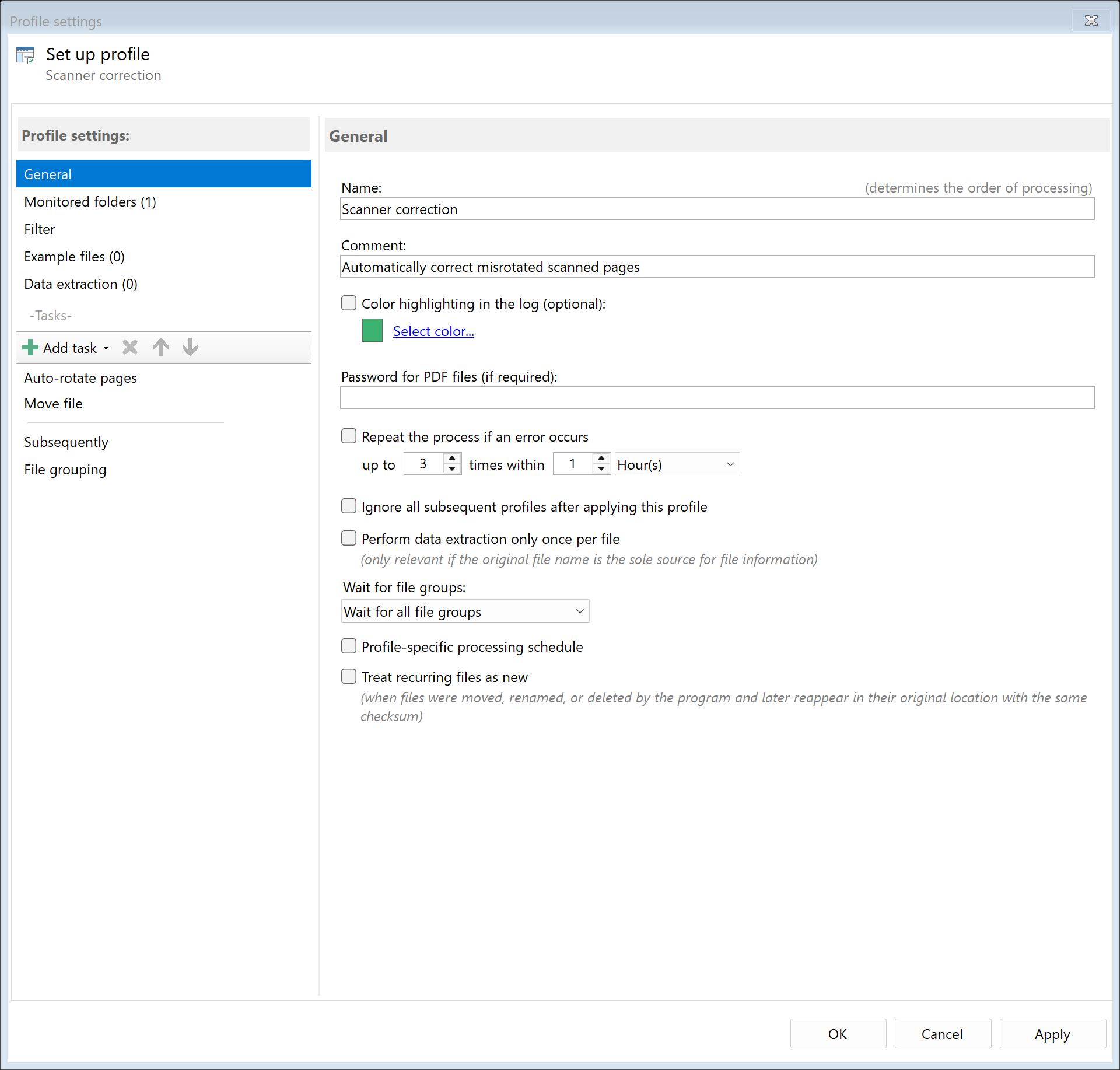
Step 2: Activate the "Auto-rotate Pages" task
Go to the task view and select the "Auto-rotate Pages" task.
Activate the task.
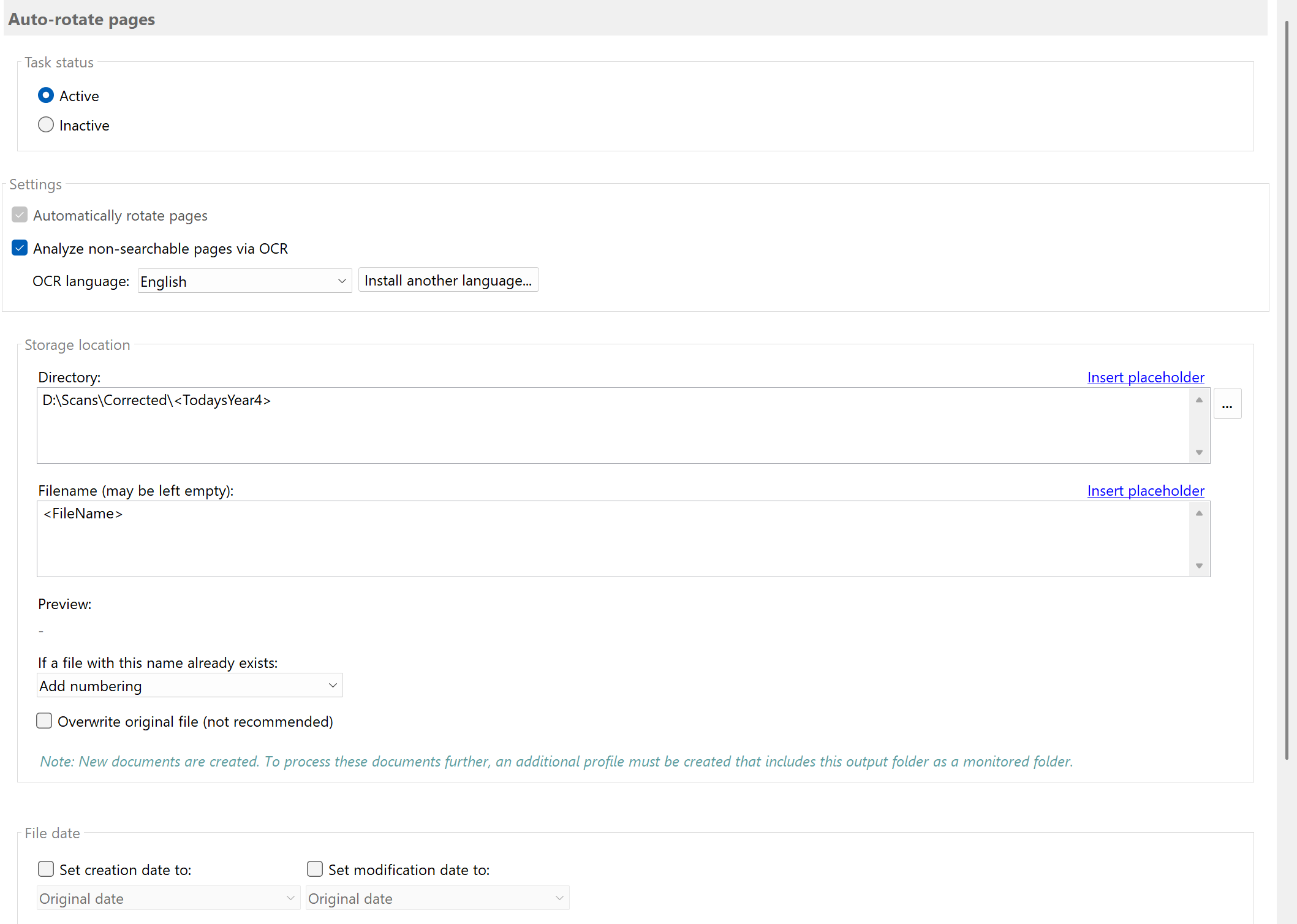
Step 3: Configure OCR for non-searchable pages
If your PDFs also contain image-based pages (e.g., scans without prior text recognition),
enable the "Use OCR for non-searchable pages" option.
| Setting |
Description |
| Use OCR |
Enables text recognition for image-based pages to determine their orientation |
| OCR Language |
Select the document language for OCR analysis (e.g., English) |

Note: Without the OCR option enabled, only pages with existing text are analyzed.
Image-based pages remain unchanged.
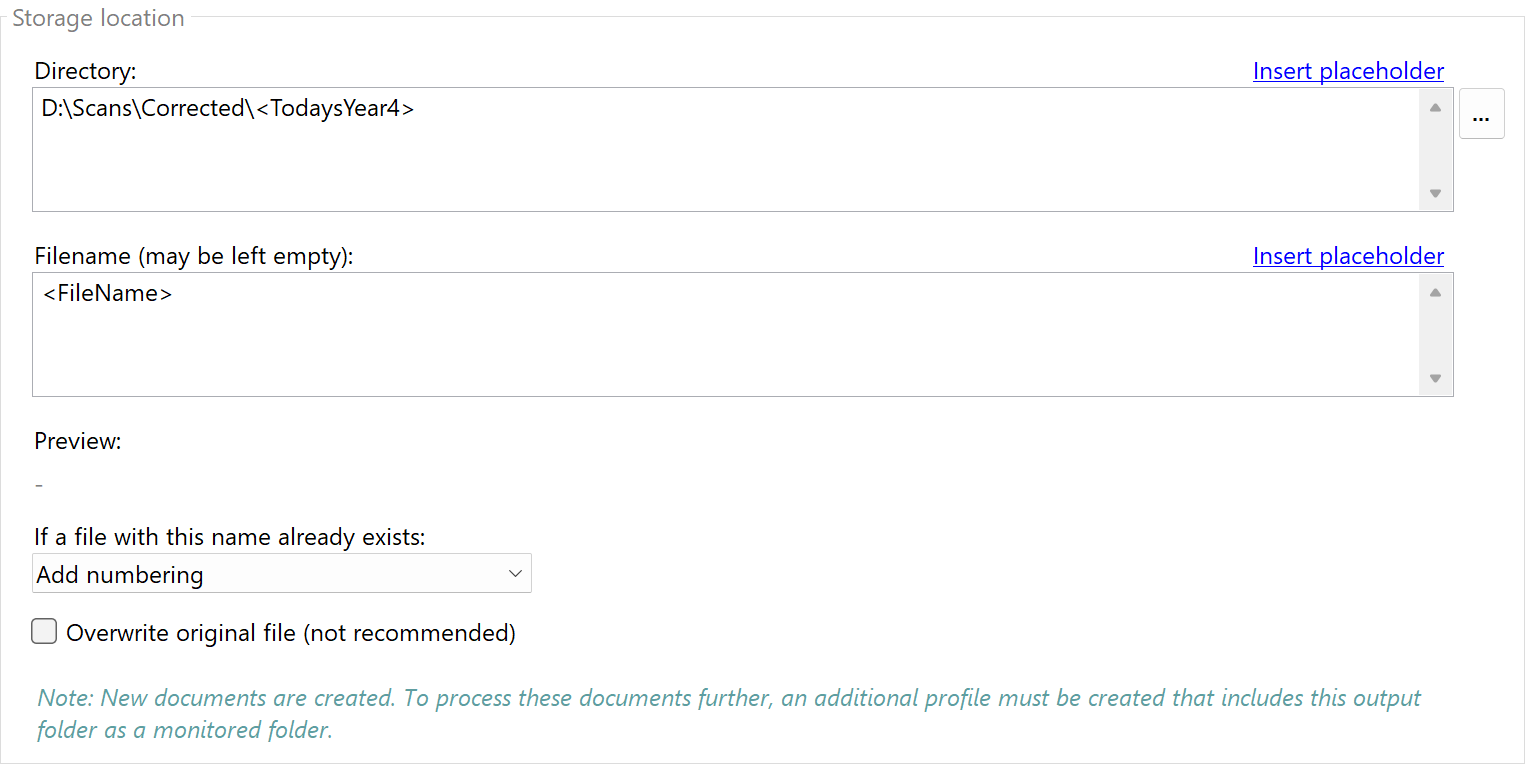
Step 4: Configure storage location
Specify where the corrected documents should be saved:
D:\Scans\Corrected\<FileName>
Result
After configuration, all PDF files placed in the monitored folder are automatically analyzed
and misrotated pages are corrected.
| Original |
Processed |
Scan_001.pdf (3 of 5 pages misrotated) |
Scan_001.pdf (all pages correctly aligned) |