Step-by-step instructions for automatically flattening PDF pages
PDF documents can contain multiple layers beyond the actual page content: form fields
(text fields, checkboxes, dropdowns) and annotations (comments, highlights, stamps).
Flattening permanently burns these elements into the page content — they can no longer
be edited or removed afterwards.
Video tutorial: Automatically flatten PDF pages (with narration and optional subtitles)
Typical use cases
- Seal forms: Fix filled-in form fields so that entered values can no longer be changed
- Make annotations permanent: Permanently burn comments and markings into the document
- PDF compatibility: Ensure that the document displays identically in all PDF viewers
- Archiving: Convert documents to an immutable state
Step 1: Create a new profile
Create a new profile with a descriptive name such as "Seal forms".
Set up the monitored folder where the PDF files to be flattened are placed.
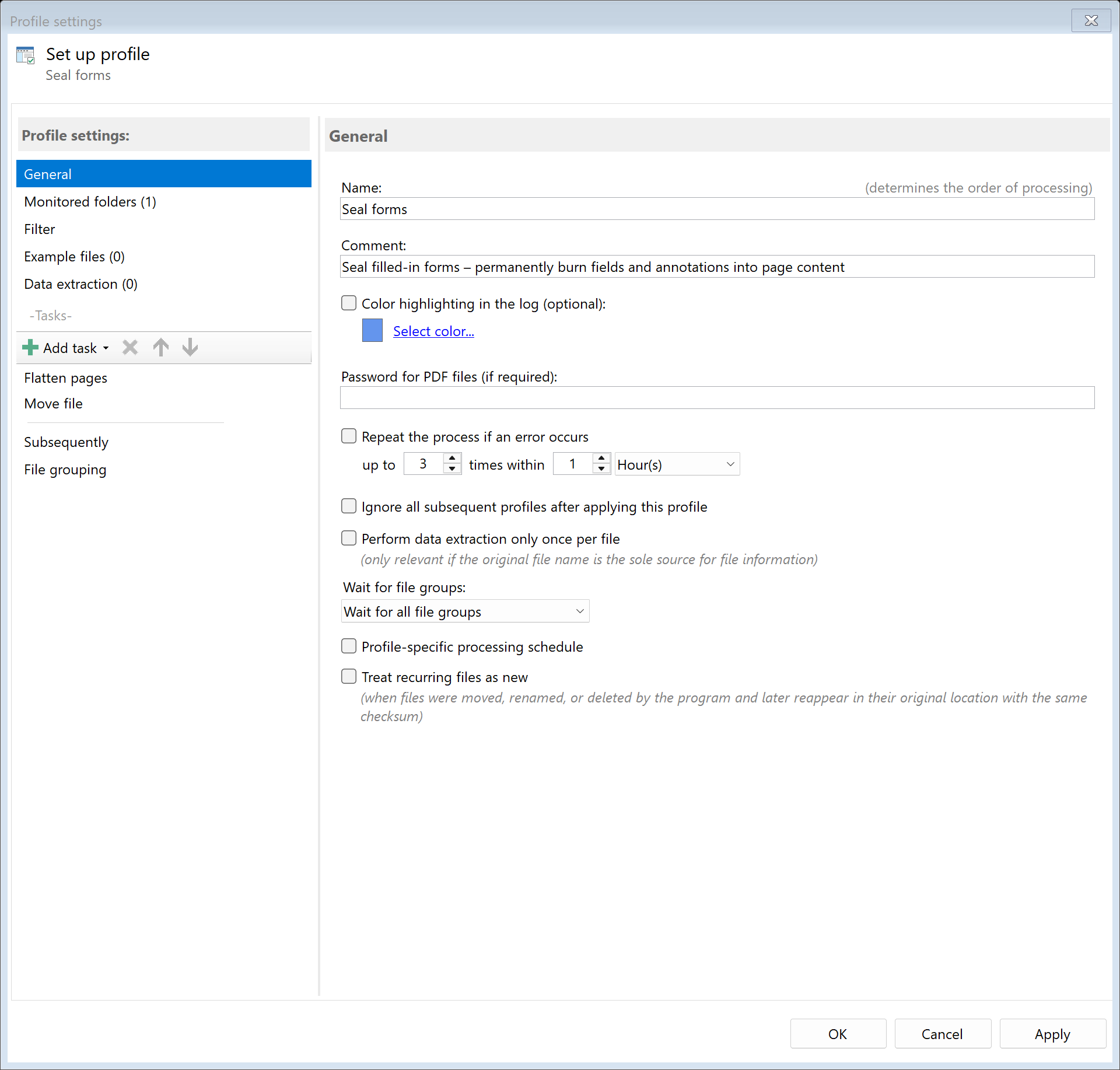
Step 2: Activate the "Flatten Pages" task
Go to the task view and select the "Flatten Pages" task.
Activate the task.
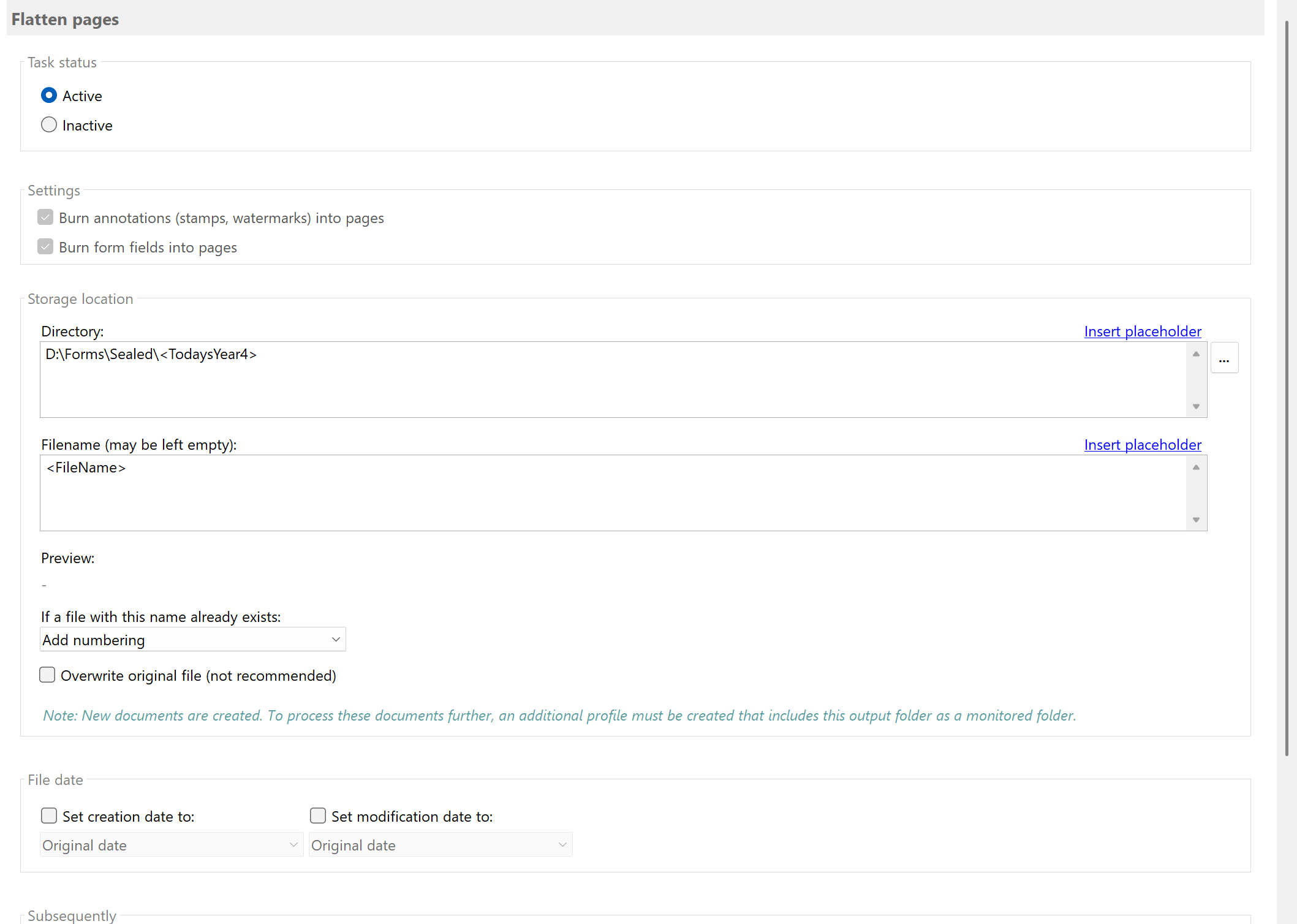
Note: The "Flatten Pages" task requires no task-specific settings.
All form fields and annotations in the document are automatically flattened.
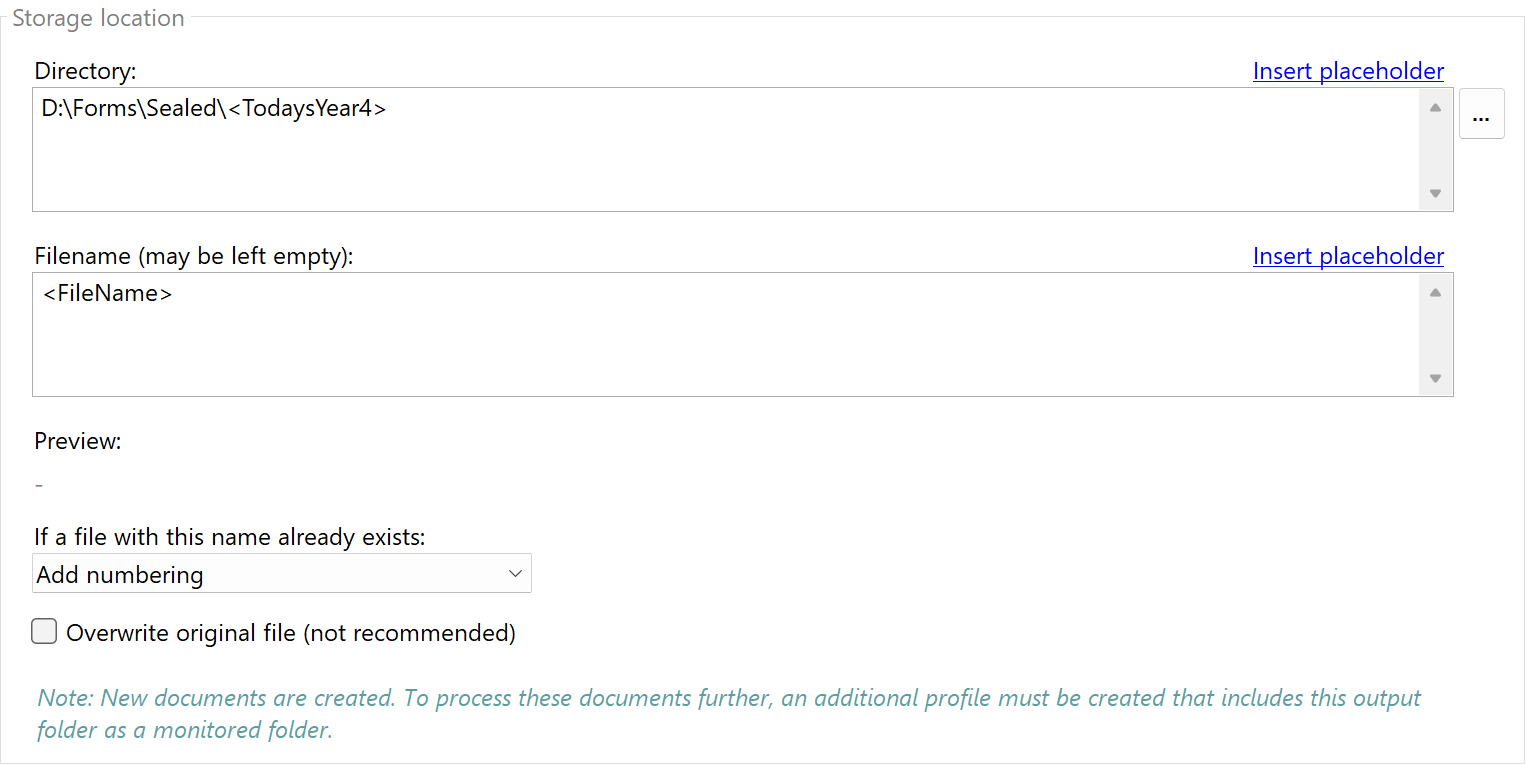
Step 3: Configure storage location
Specify where the flattened documents should be saved:
D:\Archive\Forms\Sealed\<FileName>
Result
After configuration, all PDF files placed in the monitored folder are automatically flattened:
| Original |
Processed |
| Form fields editable, annotations modifiable |
All elements permanently burned into page content |