Step-by-step instructions for automatically redacting text in PDFs
The "Redact Text" task permanently and irreversibly removes sensitive text areas from
PDF documents. Unlike a purely visual overlay, the underlying text is actually removed
from the document — it cannot be restored through copying, searching, or technical analysis.
Video tutorial: Automatically redact text in PDF files (with narration and optional subtitles)
Typical use cases
- GDPR compliance: Remove personal data such as names, addresses, or account numbers
- Anonymization: Anonymize documents for distribution to third parties
- Confidential information: Remove salary data, social security numbers, or internal reference numbers
- Archiving: Remove sensitive data before long-term archiving
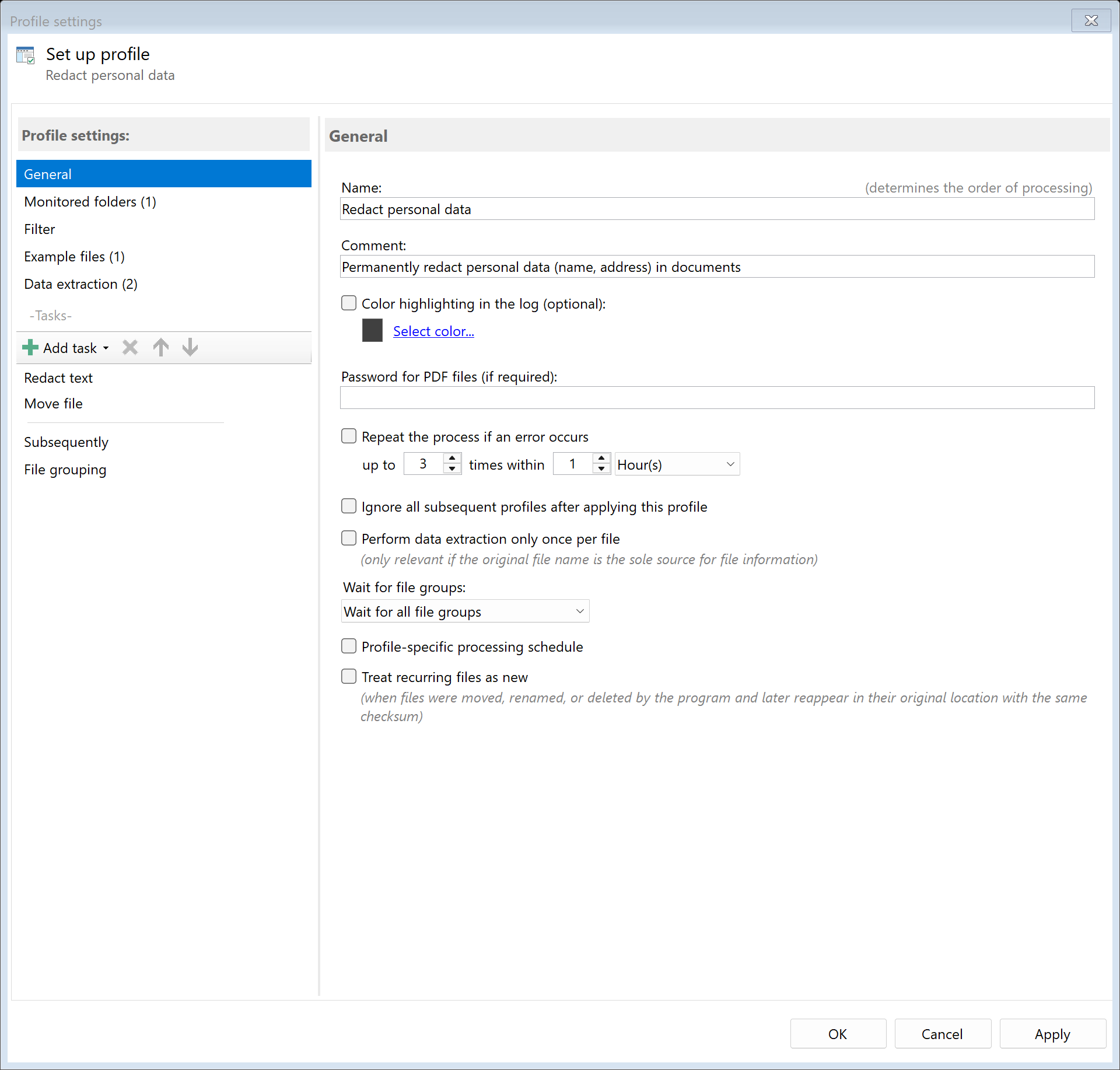
Step 1: Create a new profile
Create a new profile with a descriptive name such as "Anonymize personnel data".
Set up the monitored folder.
Step 2: Create data extraction rules
Redaction is based on data extraction rules that locate the text areas to be redacted.
Create a separate rule for each area to be redacted.
| Rule |
Description |
Example |
| Name |
Extracts the employee name |
Keyword "Name:", data to the right |
| Address |
Extracts the mailing address |
Keyword "Address:", data to the right |
| IBAN |
Extracts the account number |
Keyword "IBAN:", data to the right |
Note: Test the extraction rules thoroughly with example files
before enabling redaction. The quality of redaction depends directly on the
quality of the rules.
Step 3: Configure the "Redact Text" task
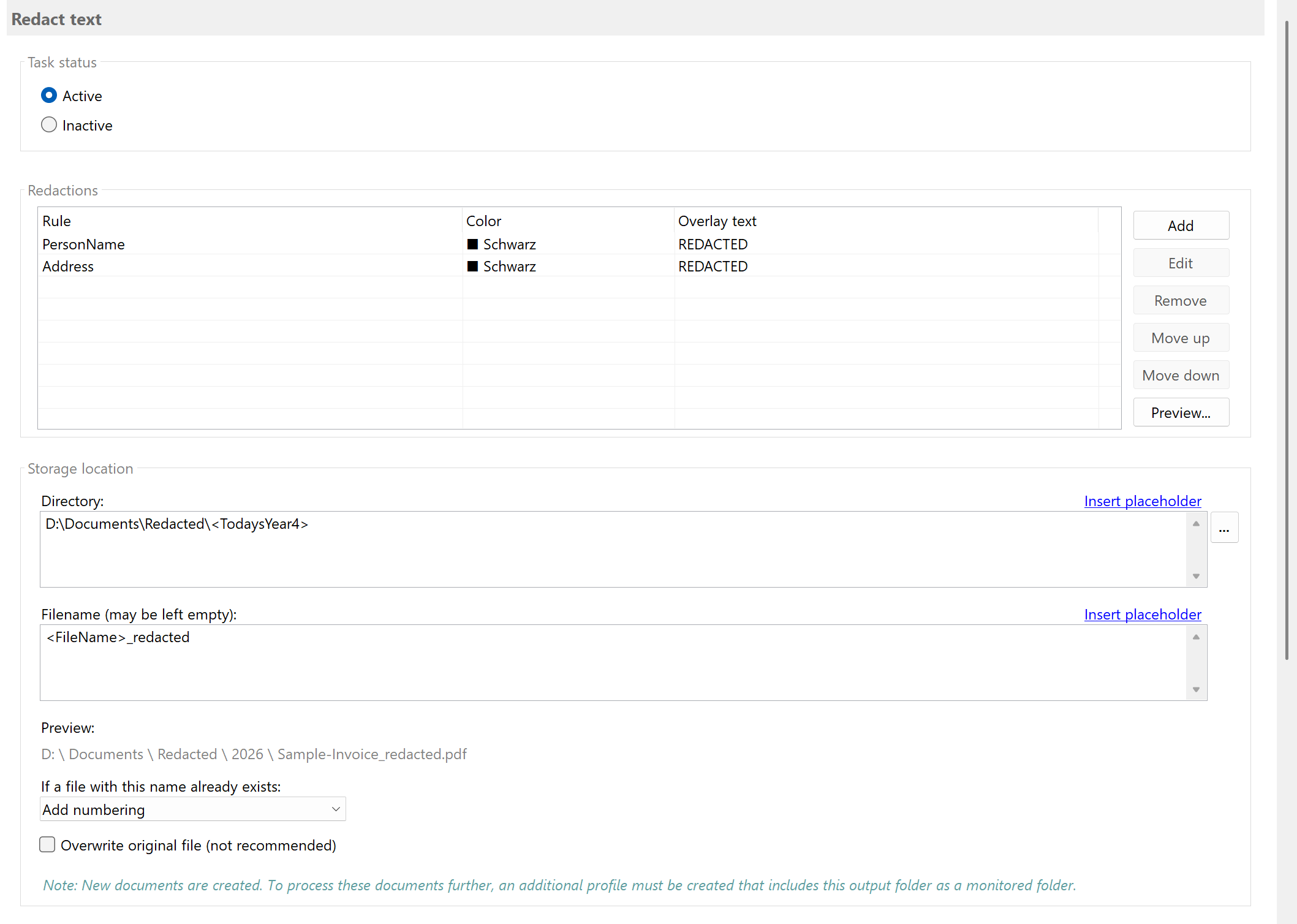
Go to the task view, select the "Redact Text" task, and add a redaction entry
for each extraction rule:
| Property |
Description |
| Rule |
The data extraction rule that determines the text area to be redacted |
| Color |
The color of the redaction rectangle (default: Black) |
| Overlay Text |
Optional text displayed over the redaction (e.g., "REDACTED") |
Tip: Use the Preview function to check the redactions
before starting productive processing.
Step 4: Configure storage location
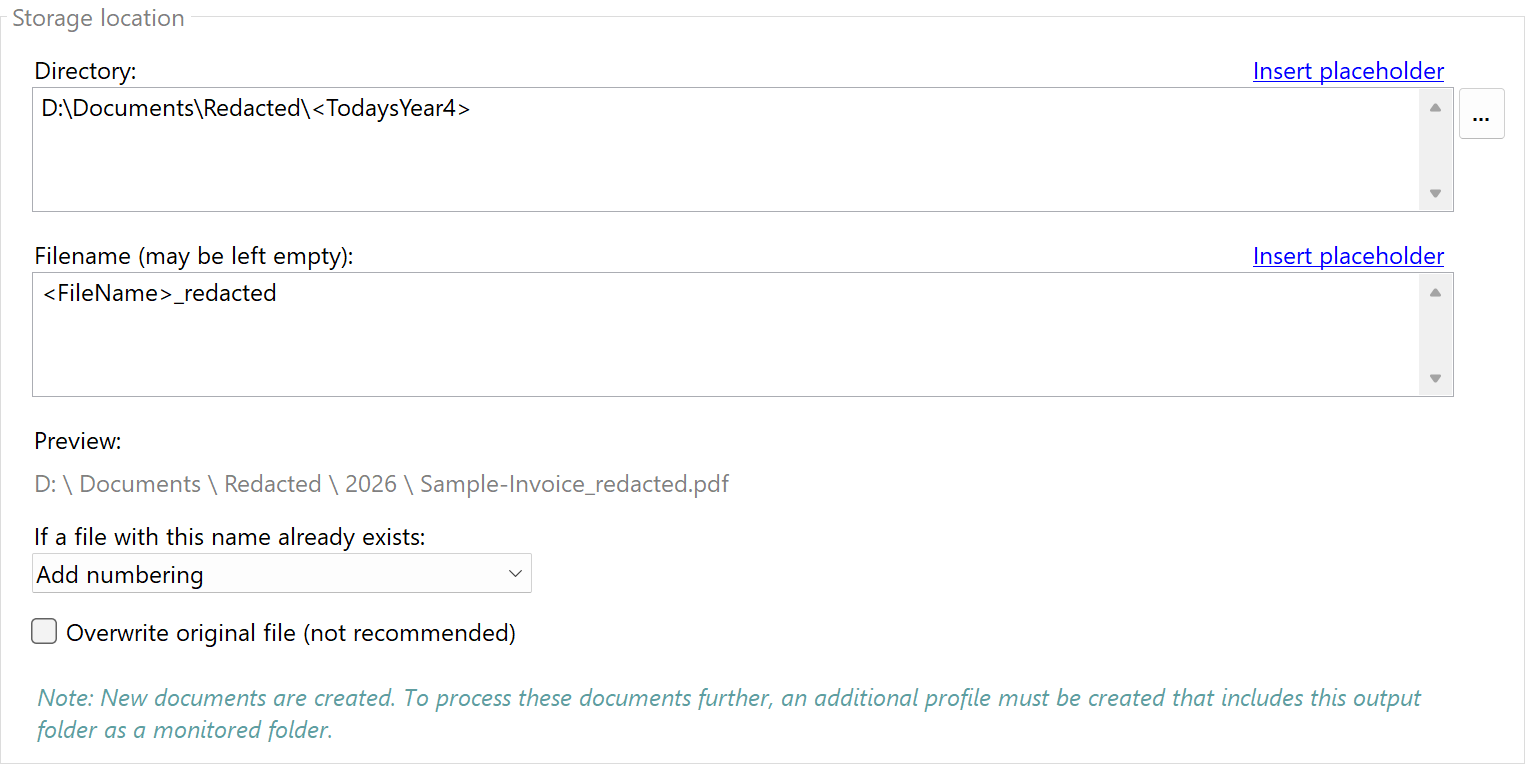
Specify where the redacted documents should be saved:
D:\Accounting\Anonymized\<FileName>_anonymized
Result
After configuration, all PDF files placed in the monitored folder are automatically redacted:
| Original |
Processed |
| Name: John Smith |
Name: █████ REDACTED |
| IBAN: GB29 NWBK 6016 1331 9268 19 |
IBAN: █████ REDACTED |