This how-to shows how to pull a piece out of the subject or message body of an incoming email and embed it directly into a folder or file name - for example an invoice number or a case ID. To do this we use a regular expression (regex for short) - a short pattern that describes what to look for.
At a Glance
- Difficulty: Medium - the first steps are easier than they look
- Time required: about 15 minutes
- Prerequisites: A profile with the Save attachments or Save email task (see Save attachments automatically)
- Example: From the subject
Invoice INV-2026-1234 Supplier XY, pull out INV-2026-1234 and use it as part of the file name
Video tutorial: Use part of the subject as file name (with narration and optional subtitles)
Step 1: What is a regular expression?
A regular expression is a pattern the program uses to find a specific piece in a text. Instead of looking for a fixed word (e.g. INV-2026-1234), you describe a pattern (e.g. "the letters INV- followed by four digits, a hyphen and another four digits"). The program then finds INV-2025-0042 or INV-2027-9999 just as well without you having to adjust the pattern.
The most important building blocks to get started:
| Building block |
Meaning |
Example |
\d |
A single digit (0-9) |
\d finds any single digit |
\d{4} |
Exactly four digits in a row |
\d{4} finds 2026 in Invoice 2026 |
\d+ |
One or more digits |
\d+ finds 12345 or 7 |
| Letters / characters |
Used exactly as written |
INV- finds the literal sequence INV- |
( ) |
Brackets around the part that should be returned |
INV-(\d{4}) finds INV-2026, but only returns 2026 |
Examples:
| Sample subject |
Pattern |
What is found? |
Invoice 2026 dated 7 May |
\d{4} |
2026 (the first four digits) |
Order number 78901 |
number \d+ |
number 78901 |
Order number 78901 |
number (\d+) |
from the brackets: 78901 |
Invoice INV-2026-1234 Supplier XY |
INV-\d{4}-\d{4} |
INV-2026-1234 |
The program uses .NET regex syntax - identical to PowerShell. The easiest way to build a pattern is on regex101.com (syntax: .NET). Type in a sample subject there and tweak the pattern until it finds exactly the piece you want - often quicker than reading up on the full syntax.
Tip: Build the pattern step by step. Start with something simple (e.g. \d{4} for "a four-digit number") and extend the pattern until it matches exactly what you want.
Step 2: Insert the regex placeholder into the path or file name
Open the profile in the editor, switch to the Save attachments task and then to the Storage location tab.
Click into the Folder or File name field. The Insert placeholder menu has a Regex entry with two options:
- Apply regex to subject - inserts
<BeginOfSubjectRegex>...<EndOfRegex>.
- Apply regex to message body - inserts
<BeginOfBodyRegex>...<EndOfRegex>.
Type your pattern between the two markers. The program processes the block as follows for each mail:
- It checks whether the pattern appears in the subject (or message body).
- The found value is stored in a placeholder named
$1.
- The
<BeginOf…>…<EndOfRegex> block itself is removed from the path.
You therefore need to place the $1 separately at the position where the found value should appear:
<BeginOfSubjectRegex>INV-\d{4}-\d{4}<EndOfRegex>$1
INV-2026-1234 matches the pattern - this value is stored in $1, the block itself disappears. What remains in the path: INV-2026-1234.
Combination with other placeholders:
D:\Incoming-Invoices\<EmailYear4>\<BeginOfSubjectRegex>INV-\d{4}-\d{4}<EndOfRegex>$1_<SenderName>.pdf
At processing time this becomes e.g. D:\Incoming-Invoices\2026\INV-2026-1234_Mueller Ltd.pdf.
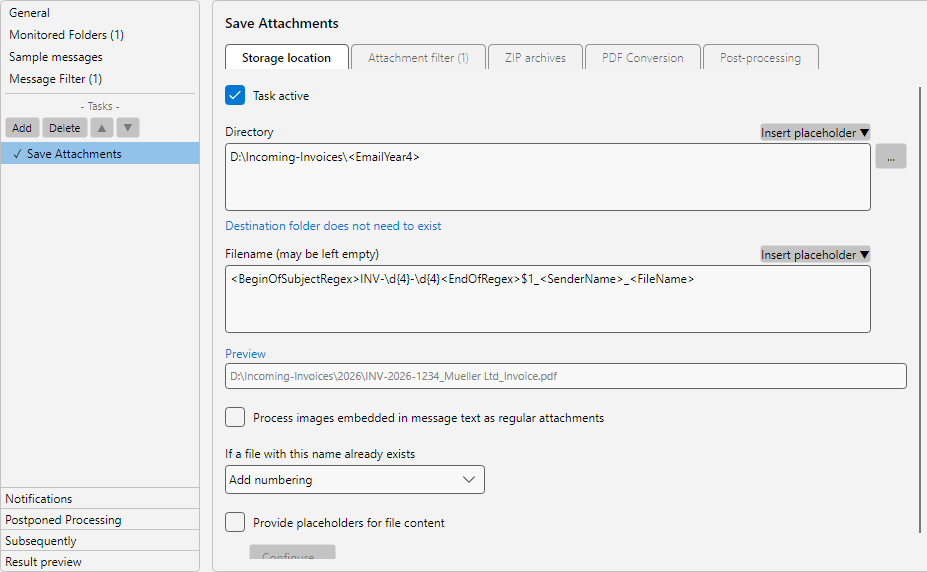 Regex placeholder in the file-name input field
Step 3: Check the preview
The Preview field shows the result for the currently selected sample message. Check two things here:
- Was anything found at all? If not, the spot stays empty.
- Does the found value match what you expect?
Tip: For the preview to show a meaningful value, the sample message selected on the Sample messages tab must have a subject (or body) that matches your pattern. If needed, load a matching sample message via the Add… button on the sample-messages tab.
Step 4: Pull several parts out of one find
Sometimes you want to use several pieces from one find separately - for example the year and the sequence number of an invoice. To do this, put brackets around the parts that should be returned individually:
INV-(\d{4})-(\d{4})
For INV-2026-1234 the program then finds:
- First bracket:
2026 - stored in $1
- Second bracket:
1234 - stored in $2
In the path you use the two values in different places:
D:\Archive\<BeginOfSubjectRegex>INV-(\d{4})-(\d{4})<EndOfRegex>$1\Document-$2.pdf
Result: D:\Archive\2026\Document-1234.pdf.
Note: If the pattern appears multiple times in the same mail (e.g. because the case ID is in both subject and body), the program uses the first find and ignores the rest. If the desired position is not the first find, tighten the pattern so that it only triggers in the right spot - e.g. with a more specific prefix (INV-\d{4}-\d{4} instead of \d{4}-\d{4}).
When the <BeginOf…>…<EndOfRegex> variant is not enough (e.g. because you need to narrow down the search region first, want to scan a file attachment, or also need a value transformation through a lookup table), the profile editor offers text extraction rules.
Open the rule editor from the profile menu Text extraction…. Each rule consists of:
- Source: message body or attachment (with file filter).
- Range from / to: search string or pattern that marks the beginning and end of the relevant section.
- Restriction: first / last X characters or regex applied to the narrowed range.
- Value transformation: optional lookup table for
code → plain text.
The finished rule is referenced through a placeholder such as <MRuleId:5(InvoiceNumber)> (for the message body) or <FRuleId:7(DocumentNumber)> (for a file attachment). A detailed description is provided in help chapter 70.2 (see Related topics).