35 Save to Database
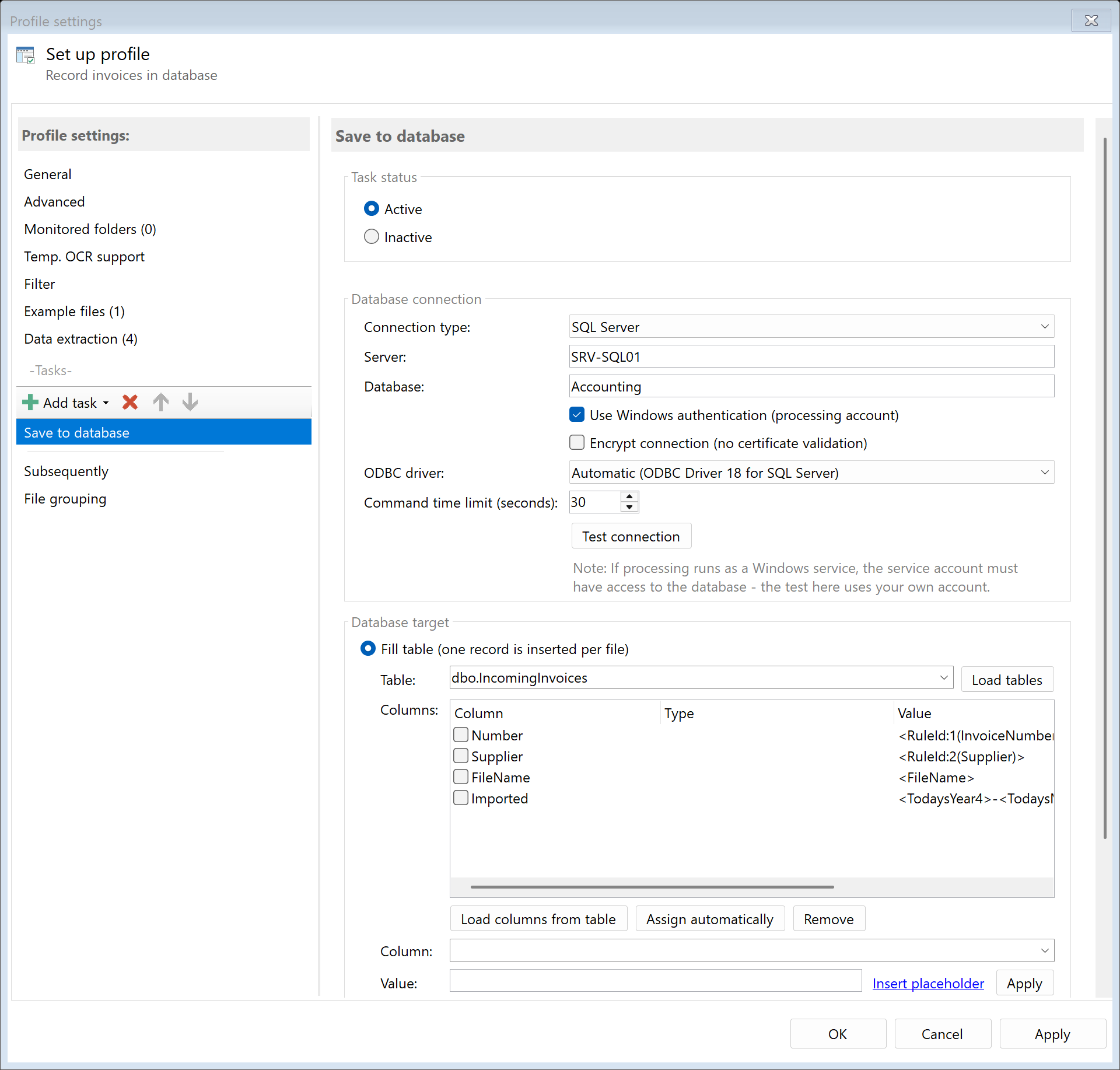 Task: Save to Database
35.1 Description
The Save to Database task writes one record to a database for each processed PDF file - for example the extracted invoice number, invoice date, amount and the storage location of the file. The connection is established via ODBC, so any database with an ODBC driver can be used (Microsoft SQL Server, MySQL, PostgreSQL, Oracle, Microsoft Access and many more).
You can choose between two ways of working:
| Mode |
Who it is for |
What you configure |
| Fill table |
Everyone who thinks "value X goes into column Y" - no SQL knowledge required |
Select the table, assign a placeholder to each column |
| Custom SQL command |
Users with SQL knowledge who want to use INSERT/UPDATE/MERGE or stored procedures |
Write the command yourself, with placeholders where needed |
In both cases the placeholders are not inserted into the command as text but passed as parameters during execution - with the proper type (dates as dates, numbers as numbers, everything else as text). Apostrophes or special characters in the values are therefore harmless, and the command stays protected against SQL injection.
Typical Use Cases
- Incoming invoice register: Number, date, supplier and amount of every incoming invoice are recorded automatically in the accounting database
- Document register: Storage location and metadata of every archived file are tracked in a table that other applications can access
- Handover to business systems: Extracted values are passed to an ERP or DMS system via a stored procedure
35.2 General Settings
Enabled
Enable this option so the task is executed for matching PDF files. Disabled tasks are skipped.
35.3 Database Connection
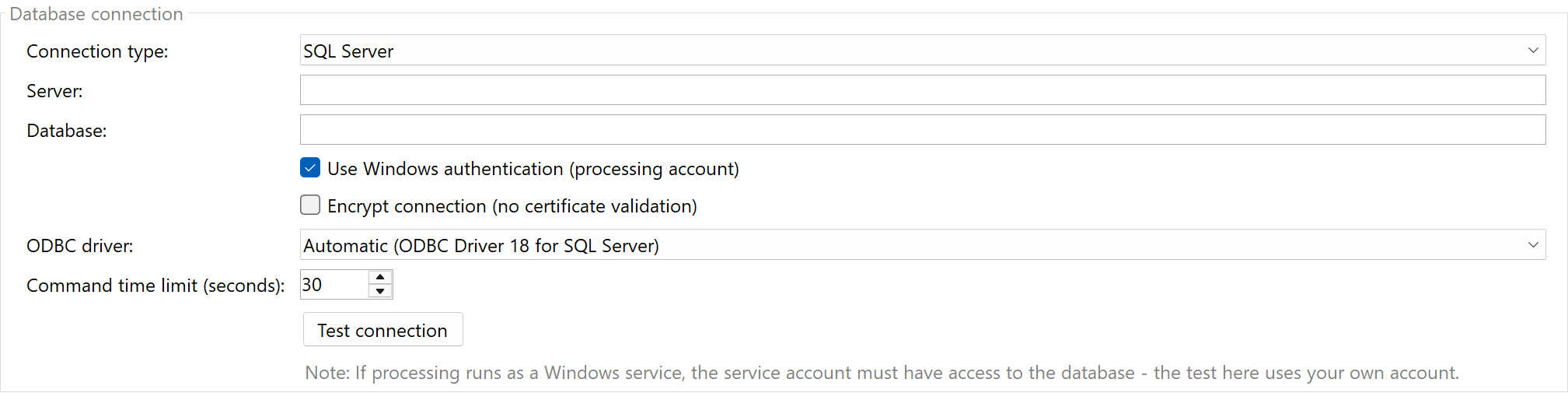 Database connection
Connection Type
| Connection type |
Description |
| SQL Server |
Server and database are entered as fields; the connection uses the best SQL Server ODBC driver installed on the computer. The driver included with Windows also reaches older servers (SQL Server 2008 and later). |
| ODBC data source (DSN) |
A data source configured in the Windows ODBC administrator. The list shows the existing system and user data sources. If the data source does not store a login, enter user name and password here. |
| Connection string (ODBC) |
A free ODBC connection string for all other databases, e.g. Driver={MySQL ODBC 8.0 Unicode Driver};Server=db01;Database=documents;UID=app;PWD=secret; |
Server and Database (SQL Server)
Under Server, enter the server name exactly as you use it in SQL Server Management Studio:
| Situation |
Entry |
| Default instance on this computer |
localhost (or the computer name) |
| Named instance, e.g. SQL Server Express |
COMPUTER\SQLEXPRESS |
| Server on the network |
SRV-SQL01 or SRV-SQL01\INSTANCE |
| Fixed port instead of instance name |
SRV-SQL01,1433 |
| LocalDB |
(localdb)\MSSQLLocalDB |
For a named instance without a fixed port, the "SQL Server Browser" service must be running on the server so the instance name can be resolved. Under Database, enter the target database (required) - without it, the connection would end up in the default database of the account, usually the system database master.
Login
For SQL Server you can use Windows authentication or enter a user name and password. Passwords and the free connection string are stored encrypted in the profile settings.
Important for Windows authentication: The connection is established with the account under which processing runs. If background processing runs as a Windows service, the service account must have access to the database - otherwise the connection fails even though the test in the user interface was successful.
ODBC Driver
By default the newest installed SQL Server driver is used automatically (ODBC Driver 18, 17, ...). For older servers that newer drivers no longer support - such as SQL Server 2008 - select an older driver here explicitly, if in doubt the "SQL Server" driver included with Windows.
Encrypt Connection
Newer SQL Server drivers can encrypt the connection. Since internal servers usually do not have a certificate trusted by Windows, the server certificate is not validated. Without this option the connection is established unencrypted (or "optionally encrypted" with driver 18).
Command Time Limit
Maximum time in seconds the database command may take (default: 30, 0 = unlimited).
Test Connection
Checks the entered connection data immediately and shows server, version and database. If the test fails, you receive the error message of the ODBC driver.
Note on 64-bit: Automatic PDF Processor is a 64-bit application and can only use 64-bit ODBC drivers and data sources. Data sources created in the 32-bit ODBC administrator do not appear in the list.
35.4 Database Target
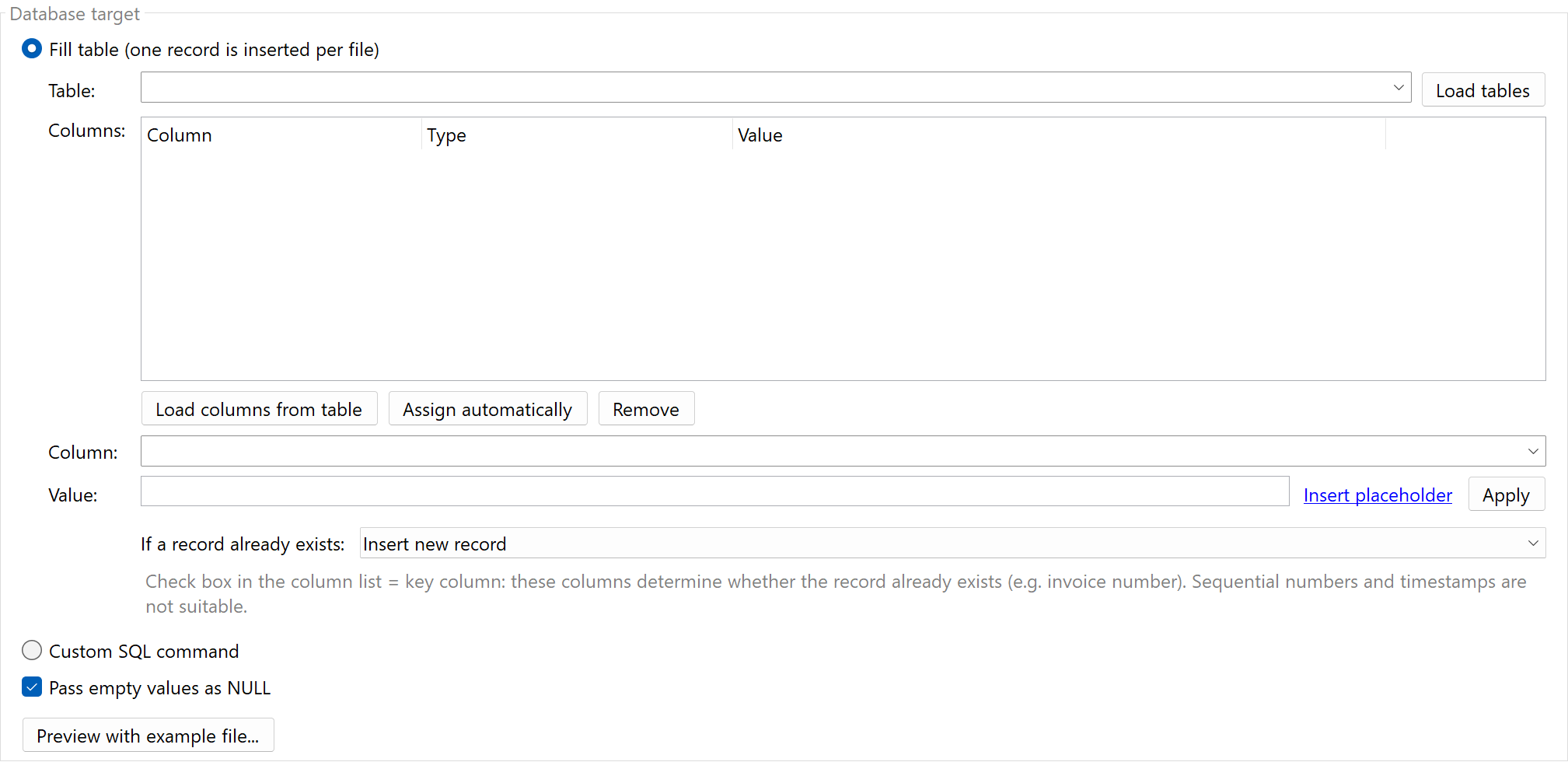 Database target
Fill Table
One record is inserted into the selected table for each processed file.
- Table: Enter the table name (with schema if required, e.g.
dbo.Invoices) or click Load tables to get the tables and views of the database in the drop-down list.
- Load columns from table: Reads the columns of the table with their data types. Columns that do not allow NULL are marked with
*; automatically generated columns (identity/autonumber) appear in gray and stay unassigned. You can also enter columns manually if the database does not provide a schema.
- Assign automatically: Fills all still empty columns whose name matches the name of an extraction rule or ends with it - prefixes such as
fld_ or col_, letter case and umlaut spellings (Zaehler = "Zähler") do not matter; FileName receives <FileName>. If all column names start with the same prefix (e.g. FLDINVOICENUMBER, FLDAMOUNT), this prefix is also stripped and the remainder compared with the rule names. With more than a hundred rules this saves the manual work; assign any unrecognized columns by hand afterwards.
- Assign a value: Select a column in the list, enter the desired placeholder under Value (via Insert placeholder) and click Apply. Columns without a value are not addressed by the insert - the database then applies its default (e.g. an automatic ID or the current date).
A value may also consist of fixed text and placeholders, e.g. Import <TodaysYear4>-<TodaysMonth> or INV-<RuleId:1(InvoiceNumber)>.
If a Record Already Exists (Duplicate Protection)
If a file is processed a second time - for example through the retry logic after an error in a later task, or during catch-up processing - a second record would be created. Therefore mark one or more key columns (check box) in the column list by which a record can be identified uniquely, e.g. the invoice number or file name plus supplier, and choose the behavior:
| Behavior |
Description |
| Insert new record |
No check - every processing run creates a record (default) |
| Skip |
If a record with the same key values already exists, nothing is written; the task counts as successful |
| Update existing record |
The remaining assigned columns of the existing record are overwritten |
Values that differ on every retry are unsuitable as keys: sequential numbers (rules with the data source "Sequential number") and processing-time placeholders such as <TodaysDay>. The program rejects such columns as keys with an explanation. When updating, columns with sequential numbers are not overwritten so the original counter is preserved; automatic ID columns of the database are not assigned anyway.
The check is performed before inserting, with the same correctly typed values (SELECT COUNT(*) ... WHERE key = ?), and therefore works the same way with every database. The preview shows the check and the insert or update command in sequence.
Custom SQL Command
Write the command exactly as you would execute it in your database and insert placeholders wherever values from the file should go - without quotation marks:
INSERT INTO Invoices (Number, InvoiceDate, Amount, FileName)
VALUES (<RuleId:1(InvoiceNumber)>, <RuleId:2(InvoiceDate)>, <RuleId:3(Amount)>, <FileName>)
Updates or calls of stored procedures are possible as well:
UPDATE Documents SET Archived = 1, Location = <ParentDirectory> WHERE DocumentNumber = <RuleId:1(DocumentNumber)>
EXEC ImportInvoice <RuleId:1(InvoiceNumber)>, <RuleId:2(InvoiceDate)>, <FileName>
Comparison operators such as < and > in the command are kept unchanged - only what the program recognizes as a placeholder is treated as one.
Pass Empty Values as NULL
If a rule does not return a value, NULL is passed by default. Disable the option if an empty text should be stored instead.
Preview with Example File
Shows the final command with the values of an example file of the profile (with several example files, select the desired one in the list next to the button) - including the data type of each parameter (text, date, number or NULL). This lets you see what will arrive in the database before the first processing run. Nothing is written to the database for the preview.
35.5 Notes
Data Types
Values of rules with data type Date are passed as dates, values of rules with data type Number as decimal numbers (decimal places are preserved), all other values as text. The target database therefore accepts date and number columns directly, regardless of the number or date format in the document.
Errors and Retries
If the database is not reachable or the command fails (e.g. because of a violated uniqueness constraint), the task reports an error. This triggers the retry logic of the profile: the file is processed again at the configured times - helpful for nightly maintenance windows of the database server. The driver's error message can be found in the processing details.
Order of Tasks
If the storage location or file name should be saved in the database, place this task after the "Rename" or "Move" tasks. The placeholders <FileName> (file name) and <ParentDirectory> (storage folder) then already reflect the final state; when filling a table, the combination <ParentDirectory>\<FileName> yields the full path.
One Record per File
The task writes exactly one record per file. If a document contains several receipts, split it first with the "Split PDFs" task and process the partial documents with a second profile containing this task.
35.6 Example: Incoming Invoice Register
Initial Situation
All incoming invoices should be recorded with invoice number, date, amount and storage path in the table IncomingInvoices of the accounting database.
Configuration
- Data extraction rules: "InvoiceNumber" (text), "InvoiceDate" (date), "Amount" (number)
- "Move" task: File to
\\SRV01\Invoices\<RuleId:2(InvoiceDate){Year4}>
- "Save to Database" task:
- Connection type: SQL Server, server
SRV-SQL01, database Accounting, Windows authentication
- Fill table:
dbo.IncomingInvoices
- Columns:
Number = <RuleId:1(InvoiceNumber)>, InvoiceDate = <RuleId:2(InvoiceDate)>, Amount = <RuleId:3(Amount)>, Location = <ParentDirectory>\<FileName>
Result
One record with correctly typed values is created for each invoice; the column Id with automatic numbering and the column Recorded with the default value "current date" are filled by the database itself.