32 Flatten Pages
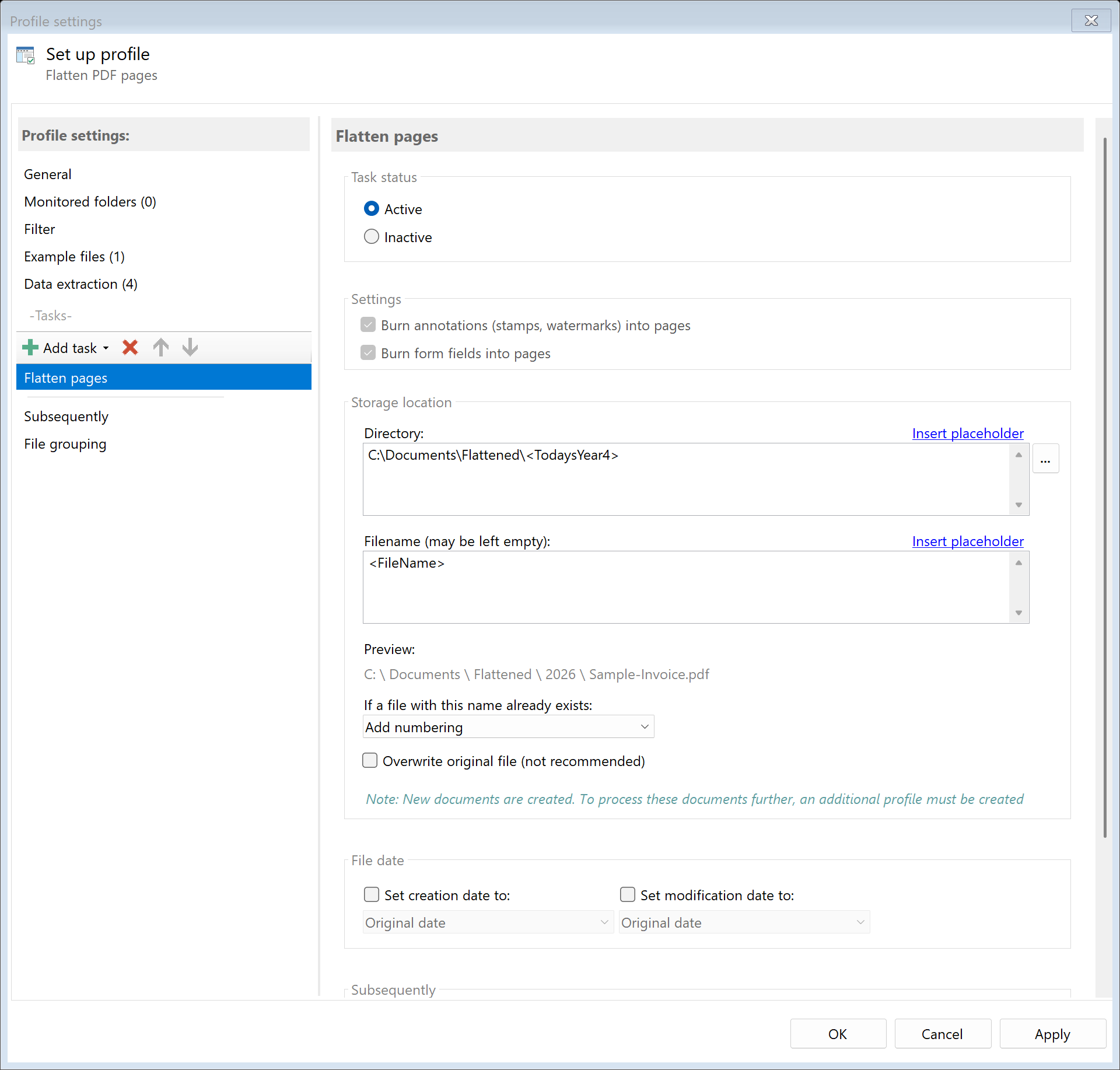 Task: Flatten Pages
32.1 Description
The Flatten Pages task permanently burns annotations and form fields into the page content of a PDF document. After flattening, these elements become a fixed part of the page and can no longer be edited or removed.
What Does “Flattening” Mean?
PDF documents can contain multiple layers: - Form Fields: Fillable text fields, checkboxes, dropdown menus - Annotations: Comments, highlights, stamps, freehand drawings - Page Content: The actual text and graphics of the page
Flattening converts form fields and annotations into page content. The separate layers are removed and merged into a single, non-editable layer.
Typical Use Cases
- Seal Forms: Fix filled-in forms so that entered values can no longer be changed
- Make Annotations Permanent: Permanently burn comments and markings into the document
- Increase PDF Compatibility: Ensure that the document displays identically in all PDF viewers
- Archiving: Convert documents to an immutable state
- Distribution: Prepare PDFs for distribution without recipients being able to edit form fields
32.2 General Settings
Enabled
Enable this option so the task is executed for matching PDF files. Disabled tasks are skipped.
32.3 Settings
 Settings
The “Flatten Pages” task requires no task-specific settings. All form fields and annotations in the document are automatically flattened.
Note: Flattening is an irreversible operation. After flattening, form fields can no longer be filled in and annotations can no longer be edited.
32.4 Storage Location
Directory
Specify the target directory for the flattened PDF file.
Note: It’s recommended to use a separate folder for each processing step to ensure clear separation.
Filename
Set the name for the processed file.
Examples:
| Input |
Result |
| (empty) |
Form.pdf (original name) |
<FileName>_flattened |
Form_flattened.pdf |
Name Collisions
Choose what should happen if a file with the target name already exists.
Overwrite original file
When this option is enabled, the source file is overwritten directly. The settings for directory, filename, and name collisions are ignored — the processed file replaces the original file at the same location.
Warning: This option is not recommended as the original file is irreversibly lost. Only use this option if you are certain that you no longer need the original.
Note: All subsequent tasks in the same profile will operate on the newly created (overwritten) file.
32.5 File Date
Adjust Creation and Modification Date
Optionally, you can change the file date of the processed file.
32.6 Afterwards
Call External Program
After flattening, an external program can be started automatically.
Parameters: Available placeholders: - <PathIncludingFilename> - Full path of the processed file - <ParentDirectory> - Path of parent folder - <Filename> - Filename
Initial Situation
Customers fill in PDF forms and return them. Before archiving, the forms should be sealed so that the entered values cannot be changed afterwards.
Configuration
- Enabled: Yes
- Directory:
D:\Archive\Forms\Sealed
- Filename:
<FileName>
Result
| Original |
Processed |
Application_Smith.pdf (with editable fields) |
Application_Smith.pdf (all fields fixed) |
32.8 Example: Fix Annotations Before Distribution
Initial Situation
Documents are internally annotated with comments and markings. Before distribution to external partners, these annotations should be permanently burned in.
Configuration
- Enabled: Yes
- Directory:
D:\Documents\External
- Filename:
<FileName>_final
Result
All comments, highlights, and stamps are converted to page content. Recipients see the annotations as a fixed part of the page but can no longer edit or delete them.
32.5 Tips and Notes
Order in Task List
Typically place “Flatten Pages” before tasks like Copy or Send Email, so subsequent tasks work with the flattened document.
Create a Backup Copy
Since flattening is irreversible, it’s recommended to create a backup copy first. Place a “Copy File” task before the “Flatten Pages” task.
Combination with File Protection
For maximum document security, you can combine flattening with the “Change File Protection” task: First flatten, then set a password.
If a PDF document contains no form fields or annotations, the task is still executed successfully. The document remains unchanged.