33 Auto-rotate Pages
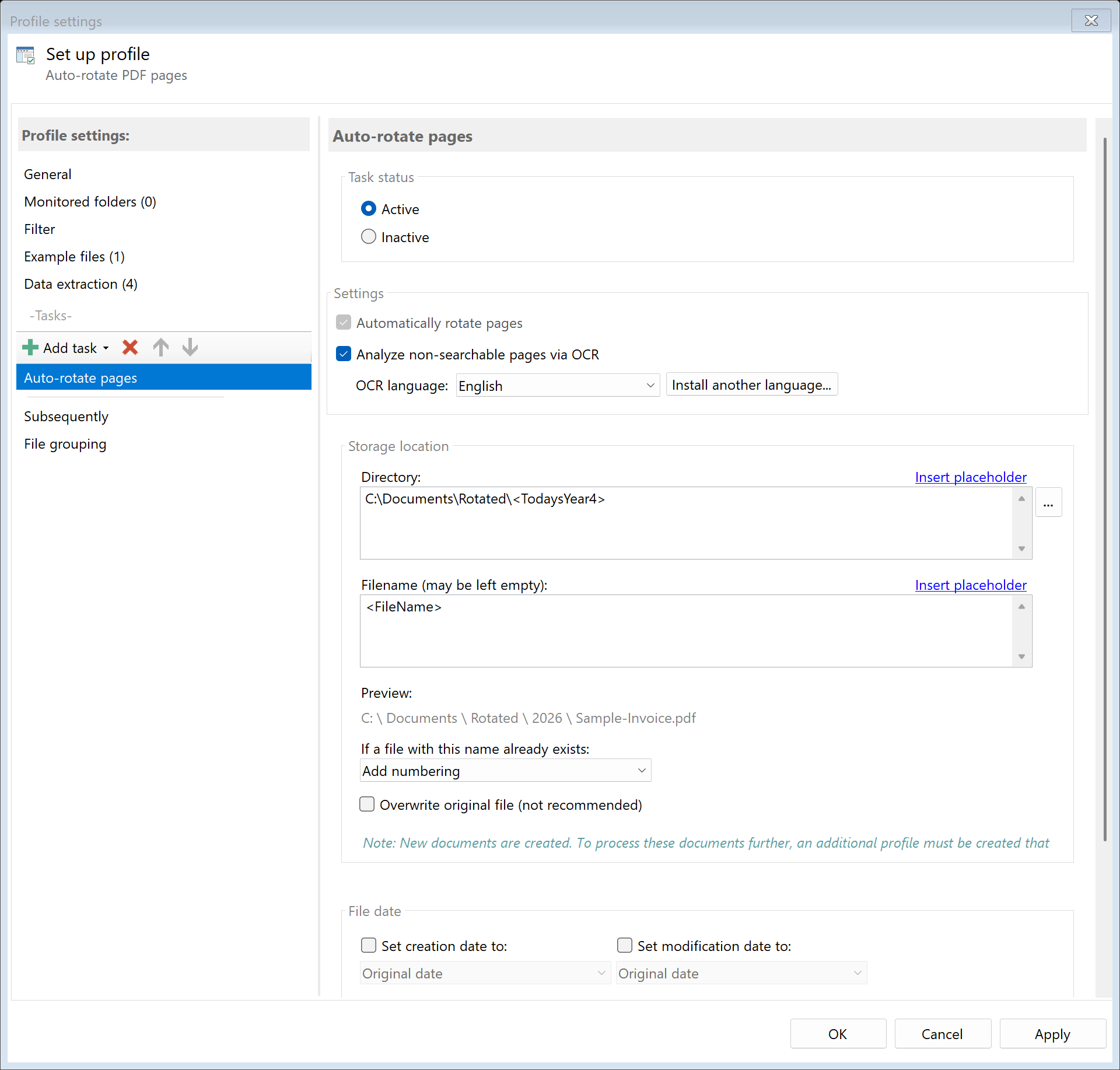 Task: Auto-rotate Pages
33.1 Description
The Auto-rotate Pages task detects the text orientation of each page and automatically corrects misrotated pages. Optionally, OCR text recognition can be used for non-searchable (image-based) pages to determine the correct orientation there as well.
Typical Use Cases
- Scanner Correction: Automatic correction of incorrectly fed or rotated scans
- Mixed Orientation: Standardize documents with portrait and landscape pages
- Batch Processing: Correct large volumes of scanned documents with varying orientation
- Archive Preparation: Bring documents to uniform orientation before archiving
33.2 General Settings
Enabled
Enable this option so the task is executed for matching PDF files. Disabled tasks are skipped.
33.3 Settings
 Settings
Use OCR for Non-Searchable Pages
Enable this option if your PDFs also contain image-based pages (e.g., scans without text recognition). In this case, OCR analysis is performed to determine text orientation.
Without OCR: Only pages with existing text are analyzed. Image-based pages remain unchanged.
With OCR: Image-based pages are also analyzed using optical character recognition and rotated if necessary.
OCR Language
Select the document language for OCR analysis. The correct language significantly improves recognition accuracy.
| Setting |
Description |
| Language |
The main language of the documents to be analyzed |
Note: The selected language must be installed. You can download additional languages via the Install Language… button.
33.4 Storage Location
Directory
Specify the target directory for the corrected PDF file.
Note: It’s recommended to use a separate folder for each processing step to ensure clear separation.
Filename
Set the name for the processed file.
Examples:
| Input |
Result |
| (empty) |
Scan_001.pdf (original name) |
<FileName>_corrected |
Scan_001_corrected.pdf |
Name Collisions
Choose what should happen if a file with the target name already exists.
Overwrite original file
When this option is enabled, the source file is overwritten directly. The settings for directory, filename, and name collisions are ignored — the processed file replaces the original file at the same location.
Warning: This option is not recommended as the original file is irreversibly lost. Only use this option if you are certain that you no longer need the original.
Note: All subsequent tasks in the same profile will operate on the newly created (overwritten) file.
33.5 File Date
Adjust Creation and Modification Date
Optionally, you can change the file date of the processed file.
33.6 Afterwards
Call External Program
After auto-rotation, an external program can be started automatically.
Parameters: Available placeholders: - <PathIncludingFilename> - Full path of the processed file - <ParentDirectory> - Path of parent folder - <Filename> - Filename
33.7 Example: Correct Scanned Documents
Initial Situation
A document scanner regularly produces PDFs where individual pages are misaligned — some are rotated 90° or 180°.
Configuration
- Enabled: Yes
- Use OCR for Non-Searchable Pages: Yes
- OCR Language: English
- Directory:
D:\Scans\Corrected
- Filename:
<FileName>
Result
| Original |
Processed |
Scan_001.pdf (3 of 5 pages rotated) |
Scan_001.pdf (all pages correctly aligned) |
33.8 Example: Landscape Pages in Mixed Documents
Initial Situation
Business documents contain both portrait text and landscape tables. For archiving, all pages should be uniformly aligned.
Configuration
- Enabled: Yes
- Use OCR for Non-Searchable Pages: No (documents are already searchable)
- Directory:
D:\Archive\Cleaned
- Filename:
<FileName>
Result
Landscape pages are detected and automatically rotated to portrait. The text orientation is correctly maintained.
33.5 Tips and Notes
When to Enable OCR?
Enable the OCR option only when your documents contain image-based pages (e.g., pure scans without prior text recognition). For PDFs that already contain searchable text, OCR is not required and would only slow down processing.
Choose the Right Language
The choice of the correct OCR language affects recognition accuracy: - Use the main language of your documents - For multilingual documents, choose the predominant language - For mixed batches (e.g., German and English), English works as a good compromise
Order in Task List
Typically place “Auto-rotate Pages” before other tasks like Copy or Send Email. It’s particularly useful before the OCR task, as correct page orientation improves OCR results.
Already Correct Pages
Pages that are already correctly aligned are not changed. The task only rotates pages where incorrect orientation is detected.
Backup Copy
Create a backup copy if needed by placing a “Copy File” task before the “Auto-rotate Pages” task.